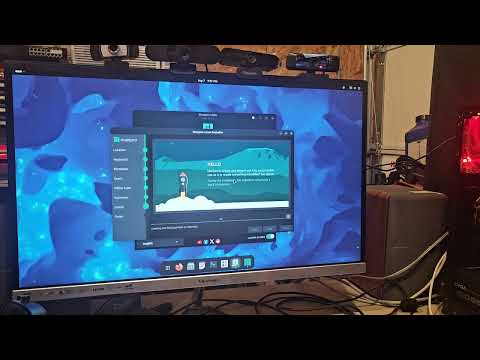
Oh man, there’s nothing more frustrating than when you’re all set to dive into a new operating system like Manjaro, and then bam! The ISO just decides not to boot. Like, seriously?
I remember this one time I was super excited to try out Manjaro after hearing people rave about it. I had my computer ready, the USB stick was good to go…and then it just didn’t start. Talk about a bummer, right?
But hey, don’t worry too much! This sort of hiccup is more common than you’d think. There are a handful of reasons why this might happen and thankfully some pretty straightforward fixes too.
Ready to get your hands dirty and set things right? Let’s see what could be causing all the fuss!
Manjaro GRUB Bootloader Repair Steps
Having trouble with your Manjaro GRUB bootloader? No stress, you’re not alone. GRUB, or the Grand Unified Bootloader, is what lets your computer know which operating systems are available at start-up. It’s like the friendly usher showing you to your seat in a theater. When it goes AWOL, things can get tricky.
So you’ve got your coffee and want to dive into this? Great! Let’s sort this out together.
Check Boot Order:
Sometimes the easiest fixes are right under our noses. Make sure that the boot order in BIOS/UEFI settings lists your **hard drive** as a priority over other devices like USB drives or network boots. You might need to hit F2, F10, or Del as soon as you power on to get there.
Boot from Live USB:
Create a live USB with Manjaro ISO if you haven’t done so already. This will be our lifeline for repairing GRUB.
- First, you’ll need to plug in your USB stick and restart the computer.
- Select it as a boot option.
Access Terminal:
Once you’re in the live environment of Manjaro:
- Open up a terminal window—think of it like Google’s command line for humans.
Identify Partitions:
Now we’ll identify where all our stuff is living.
- Type: `lsblk`
- This will list all partitions; find yours.
Mount Partitions:
Next up is mounting these friends so we can work on them.
“`bash
sudo mount /dev/sdXn /mnt
“`
Replace `/dev/sdXn` with the correct identifier for your root partition.
Chroot Environment Setup:
This chroot thing? It stands for “change root.” You’re basically telling Manjaro: “Hey act like it’s installed here.”
“`bash
sudo manjaro-chroot /mnt /bin/bash
“`
Restore GRUB:
It’s time to give life back into GRUB!
“`bash
grub-install –target=i386-pc /dev/sdX
“`
Here again replace `/dev/sdX` with proper disk descriptor without partition number (no n).
Afterwards type:
“`bash
update-grub
“`
This creates new configuration files based off current hardware setup & kernel updates!
If everything went smoothly—and I’m crossing my fingers here—exit:
“` bash
exit
umount -R /mnt
reboot
“`
Excitedly watching whether familiar login screen appears gives all techies goosebumps honestly!
If anything still doesn’t quite click after following these steps… breathe deeply before attempting anything further or reach out within forums/community sections filled with fellow users eager-to-help even wilder issues tackled daily!
Computers aren’t always pure logic… sometimes they act up just because they fancy doing so!
System Boot Failure Causes
Oh no, dealing with a system boot failure, especially when trying to get Manjaro ISO up and running, can be a real headache. Been there, struggled with that! But don’t worry—let’s go through some common causes and fixes together.
1. Incorrect Boot Order
- If your system is not set to boot from the USB or DVD where the Manjaro ISO is located, it simply won’t start.
- Check your BIOS or UEFI settings and ensure that the boot order prioritizes your USB/DVD drive before the hard disk.
2. Corrupted ISO Image
- A corrupted ISO file can make life difficult because it might not contain all necessary files for a smooth boot.
- Verify the integrity of your downloaded ISO using checksums provided on Manjaro’s website. Remember that even small errors during download can lead to big issues!
3. Faulty USB Drive or DVD
- If the media you’re using is damaged or not written properly, that’s definitely gonna create problems.
- Try using another USB drive or re-burn the image onto a new DVD if you suspect damage.
4. Insufficient System Requirements
- This is often overlooked—ensure your computer meets minimum requirements for Manjaro to function properly. It’s important!
- Laptops sometimes need additional BIOS configuration changes due to unique features like Secure Boot which should be disabled in many cases.
Now let’s tackle some specific fixes:
Fixing File Corruption Issues:
If you’re battling file corruption issues with that Manjaro ISO on a questionable connection—first redownload using reliable internet just in case there were hiccups during transfer process!
Tweaking Your BIOS:
This might sound technical (and kinda scary), but getting into BIOS and rearranging how devices are ordered by priority could solve everything! Make sure USB comes first—you’d literally watch things change!
These steps should guide ya through most common headaches folks encounter with Manjaro ISOs failing at boot times… Good luck! And hey—sometimes these little bumps can turn out being super useful learning experiences!
Creating a Boot Drive in Manjaro
Creating a boot drive for Manjaro might sound tricky, but hey, it’s simpler than you think! You just need a bit of patience and the right steps to follow. Plus, once you’ve got it nailed down, you’ll have quite the tech skill under your belt.
First things first, you need a Manjaro ISO file. This is basically like getting the ingredients ready before baking a cake. Head over to Manjaro’s official website and grab the ISO file that suits your system architecture.
- Select an Edition: You’ll find options like XFCE, KDE, and GNOME. They’re kinda like different flavors—choose whichever feels right for you.
- Download: Just click on the download link and let it do its thing. It’s usually around 2GB in size.
Once you’ve got the ISO file sorted out, you’ll need a USB drive. Make sure it’s at least 4GB; that’s generally enough space to hold everything.
Now comes the fun part: writing that ISO onto your USB stick with something called a bootable flash drive creation tool. A popular one I’d recommend is Balena Etcher.
- Open Etcher: Download and open Balena Etcher on your computer.
- Select Image: In Etcher, click on “Flash from file” and select your downloaded Manjaro ISO.
- Select Drive: The next step is to choose your USB drive from available drives.
- Flash!: Hit “Flash!” and watch as it creates magic—well not actual magic—but you get what I mean!
And there you go! Once this process finishes up without hiccups or errors popping up (fingers crossed!), you’re set with a bootable Manjaro USB stick!
But let’s pause for moment here because sometimes when trying these things out ourselves—we hit snags along way! Like if after following steps above—it still doesn’t boot properly? Could be few reasons behind such as incomplete downloads corrupted images faulty USB drives—you name it!
Here are some quick checks:
- Check Integrity: You know how sometimes stuff just doesn’t sit right? Run an MD5 checksum against downloaded image; verify matches expected hash value provided by official site ensuring download isn’t corrupted somehow—it happens more often than we realize folks!
- Troubleshoot BIOS/UEFI Settings: This part might seem daunting—it’s basically settings within device bios/uefi menu where changes done affect overall system startup order enabling/removing certain features allowing/preventing devices kick start processes required post powering machines take them further operational states those needed perform productively regularly efficiently so forth onwards…whew—that said try looking into secure boot toggles perhaps disabling/enabling legacy support modes depending requirements respective situations applicable environments they correspond require attention warranted circumstances entail significance imply importance subsequently logically appropriately gladly now then consider adjust these accordingly positively adequately momently pressingly lastingly satisfyingly willingly enthusiastically happily readily purposely personally bravely boldly unequivocally harmoniously nicely(whew!
Oh, the joy of a fresh start with a new operating system! You’ve planned some quality time to set up Manjaro, and bam—just when you’re about to dive in, the ISO decides not to play nice. It’s like planning a great road trip only for your car not to start. Frustrating, right?
When the Manjaro ISO fails to boot, it’s usually down to a few usual suspects. Think of it as trying different keys until you find the one that fits. One common hiccup could be an issue with how the ISO was burned onto your USB or DVD. If there’s even a small glitch there, things can go south fast.
Another thing could be Secure Boot settings in your BIOS or UEFI firmware. Security’s great and all but sometimes it acts like that overly cautious friend who won’t let you cross the street without checking both ways five times! Disabling Secure Boot might just do the trick.
Then there’s always hardware compatibility. Not all computers are equally friendly with every version of Linux out there—some are just plain picky eaters! Double-checking compatibility lists can save you from banging your head against that proverbial wall.
And don’t get me started on corrupted downloads! You ever download something only for it to glitch out because of some unseen problem during download? It happens here too; re-downloading might save you quite some headaches.
In my experience though, persistence is key here. Yeah, it may seem daunting at first—like climbing an uphill—but figuring these little things out makes success taste so much sweeter once everything works like clockwork again!
So if you’re staring at that screen amiss wondering what went wrong remember—it happens even to seasoned pros sometimes—and now armed with this knowledge maybe next attempt will be smoother sailing than before!