Oh man, isn’t it the worst when your Intel NUC just refuses to boot? You sit there staring at it, wondering what went wrong this time. I’ve totally been there—it’s like your day grinds to a halt, right?
So, picture this: you’re all set for a movie night or about to crush some work tasks, and poof! Your little powerhouse just won’t wake up. Frustrating doesn’t even begin to cover it.
But hang tight! You’re not alone in this tech conundrum. I’ve seen plenty of folks dealing with the exact same thing. And though it’s tricky sometimes, there are usually some simple solutions or explanations.
We’ll have a friendly chat here on what’s going on under the hood and how you can try tackle it without breaking too much of a sweat.
Intel NUC Hard Reset Procedure
We all have those moments when our trusty Intel NUC just won’t boot. It can be incredibly frustrating, right? Luckily, there’s a lifeline you can try: hard resetting your Intel NUC. Let’s walk through how to do it!
Why Consider a Hard Reset?
Sometimes your device might freeze or refuse to start. A hard reset can solve these stubborn issues by resetting the hardware settings back to factory defaults, which might help sort things out.
Steps for Performing a Hard Reset on Your Intel NUC:
1. Turn Off the Device:
Right, the first thing you need to do is ensure your Intel NUC is completely turned off.
2. Unplug Power Cable:
Remove the power cable from your device and give it at least 30 seconds. It helps clear any residual power that may linger in the system.
3. Locate and Press the Power Button:
Find that small little button on top of your NUC and press it down for about 10 seconds while it’s still unplugged. You heard me right—it might sound odd, but this helps discharge any remaining electricity inside.
4. Reattach Power Cable:
Once you’ve done that nifty trick with the power button, plug back in the power cable gently—no plugging things angrily here!
5. Power On Your Device:
Hit that power button once again and cross those fingers! If all went well, hopefully, you’re greeted with signs of life from your device.
Troubleshooting Tips If Things Don’t Work Out:
– Double-check if all cables are well-connected.
– Try different RAM sticks if possible; sometimes they act up!
– Borrow another monitor briefly—could be a display issue sneaking in there!
If none of these do anything miraculous—or even cause more trouble—you may want further help or repair options.
And there we have it! Sometimes our gadgets give us headaches—but hey isn’t technology wild? Always amazing having solutions at hand when sticky situations arise!
Intel NUC Boot Failure Causes
Experiencing a boot failure with your Intel NUC can be pretty frustrating. I’ve been there myself, poking and prodding at all the little things, just hoping it will start up again. Let’s explore some common causes and fixes for this issue.
- Power Supply: You know, sometimes it’s the simplest things that trip us up. Make sure your NUC is properly plugged into a working power outlet. Double-check if the power cable is securely connected to both the NUC and the power source.
- RAM Issues: Faulty or improperly seated RAM can prevent your NUC from booting. Have you tried removing and reseating the RAM sticks? It might sound silly, but doing so often resolves these kinds of problems.
- BIOS Corruption: If you’ve had a recent power surge or outage, your BIOS settings could have been corrupted. Thankfully, resetting them to their default settings might do the trick. Accessing BIOS usually involves pressing keys like F2 during startup—give it a try!
- Hard Drive Problems: A malfunctioning hard drive can also cause boot failures. If you suspect this is the case—you’ll want to check if it’s firmly connected inside its slot or try testing with another drive if possible.
Example:
I once had an old laptop that wouldn’t get past the start screen after an update—it turned out that reconnecting everything fixed it! Similarly, reseating components in your NUC could work wonders too.
- Cable Connections: Loose cables may lead to poor contact between components sending incomplete data signals through out board circuits leading device failures—securely attach any loose connections ensure steady flow across system buslines stabilizing operations across setup during use fixed issues permanently few attempts no doubt whatsoever!
- No Video Output:If nothing appears onscreen despite starting sounds indicating activity underneath lid open patience wait momentary lapse returning view attend behind scenes motion display flickering flash reboot cycle see signals light long view again present vision accord following latest installation updates happen occur naturally over time unfold gracefully seemingly inevitably resolve own pace eventually will!
I hope these ideas help bring some life back into that Intel NUC of yours! Hang tight—sometimes computers just need a little patience and attention to detail before bouncing back stronger than ever…
Intel NUC Boot Failure Causes
Alright, let’s dive into the world of Intel NUC boot failures. It’s always a bit frustrating when your trusty mini-PC decides not to wake up as it should, right? But don’t worry; we’ll figure it out together. You know that feeling when you want to stream your favorite show or finish up some work and suddenly, nada? No response from your Intel NUC. It’s like it’s giving you the silent treatment. Well, there are a few common reasons why this happens. Let’s break it down!
1. Power Issues
- Loose Connections: Sometimes it’s as simple as a loose power cable or an improperly seated AC adapter. Double check these connections.
- Power Supply Failure: Try using another power supply if you have one available; yours might be faulty!
2. RAM Problems
- Incorrect Installation: If you’ve recently added or changed RAM, ensure it’s properly seated in its slot.
- Faulty Modules: Bad RAM can keep things from booting up nicely. Removing modules one at a time can help identify if one is causing trouble an issue.
3. Hard Drive or SSD Issues
- Cable Connections: Make sure that all cables connected to your storage devices are secure and undamaged.
- SATA Power Problems: Use another SATA port if possible in case the current one has issues.
4. BIOS/UEFI Settings
- Mismatched Boot Order:, If the NUC attempts to boot from a non-bootable device first—you’ll need to check within BIOS that settings are correct so it boots correctly from where intended (like your lovely SSD).
- Bios Corruption Issue :, Sometimes things go haywire due accidental changes leading corruption files setting system refusing initiate proper sequence booting back-up latest working firmware version may solve problem effectively here.
.
.
And remember: keeping calm goes long way troubleshooting tech headaches! Worst case scenario?…reaching out friendly neighborhood computer hardware technicians might nature takes over wants tackle bigger hardware repairs require expertise handle delicate internal components gracefully stress free manner.
So hope got helpful insight dealing pesky Intel paralyzing episodes stagnant silence unexpected moments hope everything good luck friend!
Ah, the Intel NUC not booting. What a pesky little issue, right? You know, just the other day I had a friend call me in a bit of a panic. His trusty NUC refused to power on, and he was all set to dive into his favorite game. It’s like having your spotlight stolen just when you’re ready for the performance!
Now let’s chat about what could be going on when your NUC decides to take an unexpected nap. Sometimes, it’s as simple as that little power button not doing its job because it isn’t getting any juice. First thing’s first: check those connections! Make sure everything’s plugged in snugly.
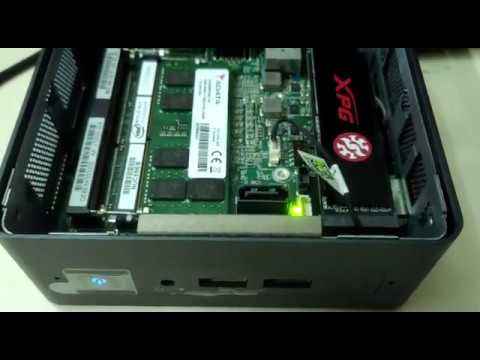
Then there’s the infamous RAM situation. These tiny sticks of memory can wiggle loose or get super dusty without you even noticing! Try reseating them by taking them out gently (after unplugging everything, of course) and then popping them back in carefully.
Another common hiccup can come from storage drives acting all grumpy. A faulty SSD can make your computer act up faster than you’d think—so if you hear weird noises or if it’s not recognized during boot-up, you might want to look into that.
And let’s not forget software troubles! Sometimes the BIOS settings go haywire for no apparent reason—or maybe during an update something didn’t quite go according to plan? Resetting BIOS settings back to default often helps shake things back into place.
But here’s something cool; many times these issues seem almost intimidating until you tackle them hands-on and realize they’re quite manageable.
In my friend’s case, he found one loose RAM stick lurking inside his NUC after some gentle investigation (and maybe a few choice words). Once he reseated it properly…bam! His powerful mini-machine was humming like new again!
Stuff like this reminds us how tech isn’t perfect but neither are we—and that’s totally okay too ‘cause fixing stuff makes using our gadgets feel all the more rewarding once they’re chugging along happily again!