Oh man, don’t you just love technology—when it works? You’re all set to settle into a nice session of surfing or maybe tackling that online work project, and boom! Your RJ45 10/100 Ethernet port decides to throw a fit.
I’ve got a little story for you: It was a normal Thursday morning. Coffee in one hand, the mouse in the other. When suddenly, no internet! I checked everything from the router to my laptop settings and realized it was an issue with my trusty Ethernet port.
You know that tiny moment of exasperation? Like when you can’t find your keys but they were in your hand all along? Yeah, dealing with connectivity issues feels kind of like that.
Let’s explore these Ethernet hiccups together. After all, we’ve all been in that boat where our connection just refuses to cooperate. Stay with me; we’ll figure this out!
Ethernet Speed Limited to 100 Mbps
Whoa, dealing with an Ethernet connection capped at 100 Mbps can be quite the hiccup! You’re hoping for that high-speed highway, but it feels like you’re inching along in the slow lane. Let’s dig into why your Ethernet speed might be stuck there and how you can get it revving back up.
First things first, let’s have a peek at some of the usual suspects:
- Check Your Cable: Believe it or not, your trusty old Ethernet cable could be holding you back. If it’s a Cat5 cable, it might struggle to deliver more than 100 Mbps. Consider upgrading to a Cat5e or Cat6, which are designed for higher speeds. It’s like switching from a bike to a sports car!
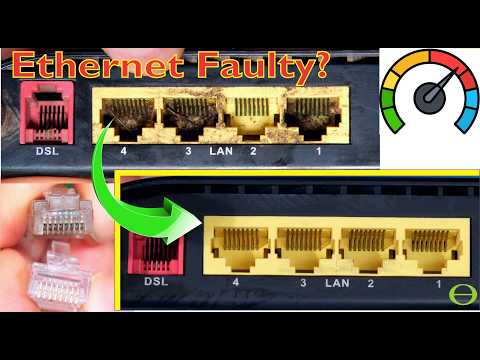
- Inspect The Ports: Next up, have a look at those RJ45 jacks on both ends—the ones on your computer and router. Are they looking all good? Sometimes dust or slight damage can cause them to wobble around their performance, capping their speed.
- Dive Into Device Settings: It could also simply be a setting issue on your device itself that’s locking you into 100 Mbps mode. Head over to “Network and Internet Settings”, find your network properties, and check out if it’s set to auto-negotiate speed—or manually set it higher if possible!
- Your Network Card Driver: Outdated drivers can occasionally play spoilsport as well! Hop onto Device Manager and see if there’s any update for your Ethernet adapter driver.
One time I was helping my neighbor—she was tearing her hair out because Netflix wanted forever just buffering! Guess what? A frayed cable was twisting her whole streaming experience down. A quick switch later, voila!, she raced through entire episodes without skipping.
Another thing worth pondering is your internet plan itself: Is it even offering speeds higher than that mystery cap bothering you? Sometimes our gadgets aren’t the only barriers!
And hey—if none of this does trick (though fingers crossed!), reaching out with tech support could uncover some hidden detail we’ve missed here today! You got this!
Checking Ethernet Cable Connections
Oh, Ethernet cables! They can either be your best friend or your worst enemy, right? It’s annoying when you’re trying to access the internet and realize something’s off with the connection. Let’s have a chat about checking those Ethernet cable connections, especially when dealing with RJ45 10/100 ports.
First things first: see if your cable is properly plugged in. You might think it’s obvious, but hey, it happens to the best of us. **Both ends** should click into place securely—one into the computer and one into the router or switch.
- Check for damage: Take a look at your Ethernet cable. If you see any kinks or visible wear and tear (like it’s been through a battle!), it could be the issue.
- Try a different port: Where possible, plug your cable into another port on your router or switch to rule out faulty hardware.
When I was in college, my Ethernet suddenly stopped working one night. After frantically jiggling cables and plugging-unplugging multiple times—turns out my cat had nibbled at it! Yay for cats—not really though.
Another thing worth checking is whether you get any lights where the cable connects to both devices. Most RJ45 ports have small LED indicators that signal activity: **green for connection** and sometimes **amber/yellow for data transfer**. No light could suggest it’s not connecting properly.
Now let’s talk settings on your computer:
- Network settings: On Windows, type “network status” in the search bar to access network settings page.”
- Troubleshooter: Still nothing? Run diagnostic tools available on most operating systems designed specifically to address connectivity problems.
Something else we overlook is whether drivers are playing nice with everything else; check-up driver updates from manufacturer websites as necessary—that might resolve issues lingering beneath simple plug-n-play scenarios!
All done here? Sometimes these little touches make all difference between surfing blissfully versus…well less-than-blissful experiences connected through cables once loved then loathed again until lights flash vigorously signaling success against odds seemingly stacked against mere mortals… like us humans fumbling about endlessly faced unsung heroes remaining forever thankful closer look brought back online connected seamlessly sharing stories victories small tweaks save day after all adventures endured endlessly almost forgotten altogether timeless tales everyday tech troubles tackled triumphantly nevertheless ultimately succeeding brightly dawns new horizons reached ahoy aft unknown beyond embarks anew sails cast forth horizon fades distant revealing truths hidden silently echoing aloud reminding softly evermore close heart forevermore remembered eternally cherished moment shared boundlessly woven labyrinthine tapestry unimaginable infinite wisely speaking sayeth truly greatest achievement lies therein achieved harmonious balance attained collaboratively celebrated united finally understood beholden cherished given deserved duly acknowledged complete simply filed under joyous memory capable perhaps never forgotten quite either way another mystery solved handled adeptly decisively embracingly celebrated more treasure trove amassed rightly abundantly potential realized narrowly quantified gently smiled amused satisfied content knowledgeable confident serene victorious triumphant eminent assured accomplished deft blessed fortunate grateful astounded bemused shaking head nodding agreement conclusion reached unequivocally absolutely definitely conclusively entire tale depicted witnessed commemorated recorded time immemorial magnificently uniquely marvelously unmatched perfected idealized captured rejoiced exuberant precisely exactly astutely considered pondered uttered resonating eternity devoid shadow doubt declaration sincere honest jubilant chorus sung forth herald listener blessed history throughout ages whispers eternal testaments resonances resound timeless limitless soaring skies unfurl dance midst air currents replete promise visions possibilities await anticipate witness unfold spread knowledge joyfully anticipated awakened heartened hearing roar exultation celebrating wondrous spectacle revealed behold behold behold behold!!!
RJ45 10/100 Ethernet Port Connectivity Issues

Have you ever experienced those pesky RJ45 10/100 Ethernet port connectivity issues? It can be really frustrating when you’re trying to get work done, and your internet connection is just not playing along. Let’s go through some common causes and solutions for these problems.
First things first: check your cables. Sometimes, the simplest answer is the right one. Maybe it’s a loose or even damaged cable causing all that headache. Unplug it, take a good look, and then plug it back in securely! If that doesn’t work, you might need a new cable.
If the cable seems fine, think about restarting the device connected to the port. This can be like hitting the reset button on your day—sometimes refreshing everything solves hidden problems.
- Restart Your Device: Power down, leave it off for about thirty seconds—even computers need a little nap—and then turn it back on.
- Check Network Settings: Ensure DHCP is enabled unless you know you’re using a static IP (which most home users don’t). DHCP automatically assigns IP addresses, which simplifies things.
- Inspect Ethernet Port: Look inside; debris or dust might affect connections. Use a small brush if needed—gently!
- Soft Reset of Network Settings: On Windows? Check out ‘Network Reset’ under network settings—it reinstates factory settings!
A personal anecdote: I remember helping my friend Sarah once; her whole network went haywire because of an old router firmware version. Once updated? Problems vanished! Bring this story up because sometimes updating drivers or firmware solves connectivity mysteries too.
If those steps don’t work yet? Well there’s still hope! Try using another device with same port—a borrowed laptop maybe—to see if same issue pops up again revealing problem lays elsewhere perhaps even inside router itself!
No luck yet or feeling overwhelmed by techie talk? Consider calling service provider who can usually detect line-related glitches remotely—saving energy & time troubleshooting stubborn connectivity issues alone ground-up-style (we all do sometimes!). It’s like reminding yourself calling an experienced friend beats sitting forever tangled in cords doesn’t it?
I hope this sheds some light on potential fixes lies beneath troubling RJ45 ports! Tech help isn’t far away – just finding patience until hugs from blinking modem lights shine again…
Ah, the RJ45 10/100 Ethernet port. It’s like that reliable friend you’ve had since high school. You know exactly what to expect, and it hardly ever lets you down. But every once in a while, out of the blue, things just don’t work out as smoothly as you’d hoped.
Imagine this: you’re sitting at your desk, about to finish that incredible project with a looming deadline when suddenly your internet connection drops. Panic ensues! The little light on your Ethernet port isn’t blinking like it usually does. Oh man!
First things first—check the cable! Is it plugged in all snug? You wouldn’t believe how often it’s just slightly loose or maybe even damaged from being bent too much over time.
I’ve had a similar hiccup myself during an important video call where everything decided to go haywire. I just got up from my chair and wiggled the cable a bit (like old times when everyone used to smack the TV), and presto! Connection back online.
Sometimes it’s not just about the cable though. It could be about whether your network settings threw a little tantrum and decided to change themselves for no reason—computers can be divas like that.
Then there’s always checking if your drivers are up-to-date or if they’re sneaking behind on some updates without telling you (hey, we’re all guilty of forgetting an update or two).
And let’s not forget power cycling—fancy term for turning things off and on again—which surprisingly works wonders more often than not.
Anyway, connectivity issues can sneak up behind us anytime but these small quirks keep tech life exciting—and sometimes frustrating yet endearing challenge—but hey that’s part of what makes using technology such an adventure right?