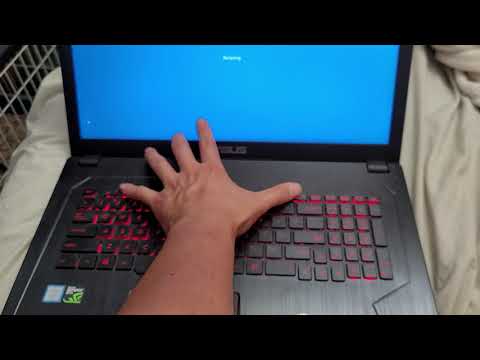
Oh man, there’s nothing quite like the frustration of your keyboard hotkeys deciding to take a vacation, huh? If you’ve got an ASUS laptop and suddenly find those handy hotkeys (you know, the ones that save you precious time) aren’t working, you’re definitely not alone. You’d be surprised how many people run into this little hiccup.
Now, think about all those times you relied on them for quick brightness adjustments or turning the volume up during your favorite song. Annoying when they’re out of commission, right? But fear not! There’s this quirky thing called the ASUS ATK Package that might just be your new best friend.
Stick around for a bit and we’ll sort this out together. It’ll be like chatting over coffee — but about tech stuff!
Installing ASUS Keyboard Hotkey Driver ATK Package
Getting your ASUS keyboard to function perfectly with all its fancy hotkeys involves installing the ASUS Keyboard Hotkey Driver ATK Package. This package is like the secret ingredient that makes those extra keys on your laptop sing in harmony with the system. Let’s walk through this together, nice and easy, and by the end, you’ll have those keys responding like a dream.
First things first—find out which version of Windows you’re running on your laptop. Why? Because each version might need a different driver version. You can check this by right-clicking on ‘This PC’ or ‘My Computer,’ then selecting ‘Properties’. You’ll see if it’s Windows 10, 8, or another version.
Here’s what you need to do:
- Visit the ASUS Support Website: Head over to the ASUS support page. Simply enter your model number there. It’s often written underneath your laptop if you’re not sure where else to look.
- Download the ATK Package: This file is what we’re going for! Look under Drivers & Tools once you’ve found your model. Choose the correct operating system, then hit download for the ATK package.
- Run as Administrator: After downloading it, find it in your Downloads folder. Right-click and select “Run as administrator”—that gives it all necessary permissions.
- Follow Installation Prompts: A setup wizard will pop up now (exciting!). Just follow along with what it says—hit next until finish appears.
- Restart Your Laptop: Once installed successfully… Time for a quick restart! It helps everything settle into place so functions properly afterward.
Let me tell you about my friend Lisa—a total tech novice who decided not to restart after installing drivers once; she lost herself quite literally trying to figure out why her keyboard wasn’t playing ball anymore! Moral being: always restart folks—it really makes magic happen!
And after these steps there should be joyful typing happening without any hiccups whatsoever using those fancy keys again—that’s basically why we did this whole exercise right? Seriously though—if something seems off during installation process just drop us an extra question below—we’d love helping untangle knots when needed along way too!
Fixing Asus ATK Package Hotkey Malfunction on Windows 11
Hey there! So, you’ve got an Asus laptop with some hotkeys not playing nice on Windows 11? Man, it can be such a hassle when the volume or brightness controls just give up on you. But don’t worry, this is a common issue and it’s usually tied to the ATK Package software. It’s like the “glue” that makes your fancy function keys work.
What is the ATK Package?
The Asus ATK Package is a driver utility that mainly deals with hotkey-related functions. It ensures you can use those little shortcuts on your keyboard without any hiccups.
Here’s how you can fix it:
- Update or Reinstall the ATK Package: Sometimes things just need a little nudge, right? Head over to the official Asus website and grab the latest ATK package for your specific model, compatible with Windows 11. Once downloaded, uninstall the old one via Control Panel (by going to ‘Programs and Features’), then install this new version.
- Run Windows Update: This is something we often overlook—updates can include fixes for these pesky problems. Go to Settings > Update & Security > Windows Update, then click ‘Check for updates’. If there’s anything new waiting for you, get it installed.
- Tweak BIOS Settings: It might sound scary but sometimes updating or resetting your BIOS can bring back those stubborn hotkey functions. If you’re unsure about fiddling with BIOS settings consult someone who’s familiar before proceeding.
- Device Manager Check-up: Open Device Manager through Start Menu search and look under ‘Keyboards’ or ‘Human Interface Devices’. Right-click anything related to “Asus” or “ATK” series drivers—it should give an option like ‘Update driver’ which could also solve dependency issues.
Look after trying all of these if things still haven’t perked up… maybe it’s time we think outside typical solutions—sometimes only tech support will have additional tools needed.
Hoping one of these steps gets those keys back in action! Keep me updated; computers are tricky beasts but together nothing’s impossible!
ATK Package Keyboard Hotkey Malfunction Fix
Sure, let’s unravel the mystery of that tricky ATK Package keyboard hotkey malfunction. You know how it is—sometimes the keys just decide to take a holiday at the worst moment. Let’s dive into this and see if we can bring those wayward keys back to life.
First off, it’s helpful to know that the ATK Package is a fancy set of drivers and utilities developed by ASUS. These are responsible for making your keyboard’s hotkeys do their magic tricks, like adjusting volume or brightness without needing extra software.
Now, what happens when these hotkeys stop working? It can be frustrating! But don’t worry, let’s roll up our sleeves and tackle this.
- Check for Updates: Sometimes all it takes is an update. Head over to the ASUS support website. Look for any updates relevant to your model; maybe there’s a new ATK Package version waiting in line.
- Reinstall the ATK Package: Uninstalling and reinstalling may sound cliché, but it often works wonders. Go to Control Panel > Programs > Uninstall a program. Locate “ATK Package” and uninstall it.
- Restart Your PC: Once you’ve uninstalled it, give your PC some breathing room with a restart.
- Re-download and Install: After restarting, re-download the latest version of ATK from ASUS’s website and install it afresh.
Think back: Remember that time when you fixed something by simply giving it some fresh air? That’s kind of what’s happening here!
Another thing worth checking:
- Bios Update: Sometimes BIOS updates include tweaks needed for utilities like ATK to work smoothly with your hardware.
Take these steps lightly though; BIOS updating can be risky if not followed correctly.
If those keys still refuse to get back in line after this little adventure—it’s possible there’s more happening under the hood than meets the eye (or finger). Getting professional eyes on might help solve deeper issues rooted inside hardware connections or unique software conflicts specific only due details related individual usage pattern setup etc…
And hey—even pros need help now & then right?! Let’s hope everything clicks together as simple piece advice found here…. May journey smoother keypresses begin again soon enough!.
Ah, the frustration of keyboard hotkeys deciding to take a day off just when you need them the most. It’s almost like they have a mind of their own, isn’t it? Picture this: you’re in the middle of an important task, rushing to finish up something before a deadline, and bam! Your volume controls or brightness keys simply stop responding. It can feel like the universe is testing your patience.
Now, if you’re riding with an ASUS laptop and facing hotkey issues, chances are you’ve run into a hiccup with the ATK Package. This little software is supposed to help your function keys interact smoothly with your hardware. Kind of like how an interpreter works between two people speaking different languages.
Really, it’s fascinating how one small piece of software can hold such power over those tiny keys we hardly think about. But when they decide not to cooperate? Oh boy… Annoying as it might be when things go wrong with technology, it’s amazing how we can usually find ways around these issues too.
To get those rebellious hotkeys back in line—you’d probably start by reinstalling or updating that ATK Package. Honestly though, sometimes just rebooting your laptop does wonders. It’s like giving it a fresh cup of coffee!
And hey—don’t forget to run Windows Update while you’re at it; sometimes that’s all it takes! I remember once spending hours fiddling around with settings until I realized there was an update pending because my system was being stubborn!
Fixing tech problems is often about patience and persistence mixed together (with maybe some chocolate on hand). At times they’re simple fixes; other times they require digging deeper—but either way there’s always something rewarding about finally seeing everything work again smoothly… kind of like completing a jigsaw puzzle where every piece falls into place perfectly.
So next time pesky keyboard issues crop up remember—you’ve got this! Sure seems daunting but unraveling these mysteries step by step turns out quite satisfying afterall!