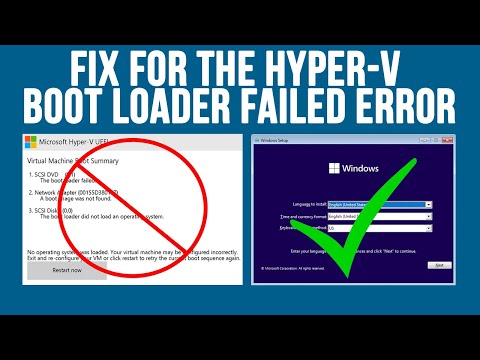
Oh man, there’s nothing quite like the frustration of a virtual machine that just won’t boot up, right?. You’ve got your coffee in hand, Monday morning vibes are strong, and all you’re aiming for is to get stuff done. Then bam! Hyper-V throws you a curveball.
I’ve been there too. It’s like your computer’s playing hide and seek with your productivity! Instead of diving into what you planned, here you are troubleshooting this hiccup. Don’t sweat it though—things like this happen more often than you’d think.
Let’s sort through it together and get those virtual wheels spinning again. It’s going to be okay—we’re on this journey side by side!
Hyper-V Virtual Machine Boot Error Causes
Hey there! Dealing with a Hyper-V virtual machine that’s refusing to boot can be really frustrating, right? These hiccups come from various reasons, and I’m here to help you figure out what’s going on. Let’s see what’s behind these boot errors.
- Corrupted VHD files: Virtual Hard Disk (VHD) files are like the virtual machine’s brain. If they get corrupted, it’s like trying to read a book with missing pages—no wonder things go wrong!
- Insufficient resources: Have you ever tried running too many tasks on your computer at the same time and everything just *slows down*? The same happens with Hyper-V if you don’t allocate enough RAM or CPU for your virtual machine.
- Configuration errors: It’s kind of like setting up a jigsaw puzzle. If something’s not right in the settings—like boot sequence or network adapters—not much can work properly.
- Hypervisor issues: Sometimes, it’s not even the virtual machine but rather Hyper-V itself acting up! Ensuring your host system is up-to-date helps keep this under control.
- Driver mismatches: You know how annoying it is when your old printer doesn’t match with new software versions? Yeah, that happens here too when drivers in the VM don’t play well with each other.
Troubleshooting Tips: A personal story—I once spent hours on a boot error only to find out it was simply an unchecked configuration option! Double-checking those settings may save you some headaches.
Example Solutions: An easy fix sometimes comes from small changes. Checking if you’re providing enough resources or simply recreating a potentially corrupt VHD can do wonders.
Remember, patience is key when unraveling these technical tangles! Make small changes one at time so you know exactly what fixed things if everything starts working again.
Checking Hyper-V VM Boot Failures on Windows 10
I get it, dealing with tech issues can be super frustrating. Especially when your Hyper-V VMs decide they don’t want to boot up. Let’s walk through checking out why this might be happening on Windows 10.
Understanding the Problem: Imagine this—you’ve got a virtual machine (VM) set up just the way you like it, all snug in Hyper-V. Then, for no apparent reason, it refuses to start. This is common and usually tied to a few specific causes.
- Insufficient Resources: Sometimes your computer just doesn’t have enough muscle left—like RAM or CPU power—to give what’s needed for the VM. Check that you’re not maxed out.
- Configuration Errors: If you’ve made changes or updates recently, there might be a misconfiguration somewhere sneaking in causing issues.
- Corrupted Files: Oh man, corrupted files are never fun! These can cause boot failures if something within the VM files themselves has gone bad.
Taking Action: Step by Step
First step: Check out what happened right before things went wonky. Did you install new software or updates? These actions could lead to compatibility troubles with your Hyper-V setup.
Here’s one trick that’s often overlooked:
- Event Viewer Logs: Use Windows Event Viewer—it’s that detective tool in your toolbox that helps pinpoint system errors or warnings related to Hyper-V operations.
To access Event Viewer:
1. Click on “Start”, type in “Event Viewer” and hit enter.
2. Navigate through logs related specifically to Hyper-V under `Applications and Services Logs > Microsoft > Windows > Hyper-V`.
Now let’s talk about settings because even tiny tweaks matter:
Tweaking VM Settings:
- If resources are spread too thin:You may need adjustments in allocation; lower assigned memory amounts if existing allocations are overwhelming your physical capabilities.You can find these under VM settings within “Memory”.
- Screwy configurations?: Recheck Network Adapter & Hard Drive links ensuring they’re pointing correctly without any disconnected references lingering around from past setups gone awry!
- Corrupted Virtual Hard Disk (VHD): Sometimes the VHD file may get corrupted due to improper shutdowns.
- Configuration Issues: Incorrect settings in Hyper-V Manager can cause headaches.
- Lack of Resources: Your host machine might not have enough memory or processing power.
So folks next time those pesky VMs play dead at launch fear not!
Windows 7 Hyper-V VM Boot Error Analysis
Hey there! So, you’re dealing with a Windows 7 Hyper-V virtual machine (VM) boot error? I can help you figure this out, no worries. It’s like when you swore you’d put your keys on the kitchen counter, but they magically ended up in the fridge. It happens!
Understanding Boot Errors:
Hyper-V boot issues can be puzzling. Imagine your favorite book’s pages were suddenly shuffled around – quite chaotic, right? A VM might fail to boot due to missing files, corrupted configurations or incorrect settings.
Common Causes:
Here’s a list of usual suspects that might play a role:
Troubleshooting Steps:
1. **Check Event Viewer:** Start by looking at any Hyper-V related entries. It’s like reading the logbook for clues.
2. **Inspect VHD Files:** Make sure they’re healthy. If they’ve been through rough times, consider restoring from a backup.
3. **Review Configuration Settings:** Open Hyper-V Manager and double-check your VM’s configuration – memory allocation, network settings and such.
4. **Resource Allocation:** Ensure the host has enough resources available for running the VM smoothly.
5. **Attempt Repairing Windows Installation:** Boot into recovery mode within the VM and try repairing it just like you would with any other Windows installation.
6. **Backup & Restore:** If all else fails—like holding onto hope after losing on karaoke night—consider restoring from a previous backup.
An Example Configuration Check:
Let’s look at something simple but often overlooked: Is your BIOS set up correctly in Hyper-V Manager? For instance:
– Navigate to your VM’s “Settings”.
– Under “Firmware”, make sure that your VHD is listed and prioritized properly under “Boot Order”.
Working through these steps will shine some light on what’s causing that pesky boot error – kind of like finally remembering where you parked after circling around for ages!
Feel free to explore these ideas further until everything is back up without problems; technology sometimes just needs gentle nudging in right direction!
Ah, Hyper-V virtual machines, right? They’re like tiny magic boxes of wonder that let you run so many different operating systems on a single machine. Pretty cool when they’re working fine. But sometimes they just don’t want to boot up, and it can really throw you for a loop.
I remember this time when someone I knew was setting up a series of virtual machines for a testing environment. Everything seemed to be going smoothly until one day, bam! One VM refused to start. Panic ensued. There were thoughts of lost data and long nights ahead trying to fix the darn thing.
Usually, the first step in solving these pesky boot failures is checking the configuration settings on your VM. You’d be surprised how often something as simple as an incorrect memory allocation or a wrong boot order can cause issues. It’s like forgetting to put gas in your car before a long trip—easy oversight but crucial.
And then there’s the event logs! These are treasure troves of information where you might stumble upon error messages giving clues about what went wrong. I always picture them like detective clues scattered around a crime scene—just waiting for someone smart enough (that’s you!) to piece them together.
Another common hiccup could be related to corrupted VHDs (those virtual hard disks). Say you’ve got one that’s been jostled around too much—it can easily start acting up and prevent boots from happening smoothly.
For folks who’ve dealt with physical hardware failures before: often it’s no different with VMs; sometimes it just takes unplugging—or detaching—a resource and reattaching it again fresh. And boom! It solves everything like magic!
Truth is though, tackling Hyper-V boot failures needs patience and persistence—the kind that makes tech pros seasoned experts over time… Or at least earns them some good coffee breaks after successful troubleshooting sessions! And finally—you know—never underestimate reaching out for help or sharing experiences online; there’s always others who’ve faced similar challenges ready with words of wisdom…