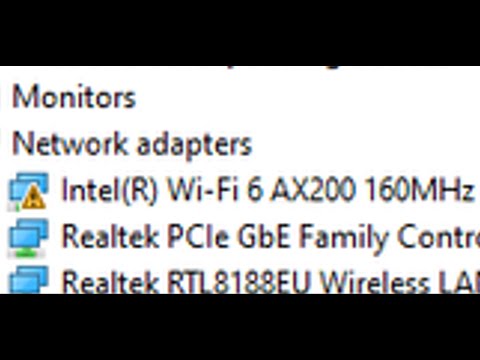
Oh man, nothing’s worse than when your Wi-Fi just doesn’t want to play nice, right? You’re sitting there with your Intel AX200 ready to conquer the online world on Windows 10, but instead… crickets. I feel your pain—it’s like planning a road trip and realizing your car won’t start!
So, let’s say you’ve got this snazzy Intel AX200 card. It promises super-fast Wi-Fi speeds, smooth streaming, the whole shebang. But every time you try to connect, nada. This thing could make anyone tear their hair out.
Imagine you’re all set for a cozy movie night or an important video call with grandma. And then boom—the connection’s gone AWOL! Total mood killer.
Don’t sweat it too much though. You’re definitely not alone in this one! There are some easy tricks we can try to get this little gremlin sorted out.
Ready to fix this once and for all? Let’s see what’s going on under the hood!
Intel WiFi 6 AX200 Discontinuation Status
Hey there! Dealing with WiFi issues can be super frustrating, right? Let’s jump into the nitty-gritty of the Intel WiFi 6 AX200 and its current status. You see, this particular piece of hardware has been kind of a staple for many users. Yet, like many tech pieces, it sometimes runs into bumps on the road.
The Discontinuation Status: Just to set things straight, there hasn’t been any official word from Intel about discontinuing the AX200 module itself. It’s still being widely used in laptops and desktops as it offers substantial benefits over earlier standards with faster speeds and better connectivity.
Problem with Windows 10: However, users have faced some hiccups when using it on Windows 10. Let’s take a look at some common issues:
- Connectivity Problems: Connections dropping or being unable to connect at all can be quite common.
- Driver Issues: Sometimes drivers get outdated or corrupt. This happens more often than you’d think!
- Compatibility Snags: Occasionally updates from Microsoft might trigger hiccups in compatibility.
Troubleshooting Steps You Can Try:
1. **Updating Drivers**: This one’s super crucial! Always head over to Intel’s official site to get the latest driver updates for your AX200 card.
2. **Windows Updates**: Check if everything is up-to-date on your end by going through your system’s update settings.
3. **Network Reset**: When push comes to shove, resetting network settings can sometimes bring everything back online like magic!
4. Hardware Check: Make sure physically all connections are secure inside your machine—it’s surprising how often this gets overlooked!
Remember that while technology is amazing (when it’s working!), glitches do pop up now and then—having patience is half the battle won! So if you run into any trouble along this journey of yours with Intel WiFi 6 AX200 stuff under Windows 10 hoodwinkery… don’t fret too much over it; there’s likely someone else who had exactly similar stumbles before finding their own solution path also reflected community support forums which can be helpful resources at times like these given modern connectivity landscape we live within today here our shared digital worldspace tech-savvy comrades across globe always willing lending hand help out where possible ensuring everyone stays happy connected no matter what thanks advent availability such solutions abound everywhere opening doors bridging gaps between potential pitfalls full-speed ahead wireless future beckons all cheers good fortune friend keep spirits high tackle any challenges head-on success surely bright horizons tomorrow best wishes endeavors unfold ongoing adventures await warm regards!
Wi-Fi Connected but Internet Unavailable in Windows 10
Oh, the frustration of being connected to Wi-Fi but having no internet access! It’s like sitting in a car at a green light with the engine off. When you’re on Windows 10 and this happens, it’s often related to various factors. If you’re dealing with an Intel AX200 Wi-Fi card not working properly, let’s run through some solutions that might help you out.
First things first: perform a basic check! Sometimes it’s as simple as ensuring your router is working correctly. Restarting usually helps.
Now if that didn’t work, here are some steps you can try:
- Check Network Settings: On your computer, go to “Settings” > “Network & Internet”. Look for possible issues there; maybe you’ll spot something obvious.
- Update Drivers: Head over to “Device Manager”. You’ll find this little gem by right-clicking the Start button (or hitting Win+X) and selecting it from the list. Find “Network Adapters” and locate your Intel AX200. Right-click it and choose “Update driver”. This can work wonders!
- Disable & Enable Adapter: Sometimes just toggling it off and on again fixes things up. In “Device Manager,” right-click on the Intel AX200 adapter and select “Disable.” Wait a bit, then right-click again and enable.
- Tweak Power Management Settings: Another possibility is that your system is putting devices to sleep when they should be running awake! In “Device Manager,” double-click on your network adapter, go to the “Power Management” tab, and uncheck “Allow the computer to turn off this device to save power.”
- Tune Your Wireless Router’s Frequency Band: The Intel AX200 supports both 2.4 GHz and 5 GHz bands. Check which one offers better connectivity at home; switching might just do the trick.
- Reset Network Settings: Getting desperate? Go back into “Settings”, select “Network & Internet”, then scroll down until you see “Network reset”. It’s drastic but sometimes necessary!
Another thing worth mentioning is interference from nearby electronic gadgets; things like microwaves can sometimes cause hiccups with certain frequency bands.
Remember my aunt struggled for days until someone suggested changing her microwave’s location—she moved it away from her office area where she had her Wi-Fi router set up—it worked instantly!
Hopefully these tips help put an end those online blues faster than ripping out cables would! Good digital vibes heading your way—happy browsing soon enough—or at least crossing fingers here!!
Intel Wi-Fi Connection Issues
Alright, let’s dive into the world of Wi-Fi issues, specifically with the Intel AX200 on Windows 10. We all know how annoying it can be when your Wi-Fi just decides to take a break without you. So, here we go—don’t worry, we’ll get through this together.
1. Check for Driver Updates
Sometimes the simplest fix is staring us straight in the face. It’s like when you’re looking for your glasses and realize they’re on your head! Make sure that your Wi-Fi drivers are up to date.
- Head over to Device Manager: You can find this by typing “Device Manager” in the search bar on your taskbar.
- Locate Network Adapters: Click to expand and find “Intel AX200.”
- Update Driver: Right-click it and select “Update driver.” Choose “Search automatically for updated driver software.”
2. Adjust Power Management Settings
Windows sometimes tries too hard to save power, which might cause issues with Wi-Fi connectivity.
- Open Device Manager again:
- Select Properties for Intel AX200:
- Edit Power Management Tab: Uncheck “Allow the computer to turn off this device to save power.”
3. Set Preferred Bandwidth
The Intel AX200 supports both 2.4GHz and 5GHz bands. Sometimes it’s like choosing between pizza and tacos—one might be better than the other depending on what you need at the moment!
- Navigating Properties:
- Select “Advanced” Tab: Find “Preferred Band,” then choose either “2.4GHz” or “5GHz,” depending on what’s working best for you or which is less crowded in your area.
: Go back into properties of your network adapter.
Oh boy, what a headache any time Wi-Fi doesn’t work! Whether you’re waiting for an important email or just trying to stream your favorite series, it feels like the world comes crashing down when we lose that connection. The Intel AX200 is regarded as a pretty reliable Wi-Fi card. So when it acts up on Windows 10, frustration really kicks in.
Once, I remember being smack dab in the middle of a video call with my boss. Suddenly, nothing—my screen froze and there’s no sound anymore. Checked my router first, obviously hoping it was something simple. But nope, everything was fine on that end. It turned out my Intel AX200 needed a little troubleshooting.
You might be thinking about drivers since they’re often the culprit here. Sometimes they need an update or even—when things get really sticky—a rollback to a more stable prior version. Just like magic sometimes! Hit up Device Manager by typing it into your Start menu search bar and check under Network Adapters for your Intel card there. Could always try updating from there.
And maybe it’s not drivers? Could be the settings somewhere got mixed up after an update or something random like that… Disable and re-enable could reset things too—kinda like turning airplane mode on/off with phones when they misbehave.
Now if you’ve tried all this stuff and nada…there’s also resetting network settings entirely; heads-up though it’s usually last-resort territory since you have to reconnect all over again with all saved networks wiped clean! But hey if nothing else works without access? You might actually need to dive into hardware considerations then…which can definitely add stress but hopefully by now you’d been sorted out before needing anything drastic huh?
So there’s some real frustration for sure—but also hope you’ll conquer these naughty networking issues soon enough!