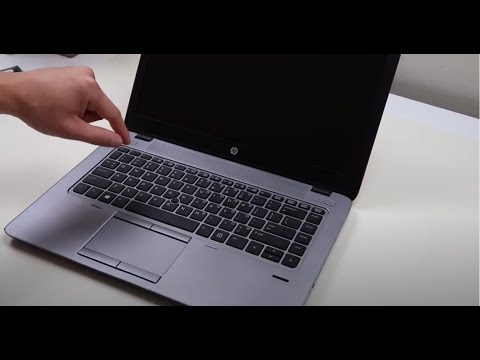
Oh man, don’t you just hate it when your computer screen suddenly goes black? Like, one minute you’re happily browsing or working on your HP Pavilion, and poof! The screen goes dark. It’s almost like it just decided to take a nap without telling you. Super frustrating.
I remember once, years ago, my buddy Chris called me in a frenzy because his laptop was doing the exact same thing. He tried everything—shaking the mouse, typing random keys—nothing worked! We eventually sorted it out (spoiler: we learned a lot about patience that day), but that feeling of helplessness when staring at a blank screen is real.
Anyway, if this sounds all too familiar and it’s happening to you right now with your HP Pavilion, don’t worry. We’ve all been there at some point. Let’s figure this out together and get that screen back to life!
HP Pavilion Black Screen Issue on Windows 11
Oh, the dreaded black screen! This can be a bit nerve-wracking, right? You power on your HP Pavilion and all you see is… well, nothing. Just this dark void staring back at you. First off, take a deep breath—we’ll figure this out together.
Check External Connections
- Unplug all external devices: Sometimes, something as simple as a USB stick or an external monitor can mess with the start-up process. Try booting up again once you’ve detached them.
- Inspect the cables: Make sure everything is plugged in correctly. It’s funny how often we overlook a loose power cord.
Perform a Hard Reset
- Turn off your laptop completely.
- Remove the power adapter and battery: Wait about a minute before putting them back in. Seriously, it gives the system quite literally a fresh start!
- Press and hold the power button for around 15 seconds: This drains any residual charge that might be lurking.
Try Booting into Safe Mode
- If you see something like “Preparing Automatic Repair” try to interrupt it by holding down the power button.
- Select “Safe Mode” from Advanced Options:This feature runs Windows with only essential programs—it’s like giving your computer’s brain some downtime to reset.If successful, uninstall any recent updates or drivers that could’ve caused this tantrum.
A Little Graphics Card Check-Up
Access Task Manager by hitting Ctrl + Shift + Esc.
If it opens:
Update graphics drivers from there using Device Manager.
>B>>
- -Switch off—and unplug everything—again.
- External Monitor Test: If you have another monitor or even a TV lying around, connect it to your PC as an external display. This will help figure out if it’s the computer or the specific monitor causing mischief.
- Brightness Settings: Check if you’ve accidentally dimmed the brightness so much that the screen appears black.
- Reset Hardware: Power down completely—like unplug everything for about 30 seconds—and then power up again. You know how sometimes you need a good nap? Computers are no different.
- Remove External Devices: Printers, USB sticks—all those doodads connected externally could potentially be tripping out startup processes.
- Power Supply: Make sure it’s not just a battery issue. Plug your laptop in and check if any indicator lights come on.
- Brightness Settings: Sometimes brightness gets turned down all the way accidentally. Use your brightness keys to adjust.
- Lid Sensors: If stuck or malfunctioning, these can trick your laptop into thinking its lid is closed.
- Cable Connection: Hook up an external monitor using HDMI or VGA cable.
- Signal Check: Press “F4” (or whichever key lets you switch displays) and look for signs of life on the other monitor.
- Resetting Your Laptop:: Unplug everything—power cord, peripherals—then press and hold the power button for about fifteen seconds to drain any leftover charge. Plug only essentials back in (like power), and try booting up again.
- Bios Recovery Check:: On HP models specifically, restarting while repeatedly tapping “Esc” followed by “F10,” can allow access to BIOS settings which lets you restore default settings if needs be.
Again do it carefully—it offers important system level tweaks so proceed gently here.
Open up tin^he bottom panel (carefully!) and reseat those RAM modules)). A dusty module can act up m//0]
Be cautious while doing&%this if you’re uncomfortable£with hardware operations!>
Now try1urpowering on once more]]%! It doesn’t hurt ttry uubooting without reinstalling some noncrucial softwareyou previously uninstalledamljast yodo >repeatng6ttisnitrick°of**ikturnations!!againlww
. Don’tworryyhew still understanddthefdetails- uraweneedkeepon trying- &&
###Consider Professional Help###
If these steps aren’t leading anywhere productive’, visiting authorized repair centres are whllwhere theeague &is}solvedain `no time_.*
Hey’’aboveallta remembera keepingupa regularebackupssenstionallmight not prevent1hthese issues/,relieve anxietyem
{
“`
Doesn’t seem too bad after all? Whenever tech goes awryy it’s okayyoloan hope rthatthose were’dotsomepointsoni/pinterest)) remr mber- friends&family can sometimes offer fresh perspectives.
Screen Stays Black Despite Power Light
Having a computer screen stay black while the power light is on can be pretty frustrating. It’s like trying to watch your favorite show on TV, only to find that the image isn’t showing up—super irritating! Let’s see where things might go haywire and how you might be able to fix it.
Check the Connections: You’d be amazed at how often something simple—a loose cable or connection—can play a role. Have a peek at both ends of all cables connecting your monitor to your computer. Are they snugly fitted? You’d want them nice and snug, like slipping into a comfy pair of shoes.
Power Up: It’s funny how often we overlook this! Make sure that both your computer and monitor are plugged in properly. Sometimes, unplugging and plugging them back in can work wonders, kind of like turning your phone off and on when it acts up.
Monitor Settings: Speaking of phones, sometimes our devices get stuck in strange settings. On monitors, there are these “Input” or “Source” buttons. Press them to cycle through different inputs—you never know; maybe it’s set to show an image from another source.
Thinking about HP Pavilion specific issues? Well, some models have been known for their particular quirks with graphics cards or motherboard faults when screens don’t respond despite having power lights glowing defiantly.
Finally—and hopefully not needed!—if none of these do-it-yourself methods work magic after giving them all an honest try over coffee breaks… reaching out toward tech support might just become inevitable peace-of-mind pursuit before tossing anything valuable away altogether!
And hey!, save yourself future headaches by remembering what worked if (fingers crossed) such antics arise again; passing wisdom along keeps technology’s cycle more forgiveable doesn’t it!?
Screen Stays Black While Laptop Is On
Oh, the dreaded black screen! It’s one of those things that can make you feel like your laptop is playing hide and seek with you. You hit the power button, hear the familiar whirring sound, but then…nothing. Just a dark screen staring back at you. Let’s see what might be going on and how you could sort it out.
Check the Basics:
Before anything else, let’s cover some simple stuff that might be at play here.
The External Monitor Test:
Here’s a neat trick to see if the issue is with your screen or something deeper.
If You See an Image on External Monitor: This suggests that your screen might need fixing or replacing.
If You Don’t See Anything: The plot thickens! At this point software or hardware issues could be lurking.
Troubleshooting Further:
A friend of mine once had this quirky model where holding down that button was like magic; everything started working again!
Hey, let me tell you a little story. Imagine sitting at your desk, coffee in hand, all ready to dive into a project on your HP Pavilion. You press the power button and… nada. The screen remains as blank as a page in an unwritten book. That’s frustrating, right?
I remember this friend of mine calling me up in sheer panic when it happened to her—she couldn’t finish an important report because of it. We’ve all been there with tech gremlins throwing curveballs at us.
Alright, let’s talk about this mysterious black screen issue that sometimes haunts HP Pavilion laptops. One of the things you can do is start by checking if it’s just asleep—the laptop not waking up properly is more common than you’d think! Try giving the power button a longer press (around 10-15 seconds) and then letting it go for a few seconds before pressing it again. Sometimes it just needs a little nudge.
If that doesn’t work, maybe it’s feeling disconnected from the world—literally! Make sure all cables are firmly plugged in; whether it’s your charger or any external devices.
And listen, sometimes it’s like our buddy needs an extra boost or reset of its memory settings. Take out the battery if possible and hold down that pesky power button for about 30 seconds without it plugged in—that might clear any static energy issues.
Oh! And one more thing to consider: if you’ve recently installed new software or updates—and believe me, we’ve all been guilty of clicking ‘update’ without thinking—it could be interfering with the startup process.
But hey don’t get discouraged! With some patience and these little tricks up your sleeve, hopefully you’ll soon see that welcoming login screen again. If nothing seems to work though? It might be time for professional hands-on treatment. But fingers crossed you won’t need that step!
Anyway wishing you completely uneventful (tech-wise!) days ahead!