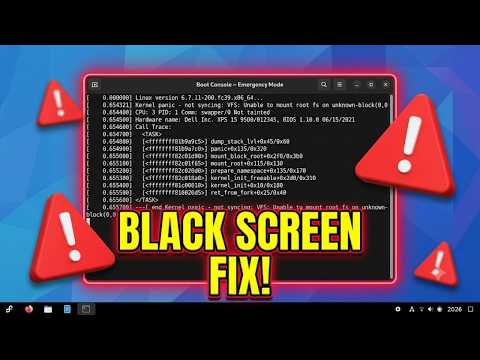
Oh no, you’re all set to start your day, coffee in hand, and then BAM—a black screen after logging into Fedora. Not exactly the morning cheer anyone hopes for, huh?
I get it. It’s like being ready for a game and suddenly the lights go out. You’re left sitting there thinking, “What just happened?” Well, you’re not alone—this is something a lot of folks stumble upon.
We’ll untangle this little mystery together. And hey, don’t worry! It might seem daunting at first but I’ll take you through it step by step without any over-the-top tech mumbo jumbo. Let’s see what’s happening with that screen of yours!
Fedora Black Screen Issue After Login
Hey there! Dealing with a black screen on your Fedora system after logging in? Frustrating, right? But don’t worry too much. Let’s take a closer look at why this might happen and how you can fix it.
- Graphics Driver Problems: Often, the trouble kicks off because of some mismatched or problematic graphics drivers. You know, these drivers are like the translators between your computer’s hardware and software. If they don’t get along well, things can go haywire.
- Troublesome Config Files: Sometimes, it’s those pesky configuration files that trip up the system. They store settings that control how parts of your system behave. If something’s amiss there, it might lead to that annoying black screen.
- Kernel Oddities: You’ve probably heard about kernels in computing—they’re like the core of your operating system. Every now and then, an update or glitch in kernel configurations could be behind this mysterious blackout.
Alright! Now let’s move on to some steps you can try out:
- Switch to a Different TTY: Pressing
Ctrl + Alt + F3, for example, gets you into a terminal interface without lagging through graphical problems. Once you’re there, you can log in using your username and password. - Cautious Update Check: Go ahead and check for any updates—especially graphics-related ones! In the terminal, type:
sudo dnf updateLet it run through possible upgrades which may tackle compatibility issues.
- Nvidia Users—Heads Up!: If Nvidia drives power up your graphics card inside the hood… let’s not forget these are often troublemakers! Indeed they need specific drivers directly from Nvidia itself sometimes—not just default ones Fedora tosses out.
Check if installing proprietary drivers helps by running:sudo dnf install akmod-nvidiaThis will grab what Fedora thinks is best suited for Nvidia-users like yourself.
- Xorg vs Wayland Tug-of-war:: By default shift away Wayland over Xorg or vice versa depending upon GPU compatibility hiccups found rampant around logs (you guessed it…). Modifying GDM settings may allow switching preference easily without endless headaches.
Edit this file: `/etc/gdm/custom.conf`, search where written `#WaylandEnable=false` remove hashtag (#), save changes then restart services altogether afterward utilizing command-line bash-voodoo:sudo service gdm restart. Voilà!
Nothing beats personal experience though… Remember once during troubleshooting days ago adjusting Grub configuration? Who knew changing boot parameters one day revealed my faulty RAM stick instead along wild goose chase through different lands connected remotely alike countless forums worldwide (ahh memories)?!
Now give these tips consideration throughout attempts fixing lost view situation—it could change matters entirely making whole desktop feel alive just again shortly thereafter success guaranteed ever tried everything mentioned here thoroughly unless otherwise noted elsewhere possibly… Just endeavor towards most practical approach fitted needs today present.
Take care—you got this!
Fedora KDE Boot Black Screen Issue
Experiencing a black screen on boot can be pretty frustrating, especially when you’re all set to get some work done on your Fedora KDE system. It’s like waking up one morning, ready for a run and finding your sneakers mysteriously missing. Don’t worry; you’re not alone in this.
Possible Causes:
The causes for this black screen issue are often linked to graphics drivers or configuration mishaps. Sometimes it feels like tech has a mind of its own, right? Here’s what you might deal with:
- Graphics Drivers: Outdated or incompatible graphics drivers often play hide-and-seek with the display.
- Xorg Configuration: Incorrect settings here can lead to startup blues—or blacks, in this case!
- KDE Plasma Settings: Misconfigured environments might give you this annoying surprise.
Troubleshooting Steps:
Okay! Let’s go step by step and hopefully bring that screen back to life.
- Edit Boot Parameters: When you power up, hold the Shift key until the GRUB menu appears. Choose your kernel version and press ‘e’ to edit boot parameters. Add `nomodeset` at the end of the line starting with `linux`.
- This disables certain modes that may cause trouble with some graphics cards.
- Tweak Xorg Configurations: Boot into rescue mode—after choosing ‘Advanced options’ from GRUB—and access terminal as root:
“`
sudo nano /etc/X11/xorg.conf
“`
Look for any entries specifying Video Card settings and comment them out by adding `#` at line start. - If unsure about editing files directly like this – remember, small mistakes can sometimes make those keyboard keys iconic!
- KDE Plasma Reset:: Perhaps it’s just your KDE Profile acting up. Tie your config slipping:
Open Konsole (Ctrl+Alt+F2) still gives blank looks… switch accounts before doing:
“`
mv ~/.kde ~/.kde-backup
“`Restart KDE session using either Ctrl+Alt+Backspace combo repeatedly until seeing bouncing cursor/logo again reminiscent of older times!
NVIDIA Specific Fixes: Have an NVIDIA card under hood here?
It’s possible nouveau open-source drivers causing headaches;
Enable RPM fusion repositories (when online again). Install proprietary NVIDIA driver afterward.
Fedora systems have community members who regularly face these challenges—they’ve been known sometimes find solutions where none appeared exist first glance too… So reaching forums such Ask Fedora helpful source ideas possibly overcoming barricades path getting back smooth happy operation!
Fedora Display Stuck on Black Screen with Cursor
Oh no! Your Fedora screen is black with just a little white cursor blinking away. It’s like it’s teasing you, right? Don’t worry, I’ve got your back here—been there myself. Let’s untangle this issue, okay?
Possible Causes
There are a handful of reasons this might be happening:
- Graphics Driver Issues: Sometimes the drivers get a bit cranky and stop playing nice with Fedora. It happens!
- Kernel Problems: Occasionally, new updates or kernels don’t gel well with your setup.
- User Profile Corruption: It’s rare but can disrupt the login process.
Troubleshooting Steps
Let’s see if we can guide that sneaky cursor off the screen and bring back your view.
- Boot into Rescue Mode:
Restart your computer. As it starts, press the key that opens your boot menu (usually F2, F8, F10—depends on your machine). Select a kernel followed by “(Rescue), which sidesteps those pesky driver issues. - Edit Boot Parameters:
When you get to GRUB (that’s the boot loader), highlight Fedora but don’t start it just yet. Press ‘e’ to edit commands while booting.
Look for the line starting with “linux”—should end with “rhgb quiet”. Add “nomodeset” at the end of this line.
Press Ctrl+X or F10 to continue booting. - Cautiously Disable GDM (GNOME Display Manager):
Once logged in via terminal, try running:“`
systemctl stop gdm
“`Then you can restart it using:
“`
systemctl start gdm
“`Or replace GDM service:
“`
systemctl enable sddm –force
“`If these steps succeed, it’s like getting a surprise party where everything works again! If not… hang tight; there’s more tweaks up ahead.
If All Else Fails…
Perhaps perform an update/upgrade whilst in rescue mode:“`
dnf upgrade –refresh
“`Or maybe update/reinstall graphics drivers. That’s often what does the trick when things hit rock bottom.
Well that’s it—hopefully one of these steps helps you break free from that dastardly black screen! If things get even more tangled or you’re stuck longer than expected don’t hesitate to reach out on forums where folks have loads experience dealing similar situations too – Sometimes knowing you’re not alone lifts burden slightly doesn’t it?
Oh, the experience of staring at a black screen right after logging into Fedora can be a bit unsettling, can’t it? You know, you expect your desktop to load up all nice and neat, but instead, it seems like your computer’s having an existential crisis. Strange as it sounds, you’re not alone in this; it’s happened to me once or twice.
So here’s what usually goes down: You’ve logged in expecting that usual desktop sparkle. But then—boom! You’re met with a dark void instead. Well, one possibility is something with the graphics driver. Another could be related to software updates not quite aligning right.
But fret not! The first thing that pops into my mind is booting into recovery mode. It’s like giving your Fedora system a gentle nudge to revive itself. When I tried this trick once before, everything worked like magic again—sort of a “computer whisperer” moment!
If that doesn’t work out though, there could be issues tied up with Wayland versus Xorg sessions. Yeah, the names sound way out there… But essentially they’re both systems enabling graphical environments on Linux systems. Sometimes switching from one to another can help solve things.
My personal favorite solution path is having backups ready and maybe even recalling the last few changes made before the hiccup occurred—such as configuration tweaks or package installations—it was something little like that which had tripped me up once!
Remember: you’re part detective here too! So stay curious about exploring logs for clues; these are tiny cryptic messages left by processes running on your machine telling tales of what went awry (dmesg or journalctl are nifty tools for this). When I peered through those logs during an issue once…it felt almost cathartic realizing how much insight they provided without sounding too technical; like whispers guiding you back home.
Anyway—I hope some steps above resonate towards easing any glitches found when dealing with such mysterious dark screens post-login attempts…and happy computing elsewhere ahead!