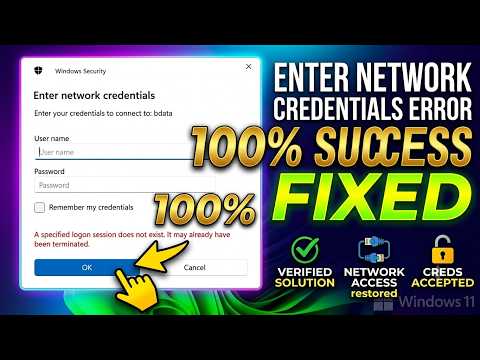
You know that moment when you’re just trying to get some work done and BAM! Your computer throws a curveball at you? Yeah, we’ve all been there. This time, it’s a Windows network credentials issue. Fun times, right?
Alright, picture this: You’re logging into your computer, ready to access those files on your network. Then suddenly you’re hit with a “credentials needed” pop-up. What’s up with that? It’s like being asked for ID in your own living room.
Don’t get me started on how tricky this can be for many folks. One minute everything’s peachy; the next—voilà! You’re caught in the web of password confusion and frustration.
Here’s the kicker though—this issue isn’t just annoying; it can also be a sneaky security risk if not handled right away. Which is exactly why we’re diving into it now.
Stick around, we’re in this together!
Procedure to Enter Network Credentials in Windows
Hey! So, you’ve got this situation where you need to enter your network credentials on Windows, huh? Maybe you’re trying to connect to another computer or a shared folder. It can be a bit confusing sometimes, but I’m here to make it simple for you.
Why Enter Network Credentials?
Basically, when you’re connecting to another machine in your network—maybe it’s your friend’s computer or that printer in the other room—Windows wants to make sure you’re allowed. That’s why it asks for those credentials. Think of it like showing an ID before getting into a secret club.
Here’s how you can do it:
- Step 1: Access Your Network
- Step 2: The Credentials Pop-Up
- Step 3: Enter Your Username and Password
- Step 4: Remember Them (Or Not)
If you’re trying to access something like a shared folder, open the File Explorer (that little folder icon on your taskbar). Then type “ followed by the computer’s name or its IP address in the address bar at the top. Let’s say the computer’s called “Office-PC.” You’d type `Office-PC`.
When you try accessing that shared resource, bam! A pop-up might appear asking for your username and password. This is Windows’ way of saying, “Who are ya?” 😄
Type in your username and password. You might have them from whoever set up the network or IT guy who loves complex passwords!
If this is something you’ll do often—like accessing files from another PC—you might want to tick that box saying something like “Remember my credentials.” Otherwise, leave it unchecked if it’s just a one-time deal.
Now sometimes people run into issues with these credentials not working right away. It could be because of typos (oh boy, happens all the time), outdated passwords if they’ve been changed without updating everywhere needed…or even just some quirky Windows updates playing tricks!
But hey – don’t stress too much over it! These hiccups happen more often than you’d think—and with patience and maybe some trial-and-error—they usually get sorted out pretty smoothly.
Disabling Windows 11 Network Credential Prompt
Navigating the maze of Windows 11 network credentials prompt can get a bit annoying! This pop-up often appears when you’re trying to connect to a network resource like a shared folder or printer. It’s there for a reason—protection! But let’s tap into how you might disable this prompt if it’s becoming a hassle.
- Understanding the Prompt: The network credential prompt is basically Windows’ way of asking, “Hey, who are you?” whenever you reach out to access another device or share resources. It’s looking for a username and password to ensure you’re allowed in. Makes sense right?
- Steps to Disable: This involves tweaking some settings around your local security policy and network sharing options. Sounds techy but hang on, I’ll walk you through it.
- Local Security Policy:
- Press Windows + R keys together to open the Run dialog.
- Type in “secpol.msc”, then hit Enter.
- This opens Local Security Policy. Navigate through:
- Local Policies
- User Rights Assignment
.
Let’s tweak ‘Access this computer from the network’. Ensure your user group is listed here!
Or maybe it’s easier with…
Another approach:
-
Like go into Network Options:
Look under “Network and Sharing Center.” Access ‘Advanced Sharing Settings’—here’s where all magic happens.Toggle off:
– Password protected sharingBy doing so, you’re saying, “Anyone can connect without credentials.” But be cautious!
If you’ll notice things run smoothly without constant pop-ups—great! But what if my issue isn’t resolved?
Well, sometimes its about registry tweaks or verifying user account permissions—another rabbit hole!
Hey remember: Disabling these prompts might expose your system slightly more than before. It’s not necessarily risky but rather an adjustment!
Hope that guides you! Was I able help at least shed some light on those pesky prompts?
Network Credentials Security Practices
Sure thing! Let’s chat a bit about keeping your network credentials safe, especially when using Windows. You know how important it is, right? Those credentials are like the keys to your digital kingdom. And you don’t want them ending up in the wrong hands!
Understanding Network Credentials
First off, network credentials are basically your username and password that allow you access to a network. Kind of like these magic words that open sesame the door to all the files and resources you need.
Why They’re at Risk
You might wonder why these credentials are at risk in Windows environments. The thing is, Windows stores them locally once you enter them. In some scenarios, like if someone sneaks onto your computer or malware finds its way there, they could become exposed.
Here’s what you can do to keep those precious credentials out of harm’s way:
- Use Strong Passwords: Make sure passwords are more than just “password123”. A mix of uppercase letters, numbers, and symbols make it harder for anyone trying their luck.
- Regular Password Updates: Changing passwords every few months keeps old information from being useful if someone manages to grab it.
- Password Managers: Consider using a password manager app. It not only helps create strong passwords but also keeps track of all those different ones without needing sticky notes!
- Tighten Access Controls: Limit who gets access to what on your network. Only those who need certain files should have permission.
- MFA (Multi-Factor Authentication): Add an extra layer by requiring something else beyond just the password—like confirming via phone or email.
- Avoid Auto-Saving Passwords: Resist clicking “Yes” when browsers ask if they should remember your password for next time. It’s convenient but risky!
The Role of Security Software
Having robust security software installed can really help too by scanning for any suspicious activity or unauthorized access attempts on your device.
Remember this: Staying vigilant means staying safe—not just relying solely on technology but also thinking smartly about how we handle our own information online! Keep those practices close at heart; they’re worth gold in protecting everything happening inside networks today.
It’s such a relief knowing we’ve covered ways here aimed specifically toward enhancing protection around yourself digitally—especially concerning critical data like user-names-and-password combos within Microsoft-landscapes where familiarity sometimes brings complacency into play amongst us users navigating through daily tasks involving sensitive info handling procedures securely…
Oh, you know that moment when you’re just about to connect to a network at work, or maybe even the Wi-Fi at a coffee shop, and you get slapped with that Windows Network Credentials prompt? It’s like being asked for your password on the spot. Who knew something so simple could be such a big deal?
Let me tell you about a friend of mine—let’s call him Bob. Bob was just trying to access shared files at his office. Every time he’d go for it, there’d be this annoying pop-up asking for credentials. At first, he thought it was just one of those common quirks Windows throws your way. You know how computers can be sometimes! However, little did he realize that it’s part of how Windows manages security.
Here’s the thing: those prompts are actually quite important. They make sure your computer doesn’t accidentally share sensitive info with potentially dangerous networks or devices—kind of like having an invisible bouncer checking IDs at the door.
Bob started feeling jittery when someone at his company found out they’d been using some bad security habits, like sharing credentials over email (yikes!). It got him thinking about how easy it is to forget what’s really happening in the background.
Whenever you connect to a new network and you type in those credentials? That data, if not protected properly, can float around cyberspace like an open invitation for troublemakers looking for weak spots to exploit!
So what should one do? Well… imagine ensuring all connections are through secure methods like VPNs or making sure passwords are unique and strong (not ‘123456’). It helps add another layer of safety between personal info and nosy digital intruders.
If anything good came out from Bob’s experience, it was realizing how these reminders help us stay vigilant against potential threats lurking online—even if they seem like small nuisances initially!
And hey—ever since then? He double-checks before hitting “OK” every single time!