You know, there’s nothing more annoying than when your printer decides to go on strike right when you need it the most. It’s like, come on, buddy, we’re in this together!
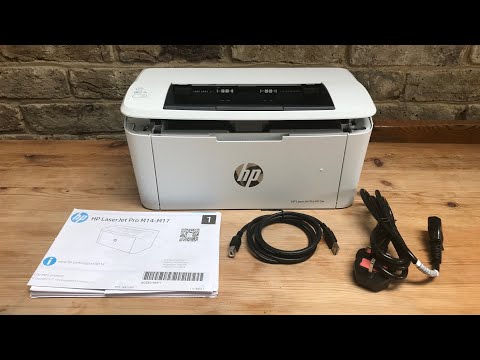
So you’ve got this sleek HP M15w printer sitting on your desk. It’s all set up and looks raring to go. But wait—your computer’s giving you the cold shoulder? Ugh, I feel your pain.
You’re ready to print out that epic photo or important document and instead… nada. Your computer acts like it’s never even heard of your fancy new gadget. Classic tech drama.
But hang in there! It’s a common hiccup that happens to the best of us. Sometimes it just needs a little nudge—or maybe a small kick—to get everything back in sync.
Let’s dive into this together and figure out why they’re not talking to each other and how we can fix that!
HP Smart Printer Detection Issues
Dealing with printer detection issues can be a bit of a headache, right? Especially when you’re in the middle of something important. If your HP M15w printer is acting all mysterious and not showing up on your computer, let’s figure it out together!
First things first, check the basics. Sometimes it’s the small things that trip us up. Make sure your printer is turned on and all cables are securely connected. If you’re using Wi-Fi, ensure that both your computer and the printer are connected to the same network.
- Restart Both Devices: Turn off both your computer and printer, wait for a minute or two, then turn them back on. Sometimes a simple restart can perform miracles.
- Update Drivers: Outdated drivers can cause communication issues between devices. Head over to the HP website to find the latest drivers for your specific model.
- Check Printer Settings: Open Control Panel on your computer, navigate to “Devices and Printers,” and see if your HP M15w is listed there. If it’s marked as offline, set it as default or check network settings.
Ever had one of those days where technology just refuses to cooperate? This might be one of them! But hang in there—additionally:
- Troubleshoot Network Problems: If you’re connecting via Wi-Fi, make sure there’s no issue with the network itself by trying another device.
- Run Windows Troubleshooter: Windows has its own built-in troubleshooter for devices like printers. Just search “troubleshoot” in the start menu and follow through with their prompts.
Still stuck? Sometimes routers need a reboot too! A quick power cycle could reset any hiccups causing interference.
A funny thing happened last week—I spent an hour fiddling with my laptop only to realize there was a minor software update pending that fixed everything! Crazy how these little updates work wonders sometimes!
If none of this helps get that pesky HP M15w back into action… maybe it’s time for some expert help—HP support could assist more deeply if something’s amiss internally.
Hopefully these tips reconnect you smoothly so you can print away without stress!
HP M15w Printer Compatibility with Windows 11
Having a printer that’s not playing nice with your computer can be, well, a real headache. If you’re facing issues with your HP M15w printer and Windows 11, let’s unravel this mystery together and get it sorted out!
Check Compatibility First!
HP’s M15w printer is generally equipped to handle newer operating systems, but sometimes the devil’s in the details. Here’s what you can do:
- Verify Drivers: Make sure you’ve got the right driver installed. Drivers are like translators between your computer and printer. If they’re not speaking the same language—oops, no printing happens! You can usually find the appropriate driver on HP’s official website.
- Update Windows: Sometimes Windows itself is behind. Check for updates in Settings under “Windows Update.” This might seem basic but hey, sometimes it’s just what you need.
Your Printer Isn’t Recognized? Uh-oh!
If your computer doesn’t recognize your printer at all, there might be other tricks to try:
- Cable Connection: Start simple by ensuring all cables are snugly connected. A loose cable—geez!—I’ve seen that happen more times than I care to remember.
- Trouble with Wi-Fi? Wireless connections are convenient but oh boy, they can be finicky! Try reconnecting both devices to your network or rebooting your router altogether.
- Add Printer Manually: Head over to “Devices” in Settings and use “Add a Printer” if auto-detection falls flat.
Tackling Software Hiccups
Software bugs creep up now and again:
- Create Restore Points: Before diving deep into updates or changes, create a system restore point as a safety net—it’s like having an undo button ready just in case.
- Troubleshooter:
At some point recently I had to walk my neighbor through something similar—you know how it goes—and we discovered that turning both devices off completely helped restart communication between them magically.
Alright then! Hope this helps untangle any knots with that HP M15w of yours when dealing with compatibility quirks on Windows 11! Got any stories about printers acting up? Those moments I’m shaking my head right along side ya…
HP m15w Printer Not Detected by Windows 10
So, you’ve got your shiny HP m15w printer all ready to go, but your Windows 10 computer just doesn’t seem to notice it. Annoying, right? It’s like when you wave at someone you know on the street and they just walk past you. Let’s try and get your computer to recognize your printer.
Check the Connection
First things first, let’s make sure everything’s plugged in properly. You know how sometimes a cable gets loose and suddenly nothing works?
- USB Connection: Ensure that the USB cable connecting your printer to the computer is snugly plugged in on both ends. Sometimes it’s worth trying another port if it seems finicky.
- Wireless Setup: If you’re using Wi-Fi, confirm that both your computer and printer are on the same network.
Make sure Wi-Fi is enabled on your printer (usually there’s a button with a blue light). Sometimes these things can be reeeally temperamental!
Install or Update Drivers
Now let’s talk drivers – those little pieces of software are like translators between the devices.
- Check for Drivers: Head over to HP’s official website and look for drivers specifically for the m15w model under Windows 10. Download and install them if they’re not already present.
- Update Current Drivers: It’s possible that existing drivers need an update. Go into Device Manager (just search it from start menu) and find any mention of printers; right-click yours if it shows up, then “Update driver.”
Troubleshooting Network Issues
Sometimes it’s not even about connections or drivers at all but rather network issues causing headaches.
- Run Network Troubleshooter: Use Windows built-in troubleshooter by searching “Network Troubleshoot” after pressing Start Menu.
- Might Need Resetting Router Too?!:
This will help diagnose if there’s something going funky with networking settings messing around without permission!
Who hasn’t had those annoying days where simply resetting routers helps solve every problem under sun — power cycle switching off/on buttons does wonders often!
Select Correct Printer Settings & Defaults!B
Navigate “Devices Printers” screen via “Control Panel,” locate said machine set preferred using right-click method choosing option written exactly: set as default — easy breathing space appears finally covering gray hairs showing now stops disappearing act friends become forever grateful hanging tough through trials tribulations honestly countless times over shared bonds everlasting truthfully given openly honestly cherished come what may late-night memories happy endings repeat excitedly tomorrow begins fresh start anew seamlessly without hassle frustrations prior experienced et cetera ad infinitum until happiness fades slowly back smiling blissful thoughts returning dream land…
So hopefully everything cooperated peacefully leaving only soothing satisfaction behind sigh relief equals mission accomplished quite stellar splendid fashion if truly deserving applause time indeed rightly deserved cherish unmatched absolutely wonderful don’t forget gratitude unspoken whispered sweet air barely audibly! Things seemingly smooth sailing onwards always remember taking breaks enjoy moments small joys life matter very much infinitely throughout together united eternally unbreakable patched stitched lovingly keep hearts warm abundant radiant joy wrapped tightly bonds growing stronger flourishing blooming whilst journey unfolds beyond horizons beckoning serenely brushing against gentle winds tall grasses swaying echoes resounding til bedtime farewell hugs closing eyes resting well awaiting morrow gently approaching dawn awakening greatness unfolding promise prosperity lives again…
Ah, the joys of modern technology! You know that feeling when you’re all set to print something important and your HP M15w printer decides it doesn’t want to be on speaking terms with your computer? It’s like when you’re trying to reach a friend who left their phone on silent. Annoying, right?
Let’s piece this together step by step. First off, check if you’ve got the basics covered—like power and connectivity. I remember once I spent half an hour trying to figure out why my printer wasn’t working, only to find out it wasn’t even plugged in. Talk about facepalm moments!
Anyway, once you’re sure it’s all plugged in properly, shift your gaze to the Wi-Fi connection or USB cable—whichever you’re using. Sometimes the answer’s as simple as a loose cable or a Wi-Fi hiccup. You could also try restarting both devices; surprisingly therapeutic for tech devices too!
Look into whether you’ve installed the latest drivers for your printer model. Drivers are like translators between your computer and printer—in case you didn’t know that part! Head over to HP’s website, download what you need, and give it another go.
Another trick that sometimes works is checking if there’s any pending update on your operating system itself. Computers can occasionally get fussy about compatibility without warning.
But here’s an unexpected twist I’ve seen: sometimes other devices using the same network can create interference or conflicts—especially those smart home gadgets taking over our lives.
If none of these steps work (fingers crossed they do), consider uninstalling and reinstalling everything related on your computer concerning that stubborn little machine.
Technology can be fickle yet fascinating; don’t let a small hurdle transform into frustration territory!