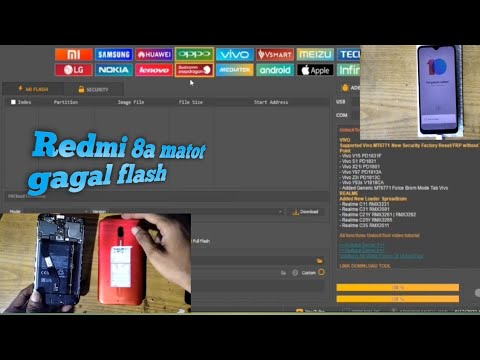
Oh man, have you ever felt that sinking feeling when your phone just refuses to cooperate? Your Redmi 8A loves showing those cool animations at startup, but suddenly it’s like stuck on repeat. Yup, that’s a boot loop for you. Super annoying!
It’s like the phone went on a little joy ride and decided it doesn’t wanna come back home. You’re probably staring at it, thinking “not today!” It’s frustrating, right?
But don’t panic! Just relax and breathe. We’re gonna fix this together and get that phone back in action. Ready to roll up your sleeves and dive into this techy adventure? I promise it’ll be easier than it sounds!
Flashing Redmi 8A to Fix Boot Loop
Okay, you’re dealing with a boot loop on your Redmi 8A, huh? I mean, it’s like your phone is trapped in this endless cycle of starting up and then, bam!, shutting down again. Super frustrating, right? But don’t worry. Flashing the phone might just save the day! Here’s a casual guide to help you through it.
Disclaimer This process involves risks like losing data or voiding warranties. If you’re not comfortable with technical tinkering, maybe get some help from someone who is.
Alrighty then, let’s jump right in
What You’ll Need
- A Computer Well duh! You need it for running tools that’ll help you flash the new software onto your phone.
- USB Cable The little guy that connects your phone to your computer.
- Xiaomi USB Drivers To ensure that your computer talks nicely with your Xiaomi Redmi 8A.
- Firmware File for Redmi 8A This is basically the new software you want to install on the phone.
- Miflash Tool A nifty tool from Xiaomi for flashing firmware onto their devices.
Here’s where things get technical but don’t sweat it! Just follow along
The Process Steps to Flash
1. **Install Those Drivers **
First off make sure those Xiaomi USB drivers are installed correctly on your compu’er. They kind of act like translators between your device and the PC.
2. **Download Firmware **
Get the proper firmware file for Redmi 8A from an official or trusted site; ensuring it matches perfectly ensures things go smoothly later.
3. **Miflash Tool Setup **
Download and set up MiFlash tool, something easy yet critical—think of this as setting up a workstation before surgery.
4. **Enable Fastboot Mode **
– Power off the Redmi.
– Press ‘Volume Down’ + ‘Power’ buttons simultaneously until Fastboot appears.
– Connect device via USB after reaching Fastboot mode.
5. **Open MiFlash & Load Firmware **
Run Xiaomicrosoft Miflash Tool & import downloaded firmware directory into it—it feels almost ceremonial!
6.**Begin Flashing **
Click “refresh” in MiFlash (detects connected devices); select “Clean All” option unless keeping user data matters more than resolving issues.
7.Click FLASH!, sit back while data gets rewritten – hope seems lost halfway there but hang tight when reboot arrives unexpectedly towards success by closure notification
Patience Rewarded?
Fixing Boot Loop Error on Redmi 8A
Ah, the dreaded boot loop on your Redmi 8A! It’s like a broken record that just keeps spinning. You’re stuck staring at the logo as it restarts endlessly. Super annoying, right? But don’t worry―you can tackle this with a few steps! Let’s walk through how to fix this hiccup.
First things first, boot loops often happen because of software glitches or bad updates. Now, if you’re comfortable with it, **flashing** your device might just be the solution. It’s like giving your phone’s software a fresh start. But before jumping into that pool, remember to back up anything important—this method wipes everything out!
Here’s what you need to get sorted out before starting:
- MIUI Firmware: Get the latest MIUI version for Redmi 8A from an official source.
- USB Drivers: Ensure your computer has the Xiaomi USB drivers installed.
- Mi Flash Tool: This is what you’ll use to flash your firmware.
Now let’s move on to the steps you’ll follow:
1. **Backup Your Data:** Like I said earlier, flashing will erase all data on your phone.
2. **Install Mi Flash Tool:** It helps in applying new firmware to your Redmi.
3. **Download Firmware:** Make sure it matches exactly with your model.
4. **Enter Fastboot Mode:**
– Turn off the phone.
– Hold down “Volume Down” + “Power” button together until you see Fastboot screen.
5. **Connect Device to PC:** Use a reliable USB cable—no one wants disconnections midway!
6. **Launch Mi Flash Tool:**
– Load up and select “Refresh”.
– Your device should appear in the list.
7. **Flash Firmware:**
– Click “Select” from within Mi Flash Tool and point it toward extracted firmware folder.
– Double-check everything then click “Flash”.
8. Once complete remove cable and reboot manually if needed.
Why is backing up essential? You don’t want precious family photos or vital data disappearing forever due just trying fix something else!
If none above works… well might be time check warranty options available too! Yet typically following these steps does help resolve issue most cases so hopefully saves extra hassle messing around unnecessary repairs replacements costs!
Fix Boot Loop Error on Redmi 8A
Oh no! Your Redmi 8A is stuck in a boot loop, and I can imagine how frustrating that must be. You know, these things usually happen at the worst times—maybe when you’re waiting for an important call or just when you’re trying to chill with your favorite app. But hey, don’t worry too much! There are ways to sort it out. Let’s dig into this and see if we can get your phone back on track.
What is a Boot Loop?
Simply put, your device keeps restarting over and over without properly loading the operating system. It’s like being trapped in a circle with no escape. Annoying, right? This issue often crops up due to software glitches or after installing a new update.
Backup Before Doing Anything Drastic
I can’t stress enough how important this is—Before you get started with any fix, make sure you’ve backed up any data you care about. Just think of all those precious selfies or that great playlist!
Basic Troubleshooting Steps
If you’re ready to tackle this problem head-on, here are some practical steps you can try:
- Force Restart: Sometimes all it takes is holding down the power button for about ten seconds until your device restarts completely.
- Safe Mode: Try booting into safe mode by pressing and holding the volume down button while turning on the phone; it’ll help determine if an app’s causing issues.
- Charge It Fully: It sounds simple but sometimes letting it juice up fully can work wonders.
If Basic Steps Don’t Work: Flashing Might be Needed
Now if those steps didn’t do the trick—and yeah, sometimes they don’t—you may need to look at flashing your device’s firmware. But what’s flashing anyway? Well pretty much like reinstalling Windows on your PC; it’s about resetting everything from scratch.
Here’s what you’ll generally need:
– A computer
– USB cable (original ones are preferred)
– Xiaomi’s stock firmware for Redmi 8A
Then there’s Mi Flash Tool which helps manage this process—it makes sure you’re using legitimate software so things don’t go south.
The Actual Process of Flashing
It might sound intense but taking one step at a time will ease things out.
- Download Mi Flash Tool & Stock Firmware:
- Install Drivers on Computer:
- Create Backup Again!
- Boot Into Fastboot Mode:
- Select Firmware Through Mi Flash Tool And Start The Process:
You’ll want both before starting anything else.
This ensures communication between devices happens smoothly.
(Can’t mention backing up enough!)
You do this by holding Volume Down + Power simultaneously till fastboot appears—it looks kinda cool actually!
You point out where exactly downloaded files are located within Mi Flash Tool interface – clicking ‘refresh’ should show connected status too – then hit ‘flash’!
Now breath easy cause after following earlier guidelines chances seem high success will greet once completed successfully upon reboot.
And there ya go… That’s really how (fingers crossed) bringing life back takes form unto previously spinning loops despairingly thought infinite! Got questions going forward? Or rising concerns while attempted carries forward? Keep calm knowing online communities thrive assisting across virtual ether unto resolving muddles presented irritatingly persistent gadgets bring forth amidst daily encounters!
Oh boy, dealing with a boot loop on your Redmi 8A can be quite the headache, huh? Imagine being in the middle of an important call or about to capture that perfect sunset when suddenly, your phone just decides it’s time for a little endless restart dance—it’s enough to make anyone want to pull their hair out!
But hey, don’t fret. It’s something that can happen to the best of us. Honestly, I remember when my buddy’s phone went into a boot loop right before he needed it for work. He was about as panicked as you’d expect—running around like his hair was on fire.
So here’s the thing: flashing your device might seem daunting, but with some patience and attention to detail, you can get through this. Take it step by step and remember this is essentially like giving your phone a little nudge back on track.
First off, before attempting anything fancy, make sure you backup your data if possible. It’s kind of like bringing an umbrella on a cloudy day—you might not need it in the end but better safe than soaked!
Once you’ve done that—or if that’s not possible because of the loop—getting into Fastboot mode is key. Think of Fastboot mode as hitting pause so you can sort things out without further interruptions from that pesky loop.
Running Xiaomi’s Mi Flash tool comes next. It feels intimidating at first glance with all those options and buttons but stick with it! You’re essentially telling your phone what its next steps should be . Downloading official firmware from Xiaomi is crucial too (like making sure you’ve got all ingredients before baking).
Select the right firmware version—match your model precisely—and then let Mi Flash do its magic while keeping fingers crossed! When success finally pops up after flashing completes… whew! A giant wave of relief washes over , akin maybe only rescuing something precious from spilling overboard.
Yeah there might be hiccups—even experienced pilots feel turbulence now again-but guiding Redmi 8A back into smooth landings has plenty satisfaction wrapped up within itself even amidst occasional frustration twists thrown along journey path .
Hopefully soon enough once powered up minus any hiccups thankfully leaving behind ever-loopy pasts… smiles return effortlessly face cheeks knowing trusty gadget companion remains poised faithfully alongside everyday ventures anew again !