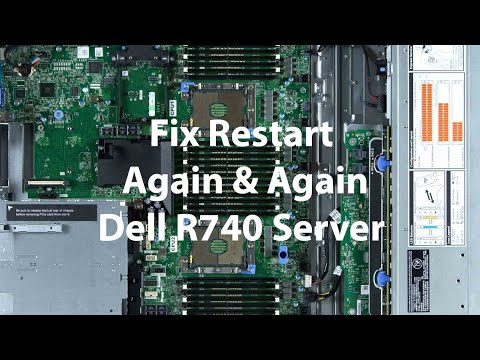
Ever feel like you’re stuck in a loop that you can’t get out of? Like, every time you think you’ve made progress, bam, right back to square one? If you’ve ever seen a Dell PowerEdge server trapped in a Xen Server boot loop, you know the feeling!
Imagine this: you’re all set for the day. Coffee in hand, ready to tackle your tasks and then—oh no! Your trusty server decides it’s caught in Groundhog Day. Every restart sends it back into that dreaded loop.
It’s frustrating, right? You just want things to work smoothly. But hey, don’t sweat it too much. You’re not alone! Lots of folks hit this bump with their servers.
Let’s see what’s going on under the hood and get your server back on track. We’ll figure it out together—you got this!
Dell PowerEdge Server Boot Menu Key
Sure thing! Let’s talk a bit about Dell PowerEdge Servers and their boot menu keys. I know those servers can be a bit tricky sometimes, especially if you’re facing issues like the Xen Server boot loop. Let’s see if we can make this technical stuff a tad easier to grasp.
Understanding the Boot Menu Key
You see, when it comes to Dell PowerEdge Servers, accessing the boot menu is like holding the key to your server’s world of tasks and checks before it even loads up the operating system. The boot menu lets you choose different startup options or diagnose problems.
The Magic Key
Now, here’s where it gets interesting: To access that boot menu on most Dell PowerEdge servers, you’ll need to hit one of those magical function keys during startup—it’s usually F11. Pretty simple, huh? It’s like catching a secret train that stops at every important stop before reaching its destination!
Steps to Accessing the Menu:
- Restart your Server: Begin by restarting your Dell server. You want to be ready when that initial screen pops up.
- Watch for the Prompt: Keep an eye on your monitor because right there at startup you’ll see something asking you to press F11. That’s your cue!
- The Pressure’s On: Tap (or maybe pound in some situations!) that F11 key quickly while it’s starting.
- Dive Into Options: Once pressed in time, voila, you’ll have several options available—Boot from different devices or run diagnostics if things aren’t looking too good.
Xen Server Boot Loop Problem?
Alrighty then! If you’re dealing with a Xen Server stuck in a boot loop on one of these servers—it happens—I mean tech isn’t always perfect right? The first step would typically involve accessing this very boot menu we just talked about.
From there:
– You might want explore using recovery tools.
– Or consider checking various hardware components just in case there are underlying issues causing headaches such as conflicts or failures.
And that’s essentially what you’d look out for regarding getting into that helpful little place known as ‘boot menu’ while keeping potential Xen-related hang-ups under control using similar steps outlined above.
I remember once having nerve-wracking moments trying figure all this out until… EUREKA! I found patience & persistence really pay off working calmly through each step carefully gave me chance fix everything nice n’ smooth!
In any case hope sharing was helpful bringing clarity amidst tech-world chaos faced everyday by many tackling server quirks head-on bravely themselves!
Virus-Induced Dell Restart Loop Causes
You know, encountering a restart loop on your Dell PowerEdge server can really throw a wrench into your day. It’s like you’re stuck in a revolving door and just can’t find your way out—frustrating! Now when it’s induced by a virus, things can be even trickier. Let’s figure this out.
Imagine this: You fire up your server, expecting it to run smoothly, but instead, it just keeps rebooting. This is what’s called a boot loop. It’s as if the server is caught in its own little time warp: reboot after reboot with no end in sight!
- The Culprit: A malicious virus might lodge itself deep in the system files of your Xen Server.
- The Result: It can tamper with boot configurations or corrupt vital files that are essential for startup.
What happens is that without these critical files functioning properly, the server doesn’t quite know how to complete its boot-up process. So, it starts over and over again… You catch my drift?
Xen Server, which runs on many Dell PowerEdge servers—especially those heavy-duty setups—is not immune either. It relies heavily on accurate boot settings to get off the ground properly.
- Error Messages: As you plow through this issue, watch for any error messages during boot-up.
- Boot Configurations: These might hint at corrupted system files or changes made by that nasty virus we talked about earlier.
Clearing such issues often requires delving into the depths of BIOS settings or even performing more drastic actions like re-installing parts of Xen or cleaning infected partitions.
Now remember when my friend Joe faced something similar? He was feeling completely lost when his reliable Dell PowerEdge looped endlessly after some unauthorized downloads (ahem!). It turned out a tricky piece of malware had messed everything up. After some head-scratching and coffee-fueled nights digging through logs and configurations, he finally got things running again—but not without tackling both causes head-on using specialized cleanup tools and restoring backup data.
I know these sorts of situations seem daunting at first glance; however knowing what might be causing them takes us halfway towards getting our dear servers back strolling along nicely!
Stay patient tackle each problem methodically—with maybe an extra espresso or two handy—and victory shall surely be yours!
Clearing ESM Logs on Dell Systems
Sure, diving into clearing ESM logs on Dell systems can feel a bit like untangling holiday lights, right? Especially if you’re dealing with that pesky Xen Server boot loop issue on PowerEdge servers. Let’s get you through it in a way that’s straightforward and easy to digest.
First things first. The ESM (Embedded System Management) logs on Dell systems are crucial for monitoring the health and changes in your hardware components. Think of them like your system’s diary, noting every little hiccup or change. But when these logs fill up, they might cause unexpected behavior, such as that dreaded boot loop!
Why Clear ESM Logs?
- Avoid Boot Loops: On certain models like Dell PowerEdge servers using Xen Server, full ESM logs can cause notorious boot loops.
- Improve Performance: Clearing them helps maintain optimal system performance by preventing unnecessary resource usage.
I remember once wrangling with an old server at work. We were scratching our heads trying to understand erratic reboots until we realized the ESM logs were jam-packed. A quick clear, and voilà! It was up and running smoothly again.
How to Clear Those Pesky Logs
Here’s how you can go about it:
- Access the iDRAC Interface: This is basically your remote access console to manipulate the server’s settings without even having physical contact with it.
- You usually access this via a web browser by typing in the IP address assigned to iDRAC.
- If you’re unsure of this address, check with your network administrator—trust me, they know!
- Navigating to System Logs:
- Once logged in—yay!—navigate to the ‘Logs’ tab or section within iDRAC.
- Select and Clear Entries:
You’ve arrived at a treasure trove of historical data!
Your goal here is simple: give that old slate a refreshing wipe.
If you’re feeling adventurous—or just curious—you might want glance over some entries before deleting them.
You never know what mysteries lie within those records!
Don’t rush into deleting stuff unless absolutely sure.
Tada! Once completed successfully—and assuming everything else aligns—the server should behave itself upon rebooting sans any boot-loop theatrics!
In navigating technology-landmines like these dastardly log scenarios
always remember having fresh copies crucial data backed-up securely elsewhere prior making significant changes is paramount
Hope sharing these tips makes tackling common troubleshooting dilemmas less daunting endeavor one learns valuable tidbits along way stays merry midst tech tribulations!
Hey, you ever had one of those days where technology just seems to have it out for you? I remember this one time dealing with a Xen Server boot loop on a Dell PowerEdge server. It’s like, everything seems fine one moment, then bam! The server just decided to keep chanting “reboot” like it was stuck in some existential crisis.
You know that feeling when you’re all set to get work done and your devices go all rogue on you? Yeah, exactly. I mean, these servers are like the unsung heroes of the tech world—quietly keeping things running smoothly until they don’t.
When this kind of thing happens, it’s usually something small but tricky—like maybe an update went sideways or there’s a hardware compatibility hiccup. Sometimes it’s a little corrupted file causing all kinds of unnecessary drama. It’s as if the server said, “Not today!” and casually threw itself into an infinite loop.
Anyway, getting through that meant diving into some basic troubleshooting first (which is usually where we start). Like checking BIOS settings or ensuring all firmware was up-to-date because maybe something got missed there.
Another thing? Those virtual machines can be real divas sometimes—requiring very specific configurations to coexist peacefully with XenServer. So double-checking VM setups is never a waste of time either.
In the end though what really counts is patience—and probably some coffee too—for those long hours piecing together what needs fixing. Remembering that even the most advanced tech can stumble reminds us we aren’t alone in facing quirks now and then!