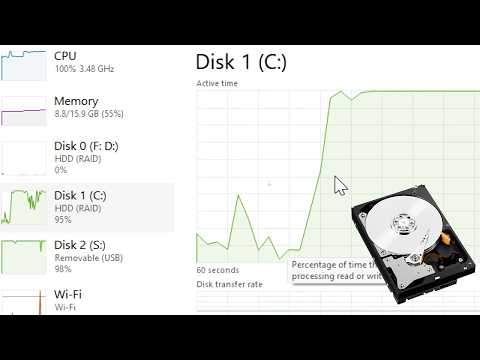
Ugh, slow computers can be the worst, right? I mean, you’re just sitting there waiting for something to load. Feels like forever. Especially when you’ve got one of those 7200 RPM hard drives spinning away.
Now, I’m not saying there’s no hope! Actually, there’s a lot you can do to speed things up a bit. Get your PC back in the fast lane! Believe it or not, I’ve been there too. Watching that little spinning wheel go ’round and ’round.
You know how sometimes it’s like your PC has decided to take a nap instead of opening your files or running programs? Well, that’s often what happens with these hard drives when they’re not quite pulling their weight. Let’s see what’s going on and try to get things moving again!
Checking for Slow HDD Performance
Oh, the agony of slow computer performance! If you’re dealing with a PC that’s dragging its feet, especially with a 7200 RPM hard drive, it can be downright frustrating. I’ve been there myself—waiting ages for a simple file to open can feel like watching paint dry. Let’s dive into the world of diagnosing and optimizing that trusty old HDD.
Understanding HDD Speed:
7200 RPM stands for revolutions per minute, which basically tells you how fast your hard drive spins. It’s kind of like how fast your car’s wheels turn while driving. Faster spin means quicker data access. However, if your computer’s running slow despite having this speedier HDD, something might be off.
Common Causes of Slow Performance:
- Fragmentation: Over time, files on the disk get scattered all over, making it harder to read them quickly.
- Lack of Free Space: You know that feeling when your room is cluttered and you can’t find anything? Hard drives feel the same when they’re nearly full.
- Aging Hardware: Like our joints as we age, older hardware just doesn’t move as swiftly as it once did.
Troubleshooting Steps:
1. **Check Disk Space**: Go ahead and open up ‘This PC’ or ‘My Computer’ to see how much free space you have left. Ideally, you want at least 15-20% free space for optimal performance.
2. **Defragment Your Drive**: Imagine putting together a jigsaw puzzle where all the pieces are scattered across different rooms! Use Windows’ built-in defragmenter tool to piece everything back together neatly.
3. **Clear Temporary Files**: All those random internet files and system leftovers can be cleared out using tools like Disk Cleanup or CCleaner.
4. **Run Disk Check (CHKDSK)**: This nifty tool checks for errors on the disk—like potholes on a road—and tries to fix them.
5. **Scan for Malware:** Sometimes sneaky malware affects performance just by being there or by eating resources unnoticed!
6. **Update Drivers:** Outdated drivers are like trying to run modern software on an old typewriter; things probably won’t work efficiently!
7. **Consider Upgrading:** If after everything it’s still lagging behind then maybe think about swapping in an SSD – these babies don’t spin but instead work more like memory cards – lightning-fast access times await!
Remember those long floppy disk speeds from back in my day? We’ve come quite far since then… but every bit helps when squeezing out extra juice from aging tech parts we love dearly ❤️ Isn’t technology fascinating yet relentlessly testing at times?
Epilogue Tip: Regular maintenance goes a long way in keeping things snappy – just scroll through these steps every few months if possible ✌️
Hope this little guide makes life easier; getting rid of computing speed bumps truly feels liberating!! Isnt it?
Lifespan of a 7200rpm Hard Drive
Talking about the lifespan of a 7200rpm hard drive, it’s like discussing how long your favorite pair of shoes will last. You know, there are so many factors that come into play! Typically, these types of hard drives can last anywhere from three to five years. But don’t take that as gospel – they might surprise you and keep spinning beyond that!
- Usage Patterns: How often are you reading and writing data on it? The more work it does, the faster it wears out. Just like those shoes I mentioned earlier.
- Environment: Is your PC sitting in a warm area or a cool one? Heat can shorten its life considerably.
- Build Quality: Not all drives are created equal. Some have sturdier components which might extend their lifespan.
One time, my friend Tom had his 7200rpm drive soldiering on for almost seven years! He always kept his computer in a well-ventilated space and only used it when necessary. Of course, not everyone’s situation is the same.
When diagnosing slow performance in PCs with these drives, make sure to consider usage and health checks too. If things are dragging along at snail’s pace, it could be due to fragmentation. That’s when data gets scattered all over the place instead of being stored in neat order.
You see, imagine trying to find pages from several different books but they’re all mixed up – frustrating right? Running a defragmentation tool occasionally can help tidy things up and speed performance.
But if that slow poke is still muddying up your day-to-day tasks – well buddy – maybe it’s time for some detective work:
- Error Checking: Use built-in tools like Windows Error Checking to scan for physical errors on the disk.
- S.M.A.R.T Monitoring: This stands for Self-Monitoring Analysis Reporting Technology – kind of technical mumbo jumbo – but basically keeps tabs on potential risks before they become problems.
Sometimes giving our ol’ trusty hard drive buddies regular attention prevents future woes lingering over us unexpectedly later down road.
In short (pardon my rambling!), while these speedy spinners are crucial players within modern computing setups today; rest assured even amidst hiccups most quirks tend sorting themselves promptly enough thus guaranteeing lasting reliability overall!
Identifying Causes of Slow HDD Performance on Windows
Hey there! Let’s dig into what might be slowing down that HDD of yours on Windows. Ah, those spinning disks can be like a puzzle sometimes, can’t they?
Why’s It Running Slow?
You ever feel like you’re waiting for your computer forever? Well, hard drives get bogged down for a bunch of reasons.
- Fragmentation: Files get broken up and scattered. It’s like if you were reading pages from different books all spread out around the house. Your hard drive has to jump all over to gather them.
- Limited Free Space: When there’s not enough room left, your HDD struggles to swap files in and out efficiently.
- Background Processes: Hidden processes or apps are sneaky little things. They eat up resources without you even knowing.
- Aging Hardware: Like old shoes losing their fit, an older drive may not perform as it once did. Wear and tear over time takes a toll.
Tackling Fragmentation
Windows comes with a built-in tool called “Defragment and Optimize Drives.” It’s pretty handy! Basically, it organizes data neatly so your HDD doesn’t have to search every nook and cranny.
The Free-Space Dilemma
Time for some cleanup! You can use “Disk Cleanup” (just type it in the search box) to get rid of unnecessary files. Clearing old downloads or unused programs is also smart.
Sneaky Background Processes
Try opening Task Manager by pressing Ctrl + Shift + Esc. From there, see if you can spot any resource-hogging apps running in the background—it’s like finding out who’s been eating all the cookies!
Don’t forget those pesky startup programs either; they sneakily slow things down when you’re powering up your PC.
Your Drive’s Age Is Showing?
If it’s getting older, backup important files regularly—just in case—and consider planning ahead for an upgrade one day.
Hopefully this helps make sense of why that hard disk might be dragging its feet lately! You’ve got some tools at hand now without feeling totally lost among tech jargon—phew!
Oh, dealing with a sluggish computer can really test your patience, can’t it? Especially when you have one of those 7200 RPM hard drives that you thought would be a real speed booster. You imagine it’ll zip along, but sometimes it feels like you’re stuck in the slow lane. Ever opened up your laptop, ready to tackle a big project, and felt like the PC decided to take its sweet time waking up? Boy, do I know that feeling!
Think of a 7200 RPM HDD as the hamster wheel inside your computer—spinning faster than older models, hoping to retrieve data more quickly. However, it’s still not as zippy as those fancy SSDs everyone talks about. And there are so many reasons why performance might drag.
You might want to start by checking how cluttered things are on your hard drive. It’s kind of like trying to find something in an overstuffed closet. The more packed it is, the longer it takes to retrieve things. Over time—applications stacking up files and all—a drive needs some room to breathe.
And let’s not forget our dear friend: fragmentation! Picture bits of data scattered all over instead of being neatly arranged next to each other. That little guy working extra hard inside (your HDD) has got quite the workout trying to piece everything together before delivering it on-screen.
But wait! Even sneaky culprits like background programs or malware could be hogging resources without you noticing! Remember when you installed Aunt May’s bloated weather widget two months ago? It’s probably still there pulling strings behind the scenes . . .
So if your computer’s feeling more tortoise than hare despite having its momentarily impressive 7200 spins per minute wheel spinning away inside—we’ve all been there—it may just need tidying up using disk cleanup tools or ensuring antivirus software runs regularly & efficiently among other best practices 🙂
There’s something strangely rewarding about performing detective work on tech problems though—kindof mixing patience with curiosity figuring out what’s causing hiccups under hood… Like tuning into blend symphony bringing out best harmony again; till everything hums along smoothly once more.