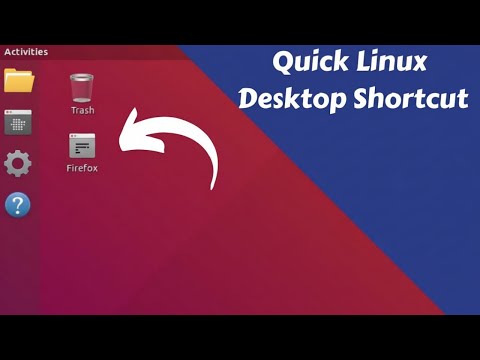
You know when you get used to doing things a certain way, and suddenly you find out there’s an easier path? Yeah, happens to me too! Creating shortcuts in Ubuntu is exactly that hidden gem. It’s like finding a secret passage in your favorite game.
I remember when I first stumbled upon this little trick. Honestly, it felt like unlocking a superpower on my computer. I couldn’t stop smiling.
Anyway, wanna save some precious time and frustration? Stick with me here—you won’t regret it!
Creating Shortcuts in Ubuntu
Creating shortcuts in Ubuntu can really make your life easier, you know? Especially when you have certain apps or files you keep using over and over again.
First things first, let’s get into the desktop environment. If you’re using something like GNOME, you’ll find this pretty straightforward. Here’s what you’ll want to do:
- Right-click on your desktop: A menu will pop up.
- Select “Create New Launcher” or something similar: Not all distributions have it exactly the same, but look for an option that sounds like creating a launcher or shortcut.
- Name your shortcut: You can call it whatever you want! Something that’ll remind you of what it does helps a lot.
- Enter the command: Now, this is where you’d type the command to launch the app or open a file. For example, if it’s Firefox, simply write
firefox. - Select an icon: Clicking on the icon will allow you to choose something visual that pops out at ya. It’s optional but quite useful!
Maybe you’re more of a terminal wizard? No worries—there’s a way using good old terminal commands too.
- Create a .desktop file: Open up terminal and create one with this command:
$ touch ~/.local/share/applications/myshortcut.desktop. - Edit the file using nano or any text editor:You’d do something like
$ nano ~/.local/share/applications/myshortcut.desktop.
This brings up an editable text interface.
Thuis is how it’ll look—“`
[Desktop Entry]
Name=My Shortcut
Exec=myapplication
Type=Application
Icon=/path/to/icon.png
“`
Basically, fill in those fields with what suits your needs!Create another if it doesn’t work just right—no harm fiddling around!But seriously one small thing *(not really so small)*—sometimes permissions trip people up.
Make sure your .desktop files are executable with:
$ chmod +x ~/.local/share/applications/myshortcut.desktop
Do these steps sound complicated? Try not worrying—you’ll slog through!
Having shortcuts can streamline nearly every interaction behind closed doors (or at least within system layers). Feels great knowing getting where needed is done faster than ever before! And who knows—that saved time might mean having more breaks between tasks already jam-packed inside schedules… amirite?!
Creating a Custom Shortcut Procedure
Creating shortcuts on Ubuntu can make your life sooooo much easier, especially if you’re diving into favorite apps or files often. It’s kinda like having a magic button that fast-tracks you right to where you wanna be. Ever wished you had more time? Well, shortcuts are sorta like that—saving those precious seconds!
Why Create Shortcuts?
Think of those times when you’re feelin’ super productive and don’t want to waste even a single moment. You’ve finally got the motivation to work on that project (you know, the one that’s been nagging at you). The last thing you need is to be fumbling around trying to find the app every single time. Shortcuts pop it open in no time.Creating a Custom Shortcut in Ubuntu:
- Locate Your App or File: First up, make sure you know exactly where your app or file is hanging out on your computer. Whether it’s tucked away in some folder or lounging in the applications menu.
- Create the Shortcut Command: Open your terminal—it’s that little black screen that looks all techy but once you get used to it feels like an old friend. Let’s say you’re setting up a shortcut for Firefox; you’d type something like:
nohup firefox &
- Create a .desktop File: Here comes a tiny bit of sleuth work! Navigate over to the Desktop directory via terminal using:
cd ~/Desktop
And then whip up a new file with:
touch MyApp.desktop
- Edit Your .desktop File: Pop this file open with any text editor (like gedit). Here’s where magic happens, kind of like giving instructions on how your shortcut should behave:
[Desktop Entry]
	Name=MyApp
	Exec=firefox
	Type=Application
	Terminal=false
	Icon=/path/to/icon.png
- Smooth Sailing from Here! After saving your changes, just double-click this new shiny shortcut sitting pretty on desktop. If prompted about permissions just give it the go-ahead.
Now here’s an example: imagine you’ve created “Play Music” shortcut for instant melodic fun! If only everything else could be made as simple as listening tunes while working away.
And there y’go… see your app launching faithfully each time without fail? Isn’t life nice when technology plays along? At least…most days!
Oh, shortcuts! Aren’t they just the little timesavers that can make our computer lives a whole lot easier? If you’re anything like me, you probably appreciate those few seconds saved here and there. I remember the first time I tried to set up a shortcut on Ubuntu. Spoiler: it wasn’t exactly a smooth ride.
So, creating shortcuts in Ubuntu is like finding hidden treasures in your system. If you’ve ever switched from another operating system, you might wonder where all the familiar shortcuts are hiding. The good thing is, Ubuntu isn’t too hard to navigate once you get the hang of it.
Here’s what usually happens: You find out there’s this thing called “Terminal” where magic happens—at least that’s how it felt to me at first! To get started with creating a shortcut—something like quickly opening an app—you’d typically use this Application called “Files” or “Nautilus” if you’re feeling fancy with terms.
You start by right-clicking on your desktop or inside any folder really, then choose “Create New” and hit “Link to Location (URL)”. Wow sounds techy, huh? But don’t worry; it’s not as complicated as it sounds. You basically tell Ubuntu where your application is hiding by pasting its location there.
And oh boy, here’s when I got stuck initially—finding that location. What happens is you’ll need to locate the executable file of whatever program you want to create a shortcut for. Often they’re nested in directories that sound gibberish at first but soon become second nature: /usr/bin/, /usr/share/applications/, you name it.
Once you’ve pasted the path and named your shortcut something cool (because naming things creatively adds a touch of fun), voila! Your shiny new shortcut should appear ready for action!
This journey can be one part confusion and two parts aha moments—you know what I’m saying? When you’re done, though, it’s weirdly satisfying knowing you’ve wrangled Linux into doing your bidding just like that!
Anyway have fun making those shortcuts; before long you’ll have them everywhere because hey why waste time when your computer can do more work for you?