Hey, okay, so let’s chat about NTFS permissions. I know, it sounds a bit geeky, right? But trust me, this is actually pretty useful stuff! It’s all about making sure your files and folders are safe and sound on your Windows computer.
Alright, imagine having a top-secret diary you want to hide from curious eyes. That’s kinda what NTFS does for your files. You can decide who gets to read ’em, change ’em or even delete them. Super handy if you share your computer with others or work in a team.
And you know what’s cool? Setting it up isn’t as hard as you’d think. You’ll feel like an IT wizard once you’ve got the hang of it. Plus, you’ll have that peace of mind knowing your stuff is secure from unwanted hands.
So grab a cup of coffee—or tea if that’s more your thing—and let’s see how you can protect those precious files with just a few clicks!
Enhancing Security with NTFS Permissions
Securing your files on a Windows system is super important, and NTFS permissions can be your pal in this. Imagine you’ve got a treasure chest—those are your files—and only you have the key. That’s what NTFS permissions do for you! They help make sure only the right folks get access.
What Are NTFS Permissions?
NTFS stands for New Technology File System, something Microsoft cooked up to keep data safe on its systems. These permissions tell your computer who can snoop in your files or not. Let’s break it down further.
- Read: Whoever has this can sneak a peek at the file but can’t mess it up.
- Write: They can tweak the file and save changes.
- Execute: Perfect for running programs. It lets them open applications on their own.
The Importance of Proper Settings
Imagine if anyone could waltz into your personal diary! Yikes, right? Proper settings keep curious buddies from nosing around where they shouldn’t.
To illustrate, think about an office scenario: You’ve got sensitive documents that a select few should see—a pricing list perhaps or juicy company secrets. By giving Jack in accounting write access but not Jane from marketing ensures Jane can’t accidentally edit critical numbers.
How to Set Up NTFS Permissions
Okay, let’s roll up those sleeves and dive into setting things straight!
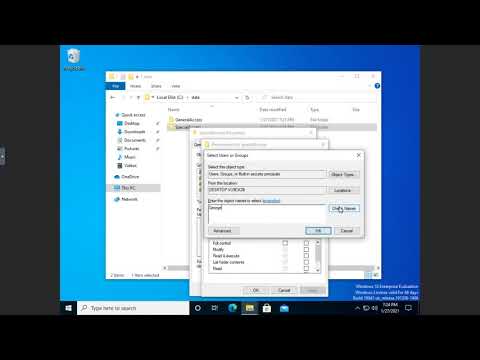
1. **Right-click on the file/folder**: First off, locate that treasure (your file/folder). Right-clicking is like giving it a little nudge to wake it up.
2. **Select ‘Properties’**: This option will lead you to all kindsa’ cool features including security.
3. **Go to ‘Security’ Tab**: This section helps you boss around who’s allowed here.
4. **Click ‘Edit’**: Now’s where you decide who gets past that golden gate!
5. **Adjust Permissions**: Here comes the magic… Select users/groups and tune in their access privileges accordingly.
6. **Apply Changes**: Finally hit ‘apply’, give yourself a pat—you just secured those treasures tighter than Fort Knox!
A Few Cautionary Tidbits
Remember locking yourself outta’ home ’cause keys were left inside? Same thing could happen digitally! Make sure you don’t overdo restrictions—might end up locking yourself out too..
In one instance I heard my buddy Matt went all gung-ho with restrictions till he couldn’t edit his own work document anymore… Oopsie!
Anyway keeping an eye on user priviliges avoids such mishaps down line ensuring smooth sailing through daily tasks while maintaining solid security backbone along way!
And there ya go—that’s how tweaking some simple settings using NTFS permissions improves protection without breaking sweat!
Enhanced NTFS Permission Settings for Security 2022
Sure thing! Let’s chat a bit about configuring NTFS permissions. You know, those settings can make a real difference in keeping your files safe and sound. Basically, NTFS or New Technology File System is what Windows uses to organize stuff on your drives. And it’s got some nifty tricks for security too.
Why Bother with NTFS Permissions?
Well, imagine you’ve got important docs or family photos on your computer – you don’t want just anyone poking around in there, right? By setting up permissions, you can control who gets to see or mess with those files.
Understanding the Basics
- Full Control: This is basically the keys to the kingdom. Whoever’s got this permission can do whatever they want – from reading and writing to deleting or changing permissions.
- Modify: Allows changes to files but doesn’t give someone permission to alter security settings for them.
- Read & Execute/Read: Lets people open and read files, but not change them.
- Write: Gives the ability to change existing files (like saving edits) but not delete them.
A Little Walkthrough
1. Right-click on that file or folder of yours.
2. Hit “Properties,” then head over to “Security.” Here’s where all the magic happens!
3. Click on “Edit.” You’ll see users and groups listed.
4. Now click on “Add…” if you need new users, type in their names.
5. Select a user/group and check out their permissions below.
Tweaking Permission Levels
Got some nosy people at home? Or maybe it’s just you’re worried about unwanted access from outside? This is where auditing comes in handy for more detailed oversight:
- Your Kid: You might wanna set them up with just “Read” permissions so they don’t accidentally delete important stuff!
- Your Best Buddy: If they’re helping out with some project, perhaps giving ’em “Modify” rights makes sense?
Just remember though; too many cooks can spoil the broth…or make it less secure!
The main point here really isn’t rocket science; it’s finding balance between accessibility vs protection!
Distinction Between Share and NTFS Permissions
Navigating through the world of computer permissions can feel like you’re trying to read a map with invisible lines. But hang tight—I’ll walk you through it! When dealing with Windows file systems, understanding Share and NTFS permissions is crucial. They both control access to files and folders, yet they work a bit differently.
Share Permissions are kind of like the bouncer at a club, deciding who gets in from outside. They’re used when you share folders over a network. You know when you want someone else in the office to access your files? That’s where share permissions come into play. The three main levels here include:
- Read: People can only look at so much—they can view but not change anything.
- Change: This opens things up—users can make changes and delete stuff.
- Full Control: This is the golden ticket—users have all rights, including changing permissions.
On the other hand, we have NTFS Permissions. These are like complex passcodes for your safe deposit box; they control both local and network access to files. They offer much more detailed security settings than share permissions.
- Read & Execute:: Users can run applications and scripts but can’t change them.
- Create/Edit:: Allows users to create new files and modify existing ones.
- Edit/Delete:: Users can make changes or even delete files entirely!
Let me break it down further with an example: Imagine you’re sharing your vacation photos folder on a home network using Share permissions set to “Read.” Your cousins next door can see all those sunny smiles but can’t delete or alter any photos unless NTFS gives them say permission.
However—and here’s where things get interesting—if there’s ever a conflict between these two types of permissions, guess which one takes priority? Ding ding ding! NTFS always wins because it’s more secure by design.
To sum up this adventure in tech land: Both Share & NTFS serve essential roles in security management; understanding how each works will keep those important files safer than Fort Knox!
Oh, configuring NTFS permissions, huh? This one’s a bit techy but super important. Have you ever thought about how many files and folders just sit on your computer? It’s like having a virtual vault, and you definitely want to keep the wrong folks out.
Remember my old buddy Tim who works in IT? One time we were grabbing coffee, and he shared a story. He had this situation where someone accidentally gave read-and-write access to their entire team on a sensitive folder. Oops! Let’s just say what followed was a whole episode of frantic file fixes. It was that day he became the office hero by mastering NTFS permissions, making sure everyone had exactly what they needed—nothing more, nothing less.
NTFS, or New Technology File System if we go technical for just a second, is all about managing access to files stored on Windows systems. It’s like playing gatekeeper at an exclusive club; only those with the right passes get inside to party with your data.
Let’s say you’re running a small business with shared folders for projects. You wouldn’t want everyone editing and deleting crucial documents by mistake or because they’re not familiar with certain tasks. You set up NTFS permissions to limit access: maybe Jenny in finance can view budgets but not edit them; while Carlos in marketing can draft proposals but can’t touch financial forecasts.
Managing these settings helps protect your data from accidental changes or unauthorized access—which let’s face it—could lead to some major headaches down the line.
Anyway as you navigate through these setup screens remember you’re doing an important job securing information that’s valuable for both personal and professional reasons. So next time when someone says “permissions schmermissions,” you know you’ve got it covered!