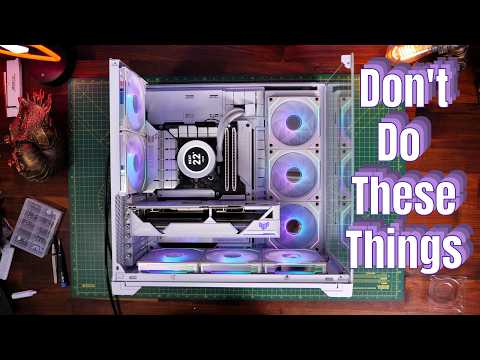
You know what? Building your own PC can be like putting together a really fancy LEGO set. It’s fun, right? Until—bam!—you hit a snag. And when things don’t go as planned, oh boy, it can feel like the end of the world.
I remember my first time building a rig; I thought I had everything sorted. Turns out, I’d forgotten to plug in a tiny cable and spent hours scratching my head. Talk about frustrating moments!
Look, you’re not alone in this. Everyone makes these little mistakes when they’re starting out. Maybe you’ve got mysterious cables hanging or your machine just won’t boot up. Don’t sweat it!
Let’s walk through some common hiccups you might run into and how to untangle them without pulling all your hair out!
Incorrect PSU Wattage Selection
Hey there! So, let’s dive into the world of PC building. One mistake folks often make is picking the wrong power supply unit (PSU) wattage. Sounds like a small thing, right? But choosing the incorrect PSU wattage can lead to many headaches down the road.
Why Does Wattage Matter?
Imagine your computer as a car. It needs fuel to run, and in this case, electricity is that fuel. A PSU supplies that electricity. If you choose a PSU with too little wattage, your computer might not start or it could shut down unexpectedly when you’re doing something power-intensive like gaming or running heavy software.
What’s the Right Wattage?
Selecting the right wattage isn’t guesswork—it’s about calculation. You need enough power for all your PC components: CPU, GPU, motherboard, peripherals—you name it. Here are some essential factors to think about:
- CPU: Check its TDP (Thermal Design Power). It gives an idea of how much power it generally requires.
- GPU: Graphic cards are power-hungry beasts! Make sure to look at their recommended PSU requirements.
- Future Upgrades: Plan ahead! Maybe you’ll add more RAM or another SSD later.
How Do You Calculate Total Requirements?
There are handy online calculators that help estimate total wattage needs based on your components’ specs. Just plug in details like how many fans or hard drives you’re using.
A Personal Story:
I remember building my first PC back in college—exciting times! I skimped on research and ended up grabbing a 400W PSU for what was truly a 500W setup need. My system would crash anytime I played high-end games… talk ’bout frustrating evenings!
Pitfalls & Solutions:
- If your system restarts during intense tasks or doesn’t boot at all—it could be an underpowered PSU.
- An overkill solution won’t hurt performance but might hit pocket harder than needed—and who wants wasteful energy usage?
All said above boils down onto checking manufacturer recommendations before buying anything; mismatching components ultimately only leads toward unpleasantness.
So next time tackling custom build journey remember focus carefully within specs ensuring optimal functional harmony!
Hope helps unravel mystery behind optimal PSUs bit clearer ease future travels through tech world!
PC Longevity for $2000 Budget
Building a PC with a $2000 budget? Fancy right? It’s like setting up your dream ride but for gaming work or just speed. But hey even when you’re spending that kind of dough there are pitfalls you might stumble over.
Choose Compatible Parts
A friend of mine once bought a top-tier CPU without checking if it fit the motherboard he had picked out. Oops! Always double-check compatibility. It’s kinda like making sure your keys match the lock before trying to get into a house.
- Motherboard and CPU: Make sure they share the same socket type.
- RAM: Your motherboard will specify what type and speed of RAM it supports.
Avoid Power Supply Woes
Oh man I remember this one time when I got everything setup hit the power button…nothing. Turned out my power supply just couldn’t handle the load. So keep an eye on that wattage!
- Quality over cost: Invest in a reliable power supply unit (PSU) with **adequate wattage** for your components.
- Cables: Double-check they’re snugly connected. A loose cable can mean no juice!
Taming Thermal Issues
Let me tell you—you don’t want to hear that fan whirring like it’s about to take off! Proper cooling is crucial.
- CPU Cooler: Stock coolers are okayish but consider aftermarket options if you’re going for serious performance.
- Cable Management: It’s not just for looks; it helps air flow freely through your case.
Sizing Up Storage Solutions
My buddy once forgot to buy an SSD and relied only on an old HDD from his previous setup—a major bottleneck!
- The SSD Advantage: Use an SSD for your operating system and key applications for faster boot times.
- You can add an HDD later as additional storage space if needed.
Avoid Overkill Graphics Cards
Computer Won’t Turn On Causes
Oh boy, there’s nothing more frustrating than hitting that power button and seeing no signs of life from your computer, right? It can be like trying to start a car with no gas. Let’s dive into why this might be happening.
Power Supply Issues: This one’s quite common. The power supply is like the heart of your computer; if it isn’t working, then the rest of your system won’t either. Make sure it’s plugged in properly to both the wall and computer. A faulty power cable or surge protector might also be the culprit.
- Check connections: Ensure everything is snugly connected to power outlets.
- Tried another outlet? Sometimes, just moving to a different plug does wonders.
Motherboard Problems: Your motherboard is critical since it connects all components. If there’s an issue here, well, that’s bad news for turning on your PC.
- No lights? If you see no indicators lit on your board when trying to boot up, something may be wrong.
- Inspect for physical damage: Things like burns or smell could hint at issues.
Cables Not Properly Connected: You wouldn’t believe how often loose cables cause headaches!
- The CPU Power Connector: Make sure it’s firmly in place; without it, nada’s gonna happen.
- SATA Connections: These connect hard drives; if they’re off or loose you get problems too.
Your RAM Might Be Misbehaving:: This tiny stick can bring everything down when not seated right!
- Tighten RAM modules:
Building your own PC can be a bit of an adventure, you know? I still remember the first time I decided to give it a go. There I was, surrounded by all these shiny new components and feeling more than just a tad overwhelmed. Seriously, I thought I had everything lined up perfectly… until I hit a snag or two.
One thing that happens more often than not is when cables don’t quite fit where you expected them to. Like trying to piece together an IKEA wardrobe without really reading instructions— you’re certain that the cable should go there, but for some reason, it just doesn’t click. A common culprit here is the power supply connections. Sometimes these sneaky cables don’t align with motherboard ports as you’d want them to. So, if you find yourself stuck at this point, double-check those manuals and diagrams from both your PSU and motherboard packagings.
Another hiccup people run into involves RAM installation. It’s supposed to be simple: slot them in and that’s it! But then—you hear no telltale ‘click’. Maybe because you didn’t press down firmly enough? Or they’re seated unevenly? When you’re putting them in make sure they’re fully pressed into their slots till they snap securely in place.
And let’s not forget thermal paste application on the CPU—it’s honestly an art form! Too much or too little can both lead to trouble: overheating issues if overdone or inefficient cooling if sparse. Just a nice pea-sized dab’ll do ya!
Then there are those mysterious boot errors… Your machine powers on but refuses any further cooperation; doesn’t reach BIOS even after multiple attempts! That was my personal nightmare once upon a moonlit night— turned out something wasn’t properly connected (a slight nudge fixed things!). Checking all connections helps solve most initial boot problems.