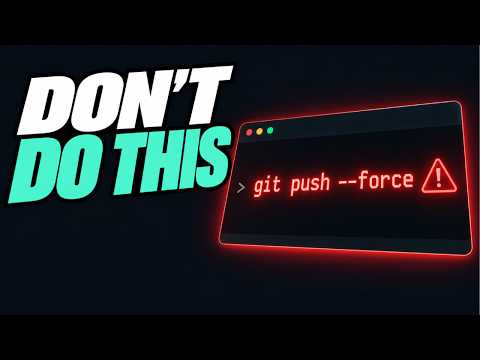
You ever had one of those days where nothing seems to go your way? Like when your coffee spills, and you’re already late for that meeting. Well, guess what? Sometimes working with Git feels just like that. Seriously!
You’re cruising along, making commits like a boss, and then—bam! You hit a wall. Maybe it’s a merge conflict or some mysterious error message that pops up out of nowhere. Sound familiar?
Yeah, it can be frustrating, but you’re not alone. It’s kinda like when I got lost on my first solo road trip without GPS—it’s all about learning the ropes.
But hey, there are ways to sidestep those common Git headaches before they even start bothering you. So grab a comfy chair and let’s chat about keeping your coding experience smooth as silk!
Avoiding Common Git Repository Issues
Oh, Git repositories! You know, they’re like the magical backpacks for developers. You throw all your code in there, and it keeps everything safe and sound. But hey, even a git repository can have its hiccups now and then. Let’s chat about some common issues folks face with Git repositories and how you can sidestep them.
1. Merge Conflicts
A real pain when you’re working collaboratively. Basically what happens is two people edit the same part of a file in different branches. When you try to merge those changes together, Git doesn’t know what to do! So it’s like saying “hey user 1 wrote this but user 2 also said this,” and starts pulling its hair out.
- How to Avoid: Communicate with your team members about which files or sections you’ll be working on.
- Do frequent pulls from the main branch to ensure your fork is up-to-date.
2. Detached HEAD State
Sounds dramatic, huh? It’s not as scary as it sounds though! What happens is you’re exploring past commits or checking out specific versions without creating a new branch.
- Solution: Always create a new branch if you want to test or modify an older version of your code!
3. Overwritten Commits
Imagine working on your masterpiece all night only to accidentally overwrite it with something else! Roseanne down the road would be devastated—just like she was when she lost her lasagna recipe!
- Avoid by using:
- The
`--force`, as little as possible, when pushing changes. - The
`reflog`, which helps in recovering lost commits if things go sideways!
4. Misleading Commit Messages
You ever find an old sticky note but can’t remember what it was for? That’s what ambiguous commit messages feel like—they tell future-you nothing useful!
- Avoid by ensuring:
- Your commit messages are descriptive.
- You answer the “what” and “why” behind every change!
5. Large Files/Repositories Becoming Slow
Overstuffing isn’t just bad for turkeys—you don’t want a sluggish repository either! Storing heavy files directly into Git repos can make them unnecessarily slow.
- Solve by using tools:
- The
`git lfs` (Large File Storage), helps manage large files efficiently without clogging up space within the repo itself.
See why these simple steps often end up saving hours later on during crunch time? Because knowing your way around potential pitfalls ultimately saves more than just headaches—it preserves every precious line of code too!
Hey remember—a little effort today will go quite far tomorrow especially if combined neatly alongside effective communication among teammates while respecting best practices inside early stages throughout development process within any project involving distributed-vcs-based software deployment strategies between developers across myriad platforms worldwide etc.!
Git Merge Conflict Resolution
Oh, the joys of using Git—until you hit a merge conflict, right? It’s like you’re cruising along smoothly and then bam! You’re suddenly faced with these scary lines of code that look like they’re about to eat your project alive. But don’t worry, we’ll untangle this mess together.
What’s a Merge Conflict Anyway?
So here’s the deal: a merge conflict happens when Git struggles to combine changes from different branches. Imagine you and your friend are working on the same document. You both make changes to the same sentence without telling each other. When you try to put those sentences together… chaos! That’s kinda what happens in Git.
Steps to Resolve a Merge Conflict
First off, take a deep breath—seriously, panicking won’t help here!
1. Identify Conflicts: Check what files have conflicts by running `git status`. It feels kind of like detective work.
2. Edit the Files: Open up the conflicting files using your favorite text editor (hey, no judgment here!). Look for lines marked with `>>>>>`. >>>>>` marker shows what’s coming from the other branch.
– And between them? That’s where things got mixed up.
3. Choose What Stays: Decide which parts of the code should stay or if they should be combined somehow.
4. Remove Markers: After rearranging your changes, make sure those git markers are gone before saving.
5. Add Changes: Use `git add` on resolved files to mark them as settled down, like saying “all clear folks!”
6. Create A Commit:: Finally run `git commit` without options—all conflicts must resolve first!
Now let’s share some friendly tips too:
- Avoid Big Merge Surprises:: Communicate with team members regularly (like having project updates over coffee).
- PULL First: Before starting new work pull latest updates always.
- SPLIT Up Large Tasks:: When possible focus each branchation smaller tasks avoid overlapping areas much possible!
Remember this little journey whenever engaging git again know managing potential pitfalls important collaborators! Enjoy coding freedom!!!
GitHub Repository Visibility Settings
Oh, GitHub repository visibility—what a fun topic! Alright, maybe not everyone finds it thrilling, but once you get the hang of it, you’ll see how it can make or break your coding projects. Visibility settings decide who gets to see and interact with your work. It’s like choosing between hosting a private party or an open house.
Types of Repository Visibility
When you’re setting up (or modifying) your repository, you’ve got three main options to choose from:
- Public: Anyone on the internet can view your code. If you want feedback from others or showcase your projects to potential employers, this is your go-to. But remember that this also means anyone can copy your work.
- Private: Only those collaborators you invite can access the repository. Perfect for unfinished projects or proprietary code that’re not quite ready for everyone’s eyes.
- Internal: This one’s exclusive to companies using GitHub Enterprise Cloud. Only members of the organization can view these repositories.
Sounds simple right? Yet many folks miss these basics and face issues later on.
Common Missteps & How to Handle Them
People run into trouble sometimes when they aren’t fully aware of what each visibility setting entails:
- Mistakenly Public: You meant for a project to stay private but inadvertently made it public. Always double-check before committing sensitive info!
- No Invite Given: You’ve set a repo to private but forgot to invite team members. Happens all the time! Make sure everyone who needs access has got it.
Navigating Visibility Changes
Feeling stuck because you want more privacy or visibility? You can change settings anytime!
- If you’re going from private to public, check first if you’re okay with everything becoming visible.
- If switching from public back to private—be alert that any previous forks out there will remain visible unless deleted by users themselves.
A friend once flipped his project settings right before launching an app update—an accidental leak of features yet unrevealed! It became gossip fodder within days across community boards worldwide until he quickly pulled strings back under wraps again.
Anyway now after sharing nightmares like these—I hope yours will steer clear away amid safer seas ahead navigating through those tricky waters called version control platforms!
So, dealing with Git can be like trying to solve a jigsaw puzzle without knowing what the final picture looks like. I remember that one time, in a project, when our whole team was stuck because someone accidentally merged something they shouldn’t have—it was absolute chaos! We learned a lot from that experience and had plenty of laughs afterward. Let me share some thoughts on common Git issues so you, hopefully, don’t end up in a similar pickle.
One major hiccup is the classic “merge conflict.” It’s like when two friends bring different snacks to a party and can’t decide what goes on the table first. To avoid these conflicts, it’s really helpful to communicate with your team about who’s working on what and try not to edit the same file at once—unless you love untangling spaghetti code!
Then there’s the “detached HEAD” state. Sounds spooky, right? It’s when you’re looking at an older version of your project—like flipping through an old photo album and forgetting where you put it back together. You want to be careful with checkout commands. Always remember where you are in your project’s timeline.
Another bumpy road is “forgetting to pull” before making changes. Imagine writing an entire chapter of a book only to realize someone else has already written another part—but better! Keeping your local copy updated by pulling regularly helps prevent this mishap.
Don’t even get me started on mistakenly deleting branches or commits. It’s like losing your keys—you might find them eventually, but not before panicking for 15 minutes first! That’s why backing up changes often by pushing them is key to keeping everything safe and sound.
At the end of the day, practice makes perfect—or at least better prepared! Stumbling through these issues has taught me more than just reading about them could ever do. Plus it helps when you’re working as part of team; everyone brings their own experiences (and mistakes) into mix which keeps things interesting!