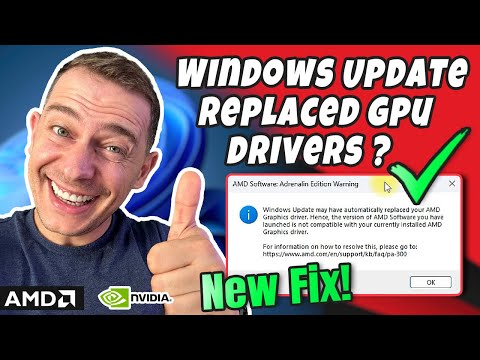
Oh man, those driver issues can be a real headache, right? So you’re dealing with an AMD Radeon Graphics Processor thing? Specifically the 0x15d8 model? Yeah, I hear ya—it’s like your computer has a mind of its own sometimes.
You know, I remember back in the day when I thought I’d fixed everything after updating my drivers, only to find my screen turning psychedelic. It was funny for like a second before it got real annoying!
Anyway, we get ourselves into these techy messes more often than we’d like. But don’t worry! I’ve got some tricks up my sleeve to help you sort this out. It’ll be like talking to that one tech-savvy buddy who actually wants to help out. Let’s see if we can straighten things out together!
Driver Issues for AMD Radeon 0x15d8 on Windows
Ah, driver issues, they’re like those little pebbles in your shoe that sneak up on you when you’re not looking. Let’s chat about AMD Radeon 0x15d8 issues on Windows, shall we?
First things first, what’s 0x15d8 anyway? It’s just a fancy identifier for a specific model of an AMD Radeon graphics processor. Think of it as its nickname in the tech world! When it comes to problems with drivers, they might make your screen flicker or your games run poorly. Annoying right?
Here’s what usually goes astray:
- Outdated Drivers: Sometimes your computer holds onto old drivers like a kid hoarding candy. Old drivers can lead to compatibility issues or software not playing nice with the recent updates.
- Corrupted Drivers: Files can get messy accidentally—maybe during an update interruption or unexpected shutdown. Corruption causes the driver to malfunction.
- Compatibility Issues: Not every driver dances well with all Windows updates. Occasionally a new update throws off the rhythm and causes hiccups.
Now let’s dive into fixing these pesky issues.
You’ll want to ensure you’re running the latest version. Head over to AMD’s official website and look for their driver section. Here’s a quick nudge: Double-check that you’re downloading the file that matches both your graphics card model (in this case, our buddy 0x15d8) and your version of Windows.
If something still seems awry, consider using Windows Device Manager:
1. Search for “Device Manager” in your Start menu.
2. In there find “Display adapters” and locate **AMD Radeon**.
3. Right-click on it and choose “Update driver”. Select “Search automatically for updated driver software” if you’re feeling lucky!
Now here’s an extra tip: if you ever find everything is crumbling down around you after a fresh install (like no screen display at all!), boot into Safe Mode by restarting while holding “Shift”. From there, roll back to the previous driver version through Device Manager again.
Of course sometimes talking about these things doesn’t always cover every base out there right? But tackling common culprits gives you strong footing when dealing with technology’s tiny gremlins!
Updating AMD Drivers for Windows 10
Updating your AMD drivers on Windows 10? No worries—it’s simpler than it sounds! Let’s make this painless and get you back on track, especially if you’re dealing with issues related to the AMD Radeon Graphics Processor 0x15d8.
- Check Your Current Driver Version: To begin, see what version you’re running. Open the Device Manager by right-clicking on the Start button and selecting it from the list. Under “Display adapters,” you’ll find your AMD device. Double-click that, and a window with various tabs opens. Click on “Driver” to see what you’ve got.
- Go to the Official AMD Website: This is your go-to for driver downloads straight from the source—no shady third-party sites please! Head over to their support page and search for your graphics card model.
- Download and Run the Installer: After finding your specific driver, download it and follow any prompts that come up. It’s like a guided tour; just click through each step as they show up.
- Reboot Your System: Some changes play nice immediately, others not until a restart. So once everything’s installed, go ahead—give that restart button some love!
- Verify Installation: Check again in Device Manager where you noted your old version earlier. Does it show an updated one now? Awesome! This means you’re all set.
We’ve all been there; maybe it’s game night or work stuff that’s got graphics demands suddenly spinning out of control simply because drivers weren’t up-to-date…ugh! Following these straightforward steps will save time without added frustration next go-round.
Oh! If things aren’t working despite updates (boo!), try rolling back those drivers in case new ones introduced bugs rather than solutions—a chance but happens sometimes!
- Select Properties under Display Adapters again via right-click menu option after finding device name listed within that same pane here first opened up earlier discussed above notice above already mentioned here seen… li>
Choose “Rollback Driver” found within relevant tab interface goes – hope works then try alternative approach li >
ul >And hey–keep backups nearby especially before major changes system-wide: never hurts remain cautious edge-wise either general strain purposes future reliability sakes alike altogether worldwide networks wise 😊
AMD Cleanup Utility Installation Steps
Installing the AMD Cleanup Utility can feel like untangling a bunch of knotted cables. All you want is to get those drivers sorted out, right? Let’s walk through it in a way that won’t make your head spin.
Why Use the AMD Cleanup Utility?
First things first, why bother with this tool? Specifically designed for systems using AMD Radeon graphics processors, this tool ensures any driver issues—like those nasty 0x15d8 ones—are cleared up.- Download the Tool: Head over to the official AMD website. Search for “AMD Cleanup Utility.” Remember to download it directly from there for safety.
- Boot Up in Safe Mode: Before running the utility, restart your computer in Safe Mode. It’s like going into your room and organizing with all distractions turned off.
- Execute the Utility: Find the downloaded file (usually in your Downloads folder), then double-click it. Follow those easy-peasy on-screen instructions.
Hey, here’s an anecdote: Once while helping a friend sort their graphic drivers, they didn’t restart after using this tool. Result was strange—it looked like their screen went vintage! A quick reboot sorted it out though.
A Few Things To Keep In Mind:
- This utility wipes all existing AMD drivers clean off your system. Make sure you’re ready to reinstall fresh ones right after.
- Your screen might flicker during cleanup—totally normal behavior!
After completing these steps, check if you need any specific driver updates by visiting AMD’s site again. Regularly updating helps keep those graphics smooth as butter on toast.
Cleaning up drivers isn’t everyone’s favorite chore but doing it carefully can give you much more consistent performance on that good old Radeon processor!
Oh man, dealing with driver issues can really bug you sometimes, right? Imagine one day you’re all set to enjoy your favorite game or get some work done on your PC when—boom!—your screen starts acting up because of the AMD Radeon Graphics Processor 0x15d8 driver problem. I’ve seen folks caught in this web before, and it can sure be frustrating.
So here’s the thing: these drivers are like translators for your computer’s graphics card. They help the system understand what it needs to do with all those visuals you see. When there’s a hiccup with them, like outdated or corrupted drivers, it’s like trying to read a book that’s missing pages. You might have artifacts on the screen (those weird glitches) or performance that feels sluggish.
A friend of mine once spent an entire afternoon trying to fix her display issues. She was tearing her hair out because she just wanted to get back into her creative groove using graphic design software! After tinkering around, she found that simply updating her drivers through AMD’s official website did the trick.
And here’s a tip from my own bag of tricks—sometimes doing a clean installation helps too. It wipes out any potential conflicts from older versions hanging around like unwanted guests at a party. You just need to uninstall the current driver completely before putting in the new one.
Enough about me though; what’s been your experience with driver shenanigans? Ever had one of those head-scratching moments where nothing seemed to work until you stumbled onto that random forum post at two in the morning? Ahh, technology… can’t live with it sometimes—definitely can’t live without it!