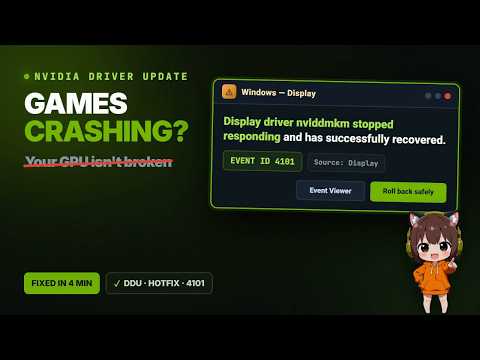
Oh man, dealing with graphics driver crashes can be such a headache, can’t it? Especially when you’re rocking an NVIDIA GT 650. It’s like your computer just decides it’s had enough and leaves you hanging mid-game or right in the middle of watching your favorite show. Frustrating!
I was chilling last weekend, trying to enjoy some gaming on my old setup, and suddenly everything just went kaput. The screen froze, weird colors everywhere—total chaos. Believe me, I know how annoying it is when all you want is a smooth experience.
But hey! Don’t worry too much about it. There are some things you can try to get that GT 650 back up and running without feeling like pulling your hair out. Got some ideas that might help make your tech life easier again!
Nvidia GT 650 Graphics Driver Crash Solutions
Experiencing crashes with your Nvidia GT 650 graphics driver can be a pain, right? It’s like when you settle in for a movie night and the screen goes black right as the action kicks in! If you’re dealing with this pesky issue, don’t fret. I’ve got some helpful hints to guide you through it.
Check for Driver Updates: As obvious as it sounds, outdated drivers often lead to crashes. Make sure you’re rocking the latest version from Nvidia’s official website. Here’s how to do it:
- Visit Nvidia’s Driver Page: Navigate over to their support section.
- Select Your GPU: Find GT 650 from their list.
- Download and Install: Get the latest driver version suitable for your operating system.
Tweak In-Game Settings: Some games might just be pushing your card a little too hard. Reducing graphics settings can sometimes stabilize performance.
- Lower Resolution: Try dropping down from ultra-high resolution if that’s what you’re using.
- Avoid Max Settings: Turn off extras like shadows or anti-aliasing if they’re maxed out.
Avoid Overclocking: Overclocking is great—when it works without hitches! But hey, if your GT 650 isn’t handling it well and crashing frequently, resetting to factory settings might save you some grief.
Check System Temperature: Heat can be a sneaky culprit here. Ever notice how computers tend to get warm? Dust and poor ventilation could lead to overheating which causes the driver to crash.
- If it’s hot in there, try cleaning out dust or improving airflow around your PC case!
Error Logs Are Your Friend!: If crashes are frequent but mysterious, error logs could give clues about what’s up.
- You’ll find them usually tucked away under Windows’ Event Viewer (just search for it).
Now remember! Every setup is unique so these fixes might work better for some than others – just keep tweaking till everything’s running smooth again. Happy computing!
Delivery Duty Unpaid (DDU) Definition
Sure thing! Let’s jump into it.
DDU, or Delivery Duty Unpaid, is a shipping term. Sounds fancy, huh? But it’s pretty straightforward. Essentially, DDU means the seller delivers goods to the buyer in a foreign country without paying certain import duties and taxes. These costs? The buyer’s responsibility once the goods arrive.
Imagine ordering something special from another country—be it new tech gadgets or elusive sneakers. The package arrives all nice and wrapped up at your door, but then… surprise! You’ve got additional charges to handle before you can actually enjoy your stuff.
- Seller’s Responsibilities: Safe delivery of goods.
- Buyer’s Responsibilities: Pay for import duties and taxes.
The Connection: NVIDIA GT 650 Graphics Driver Crashes
Glitchy graphics on your machine can get frustrating—a real downer when you’re just trying to enjoy smooth gameplay or digital art creation. Now, if your NVIDIA GT 650 has been causing hiccups due to driver crashes, think of fixing this as handling unexpected DDU charges—it’s one more step in finishing what should have been a done deal.
Here’s what you might wanna try:
- Update Drivers: Check NVIDIA’s site for driver updates regularly. Sometimes these drivers fix known bugs.
- Tweak Settings: Lowering graphics settings in demanding games or software might prevent crashes.
- Check Compatibility: Make sure your other software isn’t clashing with the graphic drivers.
A friend of mine had a similar issue—his screen would freeze mid-game—and trust me, nothing’s worse than lagging behind when you’re about to win! Updating his setup solved the problem like magic.
Just like dealing with DDU fees ensures you finally get that overseas purchase delivered smoothly, tackling those GPU driver issues will keep your system running happily ever after…or at least until the next update!
Updating NVIDIA Drivers on Windows 10
Hey there! If you’ve been having any trouble with your NVIDIA drivers, especially with the GT 650, you’ve come to the right place. Updating NVIDIA drivers on Windows 10 can be a lifesaver (trust me, I’ve been there). Let’s jump right in and get those graphics running smoothly again!
Why Update Your Drivers?
Well, picture this: you’re in the middle of a game or a crucial project when suddenly everything freezes. It’s frustrating, right? Outdated drivers are often to blame for these pesky crashes. So yeah, keeping them updated ensures that your hardware is working harmoniously with all the latest software improvements and bug fixes.
Getting Ready
Before you start updating stuff, it’s wise to double-check a few things:
- Backup Your Data: It’s always better to be safe than sorry. You may not need it but hey, accidents happen.
- Check Your Current Driver Version: Open your Device Manager (a quick search in the Start menu will get you there), find “Display adapters,” right-click on your NVIDIA card and choose “Properties.” Then visit “Driver” tab to note down current version.
The Right Way to Update NVIDIA Drivers
Now onto the actual updating bit—there’s several ways you can do it.
- NVIDIA GeForce Experience: If you haven’t already got this handy tool installed, give it a go. Download from NVIDIA’s official site (not random links please!). It provides automatic driver updates which means you don’t have keep checking manually every time.
- Manual Installation from Official Website: Visit [NVIDIA’s Driver Download page](https://www.nvidia.com/Download/index.aspx) directly. Enter details like GPU model (GT 650) and Windows version for correct matches! Hit “search”, download then run installer file – see? very simple!
- If All Else Fails – Device Manager Method:You remember where we checked driver version earlier? Yes yes… same place but this time click “Update Driver”! Choose either option showing though best practice is letting system find updates online itself first!
Troubleshooting Common Issues
Alrighty here comes part where patience kicks — sometimes installations don’t go smoothly & glitches appear along way:
- If facing compatibility problems after updates try reverting old versions via Device manager (“Roll Back” feature) till solution found another round yay or nay experimentations needed later perhaps if needed!
- No display outputs appearing after update completes likely misconfiguration issue somewhere; restarting PC generally resets setups resolves easily without headache included promise 😉!
- Battling multiple monitor setups throwing tantrums during upgrades helpful tip unplugging extra connections isolating testing stepwise till functionality restores naturally over reboot loops few tries might involve guaranteed pleasantness result poppin’ unexpectedly awesome conclusion similarly random fashion!
Okay enough babbling onwards next mission enhancing graphic prowess huh…get cracking put newfound knowledge practice thrive creatively unleash potentialities grasp insights previously unfathomable scale magnitude enthralling exhilarating escapade journey awaits!
Oh, the NVIDIA GT 650, a card that’s been around for quite a time now! I remember back in the day when it was one of the hot picks for gamers wanting decent performance without breaking the bank. If you’ve still got one of these trusty cards humming away in your rig, you’re probably pretty familiar with its quirks by now.
But let’s be real—those graphics driver crashes can be a real pain in the neck. You’re mid-game or working on something important, and then bam! Your screen flickers, and you’re staring at your desktop wallpaper wondering what just happened. It’s frustrating, right? It reminds me of when I was just about to win a match (or so I thought), and my system decided it was break time. Definitely not cool!
So what’s going on with those crashes? Well, most of the time it’s because those drivers need an update or there’s some sort of conflict happening behind the scenes. Think of drivers like instruction manuals for your computer that tell it how to handle all that fancy graphics stuff. If they’re outdated or corrupted… yeah, things get messy.
A simple fix often starts with checking if there’s a newer version available from NVIDIA’s website. New updates often come with solutions for bugs that might have slipped through earlier versions’ cracks. Sometimes though, you may need to roll back to an older driver if you recently updated and then started seeing problems—funny how tech works sometimes!
Oh! And don’t forget about keeping up with Windows Updates too because they can occasionally iron out these weird issues as well.
And as annoying as troubleshooting can be—hey, who enjoys spending hours fiddling around instead being productive—it feels good when things finally work smoothly again. Like putting together a puzzle only missing that last piece—or maybe more like untangling holiday lights!
Anyway—to all fellow GT 650 users out there: hang tight; you’ll get those crashes sorted out soon enough!