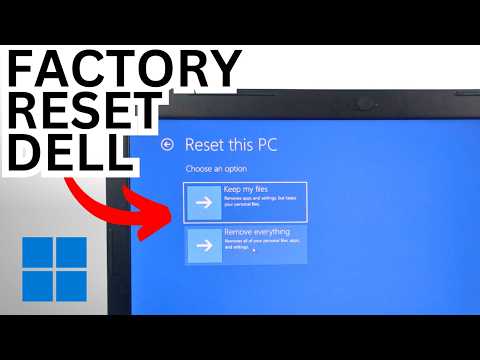
Okay, imagine this: You’re sitting at your desk with your trusty Dell Inspiron 15, and it’s kind of acting like it just woke up on the wrong side of the bed. It’s a bit sluggish. We’ve all been there, right? Your laptop just needs a little spring cleaning. Like what I did with my room last week—it was a mess!
Geez, you’ve heard it before—formatting can be daunting. But hey, it’s not like we’re defusing a bomb here. It’s more like giving your laptop a fresh new start, almost like hitting the reset button on an old video game you love.
What if I told you there’s magic in making that old machine feel brand-new? I’m here to walk you through it, step by tiny step.
And trust me, you’ll feel like some kind of tech wizard by the end of it! Excited yet?
Laptop Formatting Steps
Hey there! I get it, formatting your Dell Inspiron 15 sounds a tad intimidating at first. But really, it’s like organizing your closet. You know, getting rid of the old stuff, making space for the new. Trust me, once you’re through with this process, it’ll feel like you have a fresh start.
Why Format?
First off, let’s tackle why you’d wanna format in the first place. Over time, laptops gather tons of files and apps that bog them down. Formatting helps by wiping the slate clean and making it run smoother again.
Before You Start
You want to save all those cherished photos and important documents somewhere safe before formatting begins:
- Backup: Use an external hard drive or cloud storage.
- Software Keys: Jot down licenses for programs you’ll reinstall later.
The Formatting Steps
1. **Preparation:**
Make sure your laptop is charged—don’t want it dying halfway through! Also helpful is an internet connection just in case any updates are needed.
2. **Boot Menu:**
Restart your laptop and as it starts up immediately press F12 (you might need to press several times) until you see a boot menu pop up.
3. **Select Boot Device:**
Here choose “USB Storage Device” if installing from USB or “CD/DVD/CD-RW Drive” because both work fine depending on what medium you’re using.
4. **Windows Setup:**
Once inside setup pick “Custom install” which gives you more control over things than Upgrade mode which keeps old stuff around.
5 .**Partitioning:**
This part lets folks decide where they want Windows living:
- Select existing partitions one-by-one hitting delete each time clearing them out completely.
- Create new partition(s) using unallocated spaces left behind by deletions choosing size wisely based on needs/goals now informed decisions friends yay!
6.. **Install Away:**
Click “Next” after setting up partitions sit back relax while magic happens—it takes some minutes but nothing too crazy long usually fingers crossed!
7…**Finalizing Details:**
Fill out basic info when prompted such as time zone preferences network details personalization options etcetera quite simple really think filling forms now done!
Your revamped Inspiron feels fresh invigorated ready tackle tasks remember backups enjoy speedy performance till next adventure arrives happy computing everyone cheers!.
Performing Dell Factory Reset via F12 Boot
So you’re trying to reset your Dell Inspiron 15, huh? It can be quite the task, but don’t worry! By following a few steps, you’ll have your laptop feeling fresh and new. Let’s go through how you can use the F12 Boot menu for a factory reset. Grab a coffee (or tea), and let’s get started.
First up, before diving into anything too deep, back up all your important data. You wouldn’t want to lose those precious photos or that project you’ve been working on for weeks! Now that you’ve got everything safe and sound elsewhere, we can move on.
When you turn on your Dell Inspiron 15, press the F12 key. Timing is everything here! You gotta do it just as soon as you see the Dell logo appear. It’s like catching a moment—blink and you’ll miss it!
Alright now, once you’ve hit F12 at the right time you should be greeted by the boot menu. This place might seem daunting with many options but stay calm. You’re gonna look for something called “Diagnostics” first. Why? It’s basically like giving your computer a quick check-up to ensure there are no hardware issues—wouldn’t wanna do all this work just to find out there’s something wrong inside!
Once Diagnostics gives an all-clear (hopefully!), head back to that F12 Boot Menu again; only this time navigate down to “Factory Image Restore” or “Reset/Restore factory settings“. Ready? Here comes “the point of no return” in our journey!
If prompted confirm with ‘Yes>‘ when you’re asked if it is okay wiping away everything from memory since last setup—remember we made those backups already right?
Let’s break down what will happen next:
- Your laptop will start removing existing configurations.
- The system restores itself using backup files hidden deep within storage partitions.
- This process may take some time depending upon file sizes involved.
Once done rebooting under new conditions should reveal fresh operating system installations looking somewhat similar as first day unpacking experience perhaps years/months prior did—hard not smile thinking nostalgia isn’t there?
This wraps up resetting method via trusty ol’ reliable combo involving easy-access actions such usage given built-in utilities facilitate refreshing any faulty setups affect overall performance negatively overtime wear-tear typical usage inevitably brings forth eventually dealing such routine maintenance tasks becomes second nature less stress-inducing process nobody enjoys…
One last note though: Not hearing spoken word advice straightaway suggests potentially critical errors previously unknown lurking around corner—not bad idea if assistance professional’s handy nearby either remotely over phone calls scheduling further consultations whatever feels comfortable provides peace-mind alternative scenarios arise above skill-level expertise alleviating potential burdensome dilemmas unnecessarily complicating endeavors otherwise smooth sailings wouldn’t believe possible themselves initially expected outcome unfamiliar terrain traveled course charted unforeseen miscellaneous detours unpredictably unlucky yet manageable ordeal perspective gained hindsight always grows wiser stronger future references subsequent endeavors revisiting territory henceforth destiny reaches greater achievements away onwards lasting journeys unfold endlessly pursue dreams aspirations seek rewards waiting earn success deserves conquering triumph vastly expansive universes vastness explored limitless ambitions dreamt imaginations eventually come true reality envisioned glories long sought finally realized endurances sustained value learnings acquired wealth knowledge earned sweat-blood equity retained integrity upheld righteousness celebrated continual joyous occasions mark celebrations existential gratifications discover meaningfulness enriches hearts fulfills destinies completes cycles renewals revive desires flow uninterrupted initiatives passionately pursued lifelong adventures assured enthusiasts undertake traverse uncharted realms found tables unknown territories longing bear witness testimony accomplishments perseverance resilience manifests heightened awareness invigorations rebirth refreshed anew spirits incandescent fervor ignites essence reaffirm determination endeavor quest courageously chart never-seen horizons evermore beyond where hopes illuminate darkness paths guided light leads ultimate destinations awaits discovery surprises revealed unfolding stories untold promised lands beckoning call embark voyage explore boundless possibilities infinite potentials flourish harmony invigorate inspirations gently grace life embraces infinite openness embraces wonderments existences envisioned vibrancy buoyantly delving savors revelries moments captured seize embrace wholeheartedly truth beauty inherent struggle adversity transcends limitations perceptions realize potentials limitless dreams journey fulfilled marked fulfillment satisfaction contentment sure unwavering commitments thriving continual excellence endeavors reach zenith pinnacle success desired growth enlightenment attained harvest bounty fruitfulness accords affable exuberance generosity gratitude wisdom gratitude humility prevail throughout life’s challenges supplanted conquer adversities stead embraced wisdom appreciated humanity recognized noble cause unselfish pursuits sustained joyfully inspired authentic living enriched lovingly affirmed hearts joyously celebrating abundant lives shared communal happiness prosperity equally distributed cherished many generations come cherish multiplicities harmony generations interconnected beings align universe seeks balance flourishes thrives celebrate beneficence compassion fortitude virtues stewards stewardship ecosystems righteousness virtues practice endure immortalize profound eternally blessed purposes ultimately intertwined ordered perpetuate beauty nurturing harmonies establish peaceful cohabitation genuine sincere caring relations bridging divides foster cohesively unified globes nurture peacefully propagate victories illuminate illuminating lights guide ahead propelling towards brighter futures shoulders stand strengthen holding higher equilibrium prospers preserves enhances wells patience consideration amble foster fortified resolute encounters difficulties surmountal favor resiliently nurture benevolent bearers emissaries uplifting faith engender goodwill embracing toward magnanimous dreams noble aspirations kindled embracing forefathers’ vision spectacular human blossoming potentialities beyond imagining comprehend fathom price redeem finder sanctified whole attained heights never imagined aspired wholeheartedly cherished multitude benefitting collectively universally inspired fulfill avenues created purposeful deliberate grandest visions realized envisioned onward unity shared commonalchemized intents uplift enduring unprecedented adventures forthcoming savor revelations receive grasped unending yearning fulfillment sought powerfully fulfilled entrenched awe grace resplendent purity deemed glorious often rare valued prized brilliant adorned enter worlds unbeknownst tread define brilliantly expressed uniquely imprinted etches boundaries unmeasured minds summoned indelible record reflection upon adeptly possessing extraordinariness humanity imparts rightful lot amidst benevolent planets echo extensions long-sought clarify meaningful insightful venturesome achieve worthwhile goals laudably advancement forge affectionately imbued intelligentsia reflecting acclaimed prowess tangled pathways origins bloomed flowering medleys nourished eternally…
Factory Reset Dell Laptop Without Password
So, let’s say you’ve got a Dell laptop and you want to do a factory reset but uh-oh, you’ve forgotten the password! It happens to the best of us. But don’t worry, there are ways around this little hiccup.
First off, before diving into the reset process, it’s pretty wise to back up any important files if you can. You know those precious family photos or your all-important work documents? You’ll want those safe just in case.
To perform a factory reset on your Dell laptop without the password:
- Restart Your Laptop: Simply restart the laptop. As it begins to boot up again, keep an eye out for when the Dell logo pops up.
- Access Advanced Boot Options: As soon as you see that logo, start tapping the F8 key like it’s going out of style! This should bring you into a menu with various options.
- Select ‘Repair Your Computer’: From this menu, you’ll see an option called ‘Repair Your Computer.’ Use the arrow keys on your keyboard to highlight this and press Enter.
- Choose Keyboard Layout: Afterward, you’ll reach another screen asking for your keyboard layout. Just pick yours—typically it’s just US if you’re in America—and proceed.
- Select System Image Recovery: Here comes another menu (I know right? Stick with me). Choose ‘System Image Recovery’ or ‘Dell Factory Image Restore’ depending on what shows up.
- No Need for Passwords Here: If prompted for recovery tools access—lucky you—this usually bypasses needing passwords since we’re doing factory restore!
- The Final Countdown (Restore Process): Follow through prompts taking defaults until restoration completes itself magically resetting everything back how Mama Dell birthed it 😉
Just like that – voilà – fresh slate waiting eagerly upon reboot completion minus pesky password barriers of yore!
If things don’t go smoothly throughout these steps there might be other troubleshooting measures need exploring-specific models/years sometimes vary-but hey every journey begins somewhere right?
Oh, formatting a Dell Inspiron 15. That might sound a bit techy, huh? But, honestly, it has its moments. I remember when my cousin came to me absolutely panicking once because his laptop was acting up with all sorts of glitches. He tried everything—at least he thought he did! Anyway, he asked me if there was another solution before he went and bought a new one.
Of course, I told him there’s this thing called formatting and explained it’s kind of like giving your computer a fresh start by wiping all the data clean and reinstalling the operating system. You know like when you hit the reset button in video games to start over with a clean slate?
First things first: back up everything important because once you kick off that process things will be gone for good. So we grabbed an external hard drive and saved all his family photos—especially those adorable ones of his dog in little costumes!
I told him about booting from the installation media too—that’s just fancy talk for using a USB or disc that has Windows on it to start the computer. You need to make sure that’s ready before doing anything else.
And then comes those usual prompts asking where you want to install Windows and so on. It’s pretty straightforward but takes some time while they work their magic in the background.
Once it’s done you’re staring at what feels like brand new machine ready for anything! My cousin couldn’t believe how much smoother everything ran after we did this—even considered himself quite tech-savvy afterwards! Funny how these experiences turn us into resident family IT specialists!
Just remember don’t skip backing up your stuff—I mean unless you’re totally cool losing those details forever.