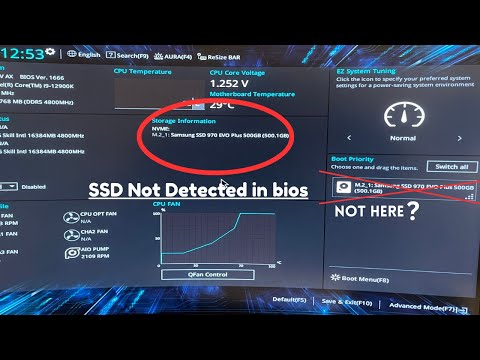
Oh man, nothing beats the frustration of firing up your computer, only to discover that your BIOS is acting like it’s never even heard of an NVMe drive. Seriously, what gives? You’ve just put in this sleek 128 GB NVMe drive, expecting blazing speeds. But nah, it’s a ghost.
It reminds me of that time I got locked out of my own house because the new fancy lock wouldn’t recognize my key. Awkward and totally annoying! And you’re just sitting there wondering if it’s something you did wrong or if it’s just technology being difficult—again.
Don’t worry though! You’re definitely in good company with this problem ’cause drives not showing up is more common than you’d think. We’ll chat about why your spiffy drive might be playing hide-and-seek and what you could do to fix it. Stay tuned!
BIOS Inability to Detect NVMe 128 Drive
Oh, the frustration of dealing with BIOS issues! Imagine you just got a speedy new NVMe drive, and your BIOS decides to play hide-and-seek with it. Not cool, right?
First things first, let’s get some basics straight. NVMe drives are those slick little storage devices that are way faster than the old-school SATA drives. They usually connect through what’s called an M.2 slot on your motherboard. Now if your BIOS can’t detect your shiny new NVMe 128 Drive, there might be a few reasons.
Make sure it’s properly installed: Sounds silly, but trust me—it’s easy to overlook. Double-check that the drive is snugly seated in its M.2 slot.
Compatibility check: Some motherboards don’t support NVMe drives in all their M.2 slots or require a particular version of BIOS for compatibility. It’s worth checking if there’s an updated version available from your motherboard’s manufacturer.
- SATA vs PCIe mode: Some motherboards let you switch between these two modes for M.2 slots in their settings, affecting whether they can see an NVMe drive.
- Might need a firmware update: The manufacturer might have released new firmware for either your motherboard or the drive itself.
But what if none of this helps? There’s more! Sometimes special settings need changing:
- Check boot priority: Your system needs to know where to look first when starting up.
- Might be a BIOS setting called “CSM”: This stands for compatibility support module—enabling it sometimes helps in recognizing older operating systems but may mess with detecting newer hardware like an NVMe drive.
I’ve had my share of “unseen” moments too—once struggled with my own system spinning like a top while I racked my brain over similar issues without realizing I had neglected something simple: connecting power cables correctly!
In any case remember not all solutions work everywhere; make small tweaks at each step until everything clicks into place nicely—but don’t worry—you’ll get there eventually!
BIOS Detection Issues for NVMe 128 Drive
Trying to solve your computer’s issue with the BIOS not detecting your NVMe 128 drive? That’s right up our alley! Sometimes, BIOS doesn’t recognize an NVMe SSD. Let’s walk through it together, step by step.
First off, take a moment to check if the NVMe drive is properly connected. Sounds basic? You’d be surprised how often things can get loose. If you’ve recently installed or moved anything around inside your PC, double-checking connections is a good first step.
Next, head into the BIOS settings itself. Restart your computer and tap that magic key—usually “Delete,” “F2,” or another prompt you’ll catch during startup—to enter BIOS. Once you’re there, look for storage options and set any storage-related settings to AHCI mode. Older systems might need this adjustment since it’s kind of like making sure everyone speaks the same language in there.
- Update Your BIOS: Outdated BIOS can cause detection problems with newer hardware like an NVMe drive. Check your motherboard manufacturer’s website for updates.
- Compatibility Check: Not all motherboards support NVMe out of the box! It’s crucial to ensure that yours does before troubleshooting further.
- SATA Settings: Disable unused SATA ports in BIOS settings as some boards have limited resources.
And hey, speaking of firmware and drivers—make sure those are up-to-date too! Sometimes it’s just about having the latest software talking nicely with new hardware.
One little anecdote: I once had a friend who thought his drive was toast because it wasn’t showing up in BIOS after a few tweaks and trying different sockets—it turns out a simple update fixed everything!
If none of this works, try plugging that NVMe into another system if possible; there’s always that slight chance you’ve got a faulty component (fingers crossed that’s not it!). And, when you face these tech puzzles regularly enough, you get why some people say patience is key!
Lenovo BIOS Not Detecting NVMe 128 Drive
Dealing with a Lenovo BIOS not detecting your NVMe 128 drive? That can be a bit frustrating, right? Sometimes it feels like the computer has its own mind. But let’s delve into what could be happening and how you might get things back on track.
First thing’s first, check the physical connection. It’s one of those things that’s so simple that you might overlook it. Make sure that the NVMe drive is properly seated in its slot. Believe it or not, even seasoned tech enthusiasts forget this sometimes.
Another possible issue could be with BIOS settings. It’s a common spot where things go awry! You’ll want to enter the BIOS menu by pressing F2 or Delete when your Lenovo boots up. Once you’re in there, look for the “Boot” tab or similar options related to drives and storage configurations.
- Configuration: Make sure that the NVMe option is enabled if there’s an option for it.
- Boot Priority: Ensure your drive is listed here. If it’s missing, that might be why.
Sometimes it’s about compatibility too. Not all motherboards love every NVMe drive out there, especially if they’re from different time periods or tech generations.
If BIOS settings seem fine, consider a BIOS update. Outdated firmware can lead to compatibility issues with newer technologies like NVMe SSDs. Check Lenovo’s official website for any available updates specific to your model.
Another thing lurking around could be an operating system issue. If Windows isn’t recognizing it either post-BIOS setup (assuming BIOS is now detecting it), drivers may need updating. Head to Device Manager on Windows and see if your drive shows up under “Disk Drives.” Missing or outdated drivers? Update them!
Finally—and this one’s crucial—a failing drive might just not show up at all. So maybe think about testing this NVMe in another slot or even another machine, just to rule out hardware failure completely.
Remember—these small hiccups are part of learning IT skills! Embrace each challenge as experience gained—you got this!
Oh, the dreaded moment when you fire up your computer, expecting everything to run smoothly, and boom! Your NVMe drive just pulls a vanishing act. I can totally relate. Picture this: you’re all excited about your new setup—maybe even got a coffee and planned a relaxed day tweaking settings—and then, out of nowhere, an empty BIOS screen stares back at you like it’s saying, “Nope.”
NVMe drives are these super speedy little things that zoom ahead of traditional storage options. If they were cars, they’d be sports cars with turbo engines! But guess what? Even these fancy pieces of tech have their off days.
If you ever find yourself in this kind of pickle—no NVMe showing up in BIOS—you might feel like pulling your hair out at first. Don’t panic! There’s usually something simple that needs adjusting or reconnecting.
The first thing to check is whether the drive is seated properly in its slot on the motherboard. It’s almost like making sure your shoelaces aren’t tied together when you’re trying to walk. Sometimes giving it another push into the socket does wonders.
Then again, let’s not forget about enabling the correct storage mode in BIOS—changing it to M.2 might do the trick if it’s not already set right. Sounds technical? Think of it as switching gears in a car – only that here you’re using keyboard strokes instead of a gearstick.
I remember helping my friend with this very issue one time—all it took was updating his BIOS firmware and voilà! It was almost magical seeing that drive appear as if nothing had happened before.
And hey! While we’re geeking out over this stuff, always keep an eye on compatibility issues between different components; some motherboards get choosy with certain drives.
So yeah, next time life decides to throw this at you remember these steps—they’re tried and tested from real-life experiences—not just theories from manuals or guides written by pros miles away from reality.. So grab your screwdriver (with coffee still warm) & tackle head-on—it’ll work out fine eventually..