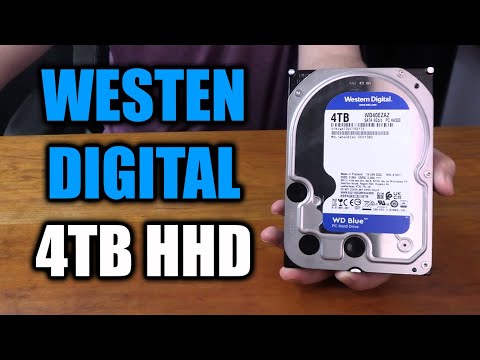
Hey there! So, you’ve been hearing a bit about those 4 terabyte hard drives, huh? Yeah, they sound pretty massive. Just imagine—it’s like fitting thousands and thousands of your favorite songs, movies, and pictures in one place. Crazy! I remember when my computer back in the day had just 500 gigabytes and I thought that was a lot. But now, with all the high-definition content we love nowadays, having 4 teras can be a real game changer for anyone looking to expand their storage without worrying about running out of space too soon. Whether you’re into gaming or just have tons of memories to keep safe these big fellas can sure come in handy!
Why is my 4TB drive not recognized
Oh, the joys of dealing with hard drive issues, am I right? You get this big, shiny 4TB drive expecting to store all your precious photos, videos, and whatnot. But then BAM! Your computer just doesn’t see it. Frustrating! But hey, you’re not alone in this. Let’s chat about why this happens and how you can fix it.
First off, one of the most common reasons a computer might not recognize a 4TB HDD is due to formatting issues. See?, if your drive isn’t formatted properly or in a compatible way with Windows or macOS – like if it’s not using the right file system (NTFS for Windows or HFS+ for Mac) – oh boy!, your system just might ignore it altogether.
Another thing that could be going on is something called MBR vs GPT partitioning. Super techy words there!, but I’ll break it down easy: MBR (Master Boot Record) is an older way of organizing data on drives and doesn’t really cope well with drives bigger than 2TB. So if your snazzy new 4TB drive is still using MBR? It may not work correctly!
Then there’s always the classic “check-your-cable” situation! Yup, sometimes it’s as simple as a faulty cable or maybe even a port issue where it’s connected to your motherboard. It’s happened to me before… spent hours on software fixes while my cat knocked out my USB connector without even batting an eye.
Lastly–and nobody likes hearing this–but there could be physical damage to the drive itself. Fingers crossed that’s not the case because dealing with hardware returns is nobody’s idea of fun on a weekend!
Your best bets? Reformatting might do wonders and ensure that file systems match up with what’s needed by our operating friends; switching from that pesky old MBR style over to GPT can also help unlock all those yummy terabytes waiting inside; trying different ports or cables never hurt anyone either!
I hope these tips get things spinning again! Good luck and remember: every problem has its solution – sometimes hiding behind some dust on our desks…
How to repair external hard disk not detected
Oh no, it’s always a bit of a panic moment when your 4TB external hard drive isn’t detected, right? Imagine getting ready to pull up that cherished family video collection or backing up some important work files, and bam! Your computer just doesn’t recognize it. Been there, done that. Let’s walk through this together.
First things first—check the basics. I know it sounds obvious but make sure the USB cable is firmly connected not only to the hard disk but also to your computer. It’s surprising how often a loose connection is the culprit here. If still nothing happens, try using another USB port on your computer or even testing with another cable just in case there’s an issue with connectivity.
If you’ve tried that and nada, it could be a driver issue. Go to your computer’s Device Manager—it’s like this magic zone for solving hardware issues. You might see an alert sign next to an “Unknown device”—that could very well be your hard drive crying for attention! Right-click on it and choose “Update driver.” Sometimes your system needs a little nudge in finding what it needs to talk to the device properly.
Now if updating drivers doesn’t help, let’s head over to Disk Management (you can find this tool by typing “disk management” in the search box). You’re checking if the drive shows up there but maybe without a letter assigned. If you find it listed there as unallocated or without any volume at all, you might just need to assign or reassign a drive letter by right-clicking and following through “Change Drive Letter and Paths.”
But hey, if none of these steps seem effective yet – don’t fret just yet! Sometimes these issues are caused by power supply problems especially with larger drives like yours that require more juice than typical smaller ones do. Try connecting directly using another power source if possible.
If you’ve gone through all those steps like changing cables ports updating drivers fiddling around inside Disk Management—and nothing seems working still even though everything seems correctly configured… well then perhaps some consultation from data recovery pros might come into play at this point because potentially complex internal failures could exist beyond simple fixes seen above sometimes unfortunately despite best efforts otherwise before taking further actions ourselves ultimately hope useful similar experiences encountered whenever dealing such matters always remember however much depends patience persistence adaptability willingness embrace new possibilities learning moments hidden opportunities along way eventually yielding goodness outcome hope resonates positively readers every journey unique own valuable lessons worth sharing amongst community broader sense collective understanding why keeping evolving tech present future important stay curious never stop exploring boundaries possibilities way forward truly meaningful ways enhancing lives everyday ways possible importantly happy trying 🙂
Why is my external hard drive not showing up but detected
Oh, I get how frustrating it can be when your 4TB external hard drive seems to play hide and seek! You’re plugging it in, hearing that satisfying little beep or chime from your computer, but, well, it just won’t show up where it’s supposed to. Don’t worry; you’re definitely not alone in this. Let’s figure out what’s going on together.
The issue might happen for a few reasons. One of the more common hiccups is that the drive letter might not be assigned correctly. Think of drive letters like names that help your computer recognize devices. Sometimes a computer can get a bit confused and forget to assign one.
Another possibility could be down to driver issues. Drivers are like translators between the hardware (in this case, your HDD) and software (your operating system). If they’re outdated or wonky—yes, technology can be like that—it might cause some recognition issues.
Sometimes the partition on the hard drive isn’t set up properly either. Partitions are these invisible sections on your hard disk where data gets stored neatly… kind of like sections in a library. If they’re not formatted or configured right? Well, no wonder files go MIA.
And let’s not forget about power supply issues which could prevent proper detection despite being recognized… Yeah! Your external drives actually need enough juice through their cable connection to show themselves fully operational.
So there you have several places we could peek into for solving this mystery—that’s if all hardware connections are checked already (wiggling cables does wonders sometimes). Have patience while trying these out one by one—you’ll likely get things sorted soon enough!
Alright, we’ve walked through quite a bit about those spacious 4TB hard drives. They’re really something, aren’t they? It’s like having a massive warehouse for all your digital stuff. Whether you’re into storing tons of family photos, complete seasons of your favorite TV shows or just making sure you never run out of space for backups—these hefty drives have got you covered.
I remember when my cousin first got her 4TB drive. She was over the moon because she’s an aspiring photographer and needed room for her endless stream of pictures. It was a game-changer for her workflow.
So yeah, these drives give you tons of space to work with and can make life so much easier in terms of data storage. Plus most are pretty user-friendly when it comes to setting them up – just plug ‘em in and you’re good to go!
Just keep an eye on them every once in a while, okay? A regular health check ensures everything’s running smoothly and helps prevent any surprises down the road. Enjoy all that extra space!