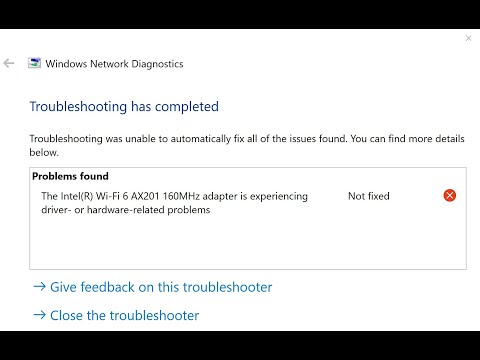
You know how it is. You get this fancy new gadget, and everything’s supposed to be smooth sailing, right? But then you suddenly find yourself staring at that pesky “No Internet” message. Ugh!
The Intel AX200 driver causing Wi-Fi headaches? Not cool. Seriously, who invited these bugs to the party?
So you’re chillin’ with friends or maybe binging your favorite series, and bam—disconnected! Feels like a personal betrayal from your tech.
But hey, take a deep breath. We’ll figure out what went wrong and get you back online in no time!
Intel WiFi 6 AX200 Windows 11 Compatibility Issues
Experiencing issues with the Intel WiFi 6 AX200 on your Windows 11 device? You’re not alone, and it can be quite frustrating when your internet just doesn’t want to cooperate. Let’s explore some common problems and how you might go about fixing them.
Common Compatibility Problems:
Wi-Fi connectivity hiccups, such as dropped connections or inability to connect, are often reported when using the Intel AX200 driver on Windows 11. These issues might stem from outdated or incompatible drivers trying to play nicely with new system updates. It can feel like a game of cat and mouse.
- Driver Conflicts: A typical culprit is an out-of-date driver that clashes with Windows updates. The latest version of Windows may introduce changes that older drivers aren’t prepared for.
- Network Adapter Settings: Sometimes the adapter settings themselves cause trouble due to misconfigurations in power management or advanced settings.
- Firmware Updates: On occasion, it’s not just the driver but also the firmware of the network hardware that needs updating.
Troubleshooting Steps:
Firstly, make sure you’re running the most recent drivers provided by Intel for your wireless card. Check Intel’s website regularly because they release updates more often than you’d think.
- Update Drivers: Navigate to your Device Manager by pressing “Windows + X” and choosing it from the list. Find your Wi-Fi adapter under “Network adapters,” right-click it, and select “Update driver.” Choose “Search automatically for updated driver software.”
- Tweak Power Settings: A sneaky setting under “Power Management” could be causing disconnections. In Device Manager, right-click your Wi-Fi adapter again, choose “Properties,” then go to the “Power Management” tab. Uncheck “Allow the computer to turn off this device to save power“. It might seem small but makes a big difference!
- Edit Advanced Settings: Adjusting advanced settings can sometimes resolve connectivity problems—though it’s like learning a new dance routine! In Device Manager properties’ window for your Wi-Fi adapter, check under “Advanced” and set “Preferred Band” according to what you have at home (2.4GHz/5GHz).
Sometimes these steps feel fiddly but hang in there—it’s better than suffering endless disconnects during those pivotal Zoom calls!
For firmware updates? Well—head over straightaway onto manufacturer’s site-specific instructions; they usually guide through safer yet bit technical steps needed here too!
It’s always good practice keeping both OS patches alongside network tools updated fully-preventative measure against looming snafus down road ahead…
Don’t let WiFi woes ruin everyday digital experiences anymore…
Intel Wi-Fi 6 AX200 Driver Installation
Oh, dealing with driver issues can be quite frustrating, right? Especially when it comes to your Wi-Fi. But don’t worry, let’s walk through this together.
Installing the Intel Wi-Fi 6 AX200 driver isn’t rocket science, but a few hiccups might pop up along the way. You want that sweet, stable connection after all! Here’s a straightforward way to get everything running smoothly:
What you’ll need:
- Your computer with Intel AX200 adapter
- Internet access (either wired or via another device)
Find the Right Driver:
Oh boy, this is where many trip up — getting the correct driver version’s key. Head over to the Intel Download Center. It’s generally best to download the latest stable release since those usually have bug fixes and improvements for your hardware.
Installation Steps:
- Uninstall old drivers: Go into Device Manager. Right-click on your existing Intel Wi-Fi 6 AX200 adapter under Network Adapters and choose uninstall. Don’t forget to check “Delete the driver software for this device” when prompted.
- Install new driver: Once downloaded from Intel’s site, just double-click on that installer file. It’ll guide you through installing like a GPS in an unfamiliar city!
- Restart your computer: This isn’t just advice from old-school tech support folks – restarting helps ensure everything loads properly after changes.
Troubleshooting Tips:
Sometimes things aren’t as smooth as silk – let’s kick some troubleshooting ideas around:
- No Internet connection post-installation? Check if airplane mode’s sneaky activated or if there’s a pending Windows Update conflicting stuff.
- Poor Signal quality?: Try resetting your router or moving closer temporarily — could help identify interference issues outside of drivers. li >
Repeated disconnects? b > : Go back into Device Manager; click properties under Advanced tab then test disabling “Fast Roaming”. It sometimes stabilizes finicky connections. li >
ul >Getting tech working right can feel like taming wild cats at times — demanding patience plus experimentation often yields surprising success! With these steps laid out before ya have confidence moving forward knowing connectivity awaits beyond mere mortal setbacks standing between wireless bliss unlocked securely via updated modern methods today!
Windows 11 Compatibility for Intel WiFi 6 AX200 Driver
When it comes to Windows 11 and the Intel WiFi 6 AX200 driver, things can get a bit tricky sometimes. You know? This little piece of software is quite important for your computer’s Internet connectivity. But like all techy things, it might not always play nice with new operating systems.
Why Does It Matter?
Your Intel WiFi 6 AX200 driver ensures you can connect to Wi-Fi networks without a hitch. Pretty crucial stuff, right? If it’s not working properly, your internet could become slower than a snail or even stop altogether. And that’s no fun at all, especially when you’re catching up on your favorite series or trying to work from home.
- Driver Compatibility: With Windows 11 rolling out, you might notice some hiccups between the OS and this driver.
- Regular Updates Required: The folks at Intel are usually pretty good at releasing updates. But you’ll need to keep an eye out for them.
Trouble with Connectivity on Windows 11?
If you’re facing Wi-Fi issues with your AX200 on Windows 11, take a breath and don’t panic! It’s often due to driver incompatibility or outdated drivers—nothing too scary.
- Solution Steps:
- Check for Updates: Head over to Device Manager (you’ll find this by typing it in the Start menu search). Right-click on the network adapter and select “Update Driver.”
- Download from Intel’s Website: If updating doesn’t help, visit Intel’s official site. They’ve got a support page where you can grab the latest driver version.
- Troubleshooter Tool: Sometimes using Windows’ built-in troubleshooter can magically fix things up.
A friend once almost lost his mind over similar issues! He was working remotely when his connection just went poof! After checking updates the issue sorted itself out.
A Few Handy Tips
- A reboot often solves minor glitches—it’s kind of like magic.
- If you’re struggling big-time still—reaching out to Microsoft support might save the day!
Remember patience goes long way—tech doesn’t always follow rules we expect; but eventually things do get sorted out..
Oh, the joy of dealing with a wireless connection that just won’t cooperate because of a pesky driver issue! I’ve been there too. There was this one time I was all set for a big online meeting. I had my coffee ready, my notes were all prepped, and boom—the Wi-Fi decided it’d be fun to play hide and seek.
So, you’ve got an Intel AX200 module acting up? Frustrating, isn’t it? This little guy is supposed to make our lives easier with super-fast connectivity speeds and reliable performance. However, sometimes, the driver can seem to have other ideas.
Here’s how it usually goes: You’re peacefully surfing the web or maybe trying to stream your favorite show when suddenly your bars drop to zero. Like magic! Often it’s because the driver hasn’t updated properly or there’s some compatibility hiccup with your current system setup.
You might want to tweak some settings or check for updates on Intel’s website—usually there’s something there that can soothe the cranky connection. If you’ve already done that and things still aren’t working right, sometimes going back a version helps too. Drivers can be quirky like that.
Anyway, it’s good practice not just with this particular issue but with tech problems in general: patience and Google are your best friends. And if things get really tangled up? Well there’s always support forums where fellow users share their pain and solutions.
Just remember—when everything’s finally working again smoothly—that moment will feel almost as sweet as when you first unboxed your device! And maybe next time you won’t wait till five minutes before a big meeting like I did…