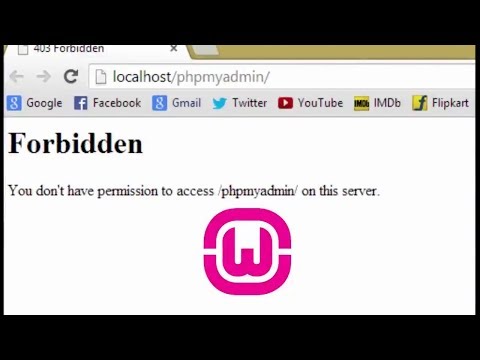
You know that moment when you’re all set to dive into your database with phpMyAdmin, and bam!—you hit a 403 Forbidden error out of nowhere? Frustrating, right? It’s like trying to get into your favorite club and the bouncer won’t let you in.
So, picture this. You’re ready to make some changes or just check things out, but instead, you’re left standing at the door. No worries! We’ll take this pesky error and sort it out together. You got this!
Sounds technical? Maybe a bit. But don’t stress. We’ll break it down like we’re chatting over coffee. Much simpler than you’d think!
Understanding Error 403 in phpMyAdmin
You know, hitting a roadblock when you’re trying to access phpMyAdmin can be super frustrating. One moment you’re ready to delve into your database, and then—bam!—an Error 403: Access Denied message pops up. What does it all mean? Well, let’s break it down.
First things first, what’s going on with this 403 Forbidden error? Typically, this happens because the server is stopping you from accessing a resource on your website. It’s like knocking on a door with a big ol’ “Do Not Enter” sign.
Here are some reasons why you might see this:
- IP Denied: phpMyAdmin could be restricted to specific IP addresses for security reasons.
- Permissions Issue: File permissions might not let the server read or execute phpMyAdmin files.
- .htaccess Configurations: Sometimes settings in your .htaccess file prevent access.
Alright, so what can you do about it?
- Check Your IP Address: Verify if your IP address is allowed in the server configuration file. You might need access to change these settings or contact someone who does.
- Tweak File Permissions: Ensure that the directories and files for phpMyAdmin have the right permissions. As a general rule, directories typically have permissions of 755 while files are often set to 644.
- .htaccess Adjustments: Look at any directives that could restrict access—like `deny from all`—and modify them if needed.
If you’re seeing something like `Require ip xx.xx.xx.xx` in your config file, make sure it’s set up for your current IP address.
You can change them using SSH or an FTP client by right-clicking and selecting “File Permissions.”
One time I was helping out a friend who couldn’t figure out why they kept getting locked out of their database admin panel just after changing their internet provider. Long story short—they had a new IP address that wasn’t listed in their configuration files!
In those moments when everything seems daunting remember: most issues boil down to one of those key areas we mentioned above. So next time you face Error 403 on phpMyAdmin dive into those settings!
Checking File Permissions for 403 Forbidden Error in PHP
You know that feeling when you’re all set to work on something, and suddenly, boom! A 403 Forbidden Error jumps out? Yeah, been there. It can be quite annoying, especially when you’re trying to access phpMyAdmin and all you see is that dreaded access denied message.
Understanding the 403 Forbidden Error:
The error pops up mainly due to permission issues. Think of file permissions as having a key to your front door. If it’s wrong or missing, you can’t get in.
Steps to Check File Permissions:
To fix this error for PHP applications like phpMyAdmin, you’ve got to check if the server files have the right permissions.
- Connect via SSH or FTP: Use your preferred method. SSH offers more control if you’re comfortable with command lines.
- Navigating Directories: Head over to the directory containing phpMyAdmin. It’s like finding a book in your library—you need to know where it is!
- Permissions Check: Oh boy, here we go! Use commands like
ls -l. This shows file ownership and permission settings.
Now here’s where it gets interesting: Permissions are usually shown as numbers (like 755 or 644). They tell who can read, write, or execute files.
User Roles & Permissions:
- User (Owner): The person who owns the file.
- Group: Other users grouped together on your server.
- Others:
Remember how we used numbers for permissions? The first stands for User permissions, next is Group, then Others. You want something safe and functional—like 755 for directories and 644 for most files.
If nothing seems out of whack with those numbers:
- .htaccess Files Might Be Tricky:: Sometimes those secretive .htaccess files could deny people access without giving you a clue why!instructions
- Check Your IP Address: Sometimes phpMyAdmin is configured to allow access only from certain IP addresses for security reasons. If you’ve changed your network recently—like switched from home Wi-Fi to mobile data—it might be blocking you.
- Edit Your Apache Configuration: This one involves diving into your files. On many servers, phpMyAdmin’s site configuration file restricts access by default.
- You might find this file at something like: /etc/apache2/conf-available/phpmyadmin.conf
- Add your IP address under the <Directory> section using directives like:
“`plaintext
Require ip YOUR.IP.ADDRESS.HERE
“`
- .htaccess File Adjustments: Keep an eye on hidden files! If there’s a .htaccess file in your phpMyAdmin directory restricting access based on IP or other rules, you’ll want to modify it.
- User Permissions: Double-check that user accounts have sufficient permissions set up within MySQL and that they haven’t accidentally been altered.
- The Web Server Restart: After changes? Always restart your web server! Command might look like this for Apache:
“`plaintext
sudo service apache2 restart
“`
Or similarly for Nginx. - /var/log/apache2/error.log (for Apache)
- /var/log/nginx/error.log (for Nginx)
- Directory Permissions: The permissions for your directories might be too tight and basically locking you out.
- Configuration Files: Sometimes settings in your web server configuration can prevent access.
- IP Restrictions: Your IP address isn’t whitelisted for access—you know how VIP lists work, right?
.
Permissions sorted? Great! Still seeing that dreaded screen? Other suspects might be mismatched usernames or incorrect Apache configurations—those can throw similar errors too!
So just hang tight; checking these tiny details usually works wonders!
Repair Procedure for phpMyAdmin Database
Oh, phpMyAdmin! It’s quite the handy tool for managing MySQL databases, right? But sometimes, it throws a curveball. If you’re seeing a 403 Forbidden error or getting one of those pesky “Access Denied” messages, don’t worry—there’s usually a way to fix it.
Understanding the 403 Error
When you bump into that 403 Forbidden error, it’s like when you’re trying to enter a party without an invitation. The server’s saying, “Oops! You can’t come in.” Most times this has to do with permission settings or configuration.
Steps to Repair the Issue
First off, take a deep breath. This can be fixed!
Error Messages in Logs
Logs are kind of like detective notes leading you toward what went wrong. Check them out if you’re still stuck after making adjustments:
,
Some friendly advice: Anytime meddling with core configurations seems scary—go slow and maybe even keep backup copies just in case things don’t go as planned.
In my own experience once upon upgrading some database-related software componentries during holidays—a beret-wearing friend of mine lost hours over very similar permissions quirks but figured eventually supreme satisfaction came after solving these little riddles together amid coffee sips✨
See?
Alright, let’s chat about this little frustration you might face: the dreaded “403 Forbidden” error in phpMyAdmin. Ah, errors! They’re like that stubborn stain on a shirt that just won’t come out no matter how much you try to scrub it away.
Once upon a time, I was helping a friend with his website. He was super excited to dive into the database using phpMyAdmin after setting up a fresh server. But as fate would have it, BOOM! Up pops the “403 Forbidden” error message. His excitement was quickly replaced with confusion and a dash of panic.
Now, what’s going on with this error? Imagine you’re all set to enter a secret club but suddenly told you’re not allowed in—how annoying is that? This message generally means there’s some kind of restriction stopping you from accessing phpMyAdmin. It’s like the bouncer thought you weren’t on the guest list.
There could be several reasons behind this hiccup:
One rainy afternoon we sat together pecking at his keyboard—and discovered it was indeed an IP restriction causing all this drama! Just like magic—okay maybe not magic—it became clear he needed to adjust the server settings to allow his specific IP address access.
And just like that… entering phpMyAdmin became as easy as pie again!
But while fixing these problems can feel quite satisfying don’t forget why they exist—to keep your data safe from unwanted visitors snooping around where they shouldn’t be. It’s good practice checking security measures regularly so only those who need access actually have it!
Errors do happen—they test our patience—but when finally resolved? Oh boy—the relief becomes part of what makes working through technical hurdles worthwhile despite experiencing occasional head-scratchers along way!