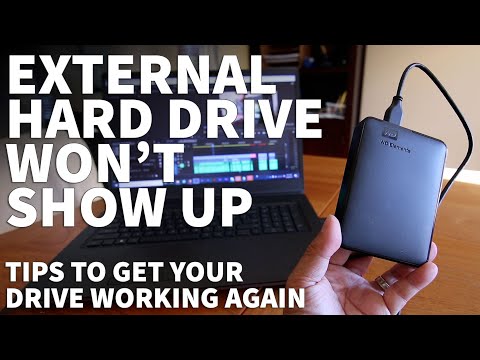
Oh, technology! It’s amazing when it works, but when it doesn’t, ugh. So frustrating, right? Imagine this: you just got a shiny new WD Red Plus 6TB drive. You’re all set to expand your storage and store all your cherished digital memories. Plug it in, expect everything to work smoothly… and bam! Windows 10 says “Nope. Can’t see that drive.”
I mean, seriously? You’d think by now our computers would just know what we want. But nah—they keep us on our toes.
Don’t sweat it too much though. We’ve all been there. Let’s try and figure out why this sneaky drive is playing hide and seek with your system, yeah?
WD Red Plus 6TB Not Recognized in Windows 10 USB
Oh, dealing with a drive that just doesn’t want to show up can be frustrating, right? Imagine wanting to access your files or, maybe just get started on a cool project and bam! Your WD Red Plus 6TB is nowhere to be found on your Windows 10 through USB. Sounds like quite the digital ghost story, if you ask me. But don’t worry, it’s not as spooky as it seems!
WD Red Plus 6TB Drive Detection in Windows 10
Alright, let’s chat about when your WD Red Plus 6TB drive is playing hide and seek in Windows 10. It can be quite frustrating, right? But hey, we’re going to figure this out together.
First things first. Have you checked all the basics? You know, like the cables and connections? Just make sure they’re snug as a bug in a rug. Computers sometimes just need that little nudge.
- Physical Connection: Double-check that your drive is properly connected. Use a different SATA port or cable just to see if anything changes.
- Power Supply: Make sure it’s getting power. It seems simple, but sometimes it’s the simple things.
Alrighty then! If everything looks fine on that front and you still can’t see the drive, we’ve got some more steps to explore.
Disk Management Check:
This one’s important. You want to open Disk Management and see if your darling WD Red Plus is visible there.
- Accessing Disk Management:
- If It’s Visible: Initial Setup Needed?
– Press the Windows key + X
– Click on “Disk Management” from the list.
– Sometimes new drives are unallocated; right-click on it and choose “Initialize Disk.”
If everything’s still not working out…
Drivers Update:
Sometimes outdated drivers can cause these detection issues. Here’s what you could do:
- Device Manager:
– Right-click on the Start button
– Click “Device Manager,” then unfold “Disk drives” section.
– Find your WD Red Plus, right-click it and select “Update driver.”
In case you’ve done all this and nada—well—I’d say try checking for any firmware updates from Western Digital’s website or even considering using third-party disk utilities like AOMEI Partition Assistant to give it another shot at recognition.
Anecdote Time! I once had a friend who bought a brand-new hard drive only to realize his motherboard’s SATA slots were disabled in BIOS by default! Took us days of head-scratching before he figured that out. We laughed so much about how blind we were!
Anyway, hope this little guide helps get your WD Red Plus showing up where it belongs! If anything else goes haywire or if you come up with another fix yourself—I’d love to hear how creative problem-solving sorted things for ya!
Western Digital Drive Incompatibility with Mac
Oh, the frustration of having a hard drive that just won’t play nice with your Mac or Windows 10, huh? So let’s unravel this together and see what’s going on with those WD drives. If you’ve got one of those WD Red Plus 6TB drives and it’s acting like an invisible friend in your Windows 10 setup, it might leave you scratching your head. And if you are using it on a Mac… oh boy! Let’s get into it.
Imagine plugging in your shiny new Western Digital drive, only for it to be ignored completely by your computer. Annoying, right? But before you start worrying about faulty hardware or compatibility dramas, there’s some things to check out first.
First off: File System Format. Macs and PCs have their little quirks when it comes to understanding how data is stored on the disk. Your WD drive might be set up with a file system that isn’t friendly with one of them.
- For Mac: It should read the HFS+, APFS formats natively without issues.
- For Windows: NTFS is its language of choice.
If the drive’s formatted as NTFS and you’re using a Mac, guess what? It’ll treat it like a reluctant dance partner—read only mode!
Then there’s Disk Utility & Disk Management. Fancy names for tools that help you see what’s really going on under the hood:
- Mac: Open “Disk Utility,” check if your drive shows up there—it may need to be reformatted.
- Windows: Hit up “Disk Management” (search from Start menu). Sometimes the system hasn’t given it a letter yet—that’s why it’s shy!
And another sneaky factor: Cables and Ports. Oh yes! A lot of communication breakdowns come from dodgy cables or ports that aren’t quite feeling their oats today.
But don’t worry! Sometimes downloading fresh firmware from Western Digital’s website does wonders.
And hey—if the technical stuff makes your head spin like mine does thinking about taxes—consider reaching out for professional support. There’s no shame in getting some backup when tech confuses even those who love geeky challenges!
Getting these checked could mean less hair-pulling moments ahead when dealing with tech gadgets that aren’t cooperating across platforms. You follow me?
Oh man, running into a situation where your trusty WD Red Plus 6TB drive isn’t detected by Windows 10 can be super frustrating. You’re all set to work or stream a movie, and boom—no drive! It’s like trying to find your car keys when you’re already late.
Now, let’s roll up our sleeves here. The first thing you want to check is the physical connection. I know this sounds like a no-brainer, but sometimes those cables sneakily come loose. Make sure everything’s plugged in properly and tight as it should be.
If that doesn’t do the trick, head over to Disk Management (you can just type “Disk Management” in the Start menu). Sometimes, Windows doesn’t recognize a new drive right away. It might need you to initialize it; kind of like introducing yourself at a party where nobody knows you yet.
Another tip that often comes handy is checking for any driver updates or issues in Device Manager—search for it in the Start menu too. If there are little yellow exclamation marks anywhere near your drive’s name, then that’s usually not good news at all.
There are also cases where BIOS settings need some tweaking if Windows still stays stubborn about seeing your drive. Restart your computer and keep an eye on that first screen (usually pressing DEL or F2 gets you into BIOS settings) and see if the drive shows up there.
Sometimes these tech hiccups remind me of my friend who once searched frantically for his glasses while they were perched on top of his head! It’s easy to overlook simple solutions when we’re frustrated, isn’t it?
Hopefully one of these fixes helps get things back on track! If not though—or if this feels overwhelming—a quick trip to a local computer shop might be just what’s needed next. Good luck with taming that Red Plus beast!