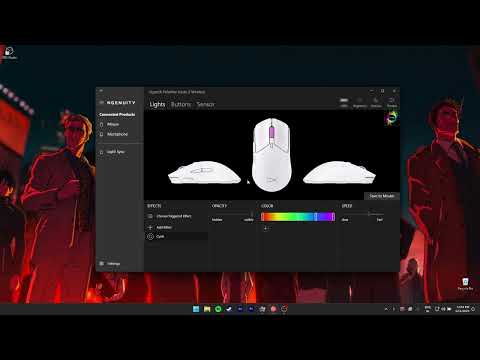
Oh, the joy of tech hiccups! Ever had one of those days where you’re just trying to get some work done or maybe sneak in a quick gaming session, and boom—your mouse decides to play hide and seek? You’re definitely not alone. Lots of folks have been there with their HyperX Pulsefire Haste.
Picture this: You’re all set, ready to scroll away or aim precisely, but Windows is like, “What mouse?” It can be super frustrating when your trusty gear isn’t detected. Deep breaths!
But hey, before you start thinking your mouse ran off for good, there are a few things you can try to bring it back on screen. Sometimes it’s just about tweaking a few settings or a simple unplug-replug.
So let’s figure out what’s happening here.
Windows Mouse Recognition Issues
Sure thing! Let’s dive into this issue with Windows not detecting your HyperX Pulsefire Haste Mouse. It’s something that can be a real pain, right? You plug in your mouse, expecting everything to work smoothly, but nope, it doesn’t show up at all. Here’s how you can tackle this.

Check Your USB Connection
Sometimes the simplest solutions are the best. Start by plugging the mouse into a different USB port. Maybe the one you’re using is faulty or just not friendly with certain devices.
Driver Updates
Windows is pretty reliable for grabbing drivers automatically, but there are times it misses one here or there. You might need to manually update things:
- Open Device Manager: Hit that search box in the bottom-left corner of your screen and type “Device Manager.”
- Locate Your Mouse: In that list that pops up, check under “Mice and other pointing devices.” If there’s a little exclamation mark next to anything, that’s probably causing trouble.
- Update Driver: Right-click on your mouse listing and choose “Update driver.” Follow through with the wizard by selecting “Search automatically for updated driver software.”
Tweak Power Management Settings
Windows tries to save power by turning off USB ports when they’re not needed. This could be where things go wrong:
- Select Properties: Head back to “Device Manager,” right-click on each “USB Root Hub” entry under “Universal Serial Bus controllers,” and select “Properties.”
- Deselect Power Management Option: Go to the “Power Management” tab and uncheck “Allow the computer to turn off this device to save power.”
Your Operating System Needs An Update?
It sounds as annoying as changing plans last minute, but sometimes an outdated version of Windows causes unexpected issues:
- Access Settings: Click on Start menu → Settings → Update & Security.
- Select Check for Updates: Hit it so you know if there’s anything new you should install.
A Little Reinstall Adventure Might Help
Finally, uninstalling then reinstalling your mouse can kick things back into gear:
- In Device Manager again!: Find your shaky mouse entry once more.
.
NGENUITY Software Compatibility Requirements
Oh, the frustration! You have a shiny new HyperX Pulsefire Haste mouse, and Windows decides to play hide-and-seek. It’s like the excitement of getting a new toy, only for it to stop working right after unboxing. I feel your pain.
Let’s see if we can untangle this situation with some information on NGENUITY software compatibility requirements, to help get your mouse recognized by Windows.
First things first: you need to know that NGENUITY is like the brain of your HyperX gear. It controls all those cool customizations you might want to do—think RGB lighting and button assignments. But just like a chef needs the right ingredients, your computer needs certain elements in place for NGENUITY to work seamlessly.
- Operating System: You’ll need Windows 10 or newer versions. If your PC is still running on an older version, it’s time for an upgrade! Older systems might have trouble ‘seeing’ newer devices properly.
- USB Ports: Make sure you’re using functional USB ports—preferably USB 2.0 or higher—for the best experience and connectivity with your gear.
- NGENUITY Software Version: Check that you’re running the latest version of NGENUITY. Opening the software should prompt for updates if available. Having outdated software could be what’s keeping things from clicking (pun intended!).
- .NET Framework: This is where things get a bit techy but hang in there! Ensure that Microsoft .NET Framework is updated since it helps various applications—like NGENUITY—run smoother.
If everything seems fine and it still won’t cooperate, maybe it’s time for some sleuthing into settings or even trying different USB ports—or cables—in case of hardware hickups.
It’s easy to overlook how much these little checkboxes can matter until something goes astray! Like once when I spent hours debugging my setup only because my OS was stubbornly outdated.
Anyway, make sure these conditions are met; we don’t want Windows ignoring such awesome gaming gear without good reason now do we? Fingers crossed this resolves your issue – happy gaming—or browsing or whatever else you enjoy doing with a fully functioning mouse!
HyperX Mouse Detection Issue
Having trouble with your HyperX Pulsefire Haste mouse not being detected by Windows? You’re not alone, and trust me, it can be frustrating. Imagine getting ready for that big gaming session only to realize your mouse isn’t working. Let’s tackle this issue step by step.
Check the Connection: Start with the basics. You might think it’s silly, but sometimes the USB connection is loose or faulty.
- Try Different Ports: Plugging your mouse into a different USB port can often solve detection issues. Computers are quirky like that.
- Cable Condition: Inspect the cable for any visible damage. A frayed or bent cable could affect performance.
Driver Update: Outdated or missing drivers are a common culprit.
- Automatic Update: Try letting Windows update the driver automatically. Go to Device Manager, find your mouse under “Mice and other pointing devices,” right-click and select “Update driver.”
- Manual Update:: Visit HyperX’s official site for the latest drivers specifically designed for your model.
Troubleshoot Settings:: Sometimes, you need to dig into Windows settings a bit.
- Select Default Device:: Navigate to Control Panel > Devices and Printers to see if your mouse appears there. If it does, make it the default device.
- Power Management Settings:: Head over to Device Manager again and double-click on “Universal Serial Bus controllers.” Turn off “Allow the computer to turn off this device” as it might save power but disrupts connectivity.
Sneaky Software Conflicts: Occasionally other software can interfere.
- Suspend Background Programs:: Close unnecessary applications running in the background which may occupy resources or otherwise conflict with devices.
If these steps don’t solve it, consider testing the mouse on another computer just in case there’s an issue with hardware itself. Remember– technology’s wonderful when everything works smoothly!
Oh man, there’s nothing more frustrating than plugging in a shiny new gadget only to find out it isn’t recognized by your computer. I remember once unboxing a sleek gaming mouse, the HyperX Pulsefire Haste to be exact. Beautiful design and light as a feather—that’s what got me excited. But then I connected it to my PC, and nada, zilch—it wasn’t detected by Windows at all.
First thing you might wonder is: Why on earth? Sometimes these things are as simple as a loose USB connection or maybe even using a faulty port. Have you tried switching it to another port? Yep, sounds basic but you’d be surprised how often that can be the solution.
If swapping ports doesn’t do the trick, software could be the culprit. Outdated drivers or some glitchy Windows update can cause quite the hiccup. It’s a good idea to peek into your Device Manager—you know where all your hardware hangs out—and see if there’s an exclamation mark lurking next to your mouse. If so, reinstalling or updating drivers might save the day.
And hey, make sure any third-party software like HyperX NGENUITY is playing nice with Windows. It’s supposed to help customize settings but sometimes it throws up its own roadblocks if things aren’t set up just right.
I’ll admit it’s tricky; sometimes tech requires more patience than you’d think! But trust me—when everything clicks and that mouse starts working perfectly—it feels like winning an epic boss battle on hard mode!