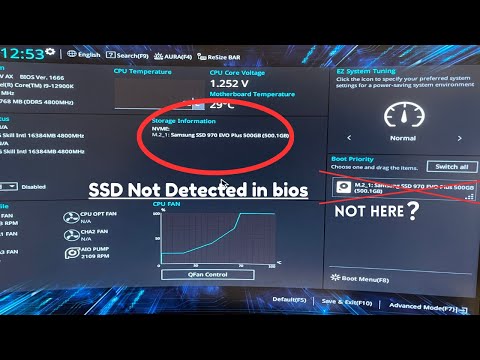
Alright, picture this: You’re all set to upgrade your computer with a shiny new Kingston M.2 SSD. You’ve got your tools out, ready to dive in. Excitement’s in the air, right? But then… boom! You reboot and head into the BIOS, only to find out it’s acting like that sweet M.2 drive doesn’t even exist.
Been there? It’s like when you text a friend and they just ghost you. The frustration is real! You start questioning everything you did—did I seat it wrong? Is something broken? Why won’t my computer recognize my precious new SSD?
Hey, no worries! Let’s roll up our sleeves and figure this out together. It might be a small hiccup or maybe there’s more to look at, but let’s relax for a sec and tackle this mystery step by step (well not literally step by step!). You got this!
Kingston SSD Detection Failure Causes
Ever found yourself in the middle of a tech crisis with your Kingston M.2 SSD not being recognized in BIOS? Breathe, you’re not alone. This situation can be frustrating, but understanding the potential causes can guide you to a solution.
First up, let’s chat about physical connections. This might seem basic, but you’d be amazed how often this is the root of the problem. Sometimes, due to traveling or just plain installation errors, your SSD might not be seated properly. Check if it’s firmly connected to its respective slot.
Secondly there’s this thing with BIOS settings, right? Some systems might have NVMe support turned off by default. Venturing into your BIOS settings and enabling it could do the trick. It’s like flicking a light switch.
What about having an outdated BIOS? An older version might lack support for newer hardware components like your snazzy SSD. Downloading and updating to the latest BIOS version could solve pesky detection problems.
Now another stumbling block could be an incompatible motherboard. We don’t think about it often, but motherboards vary in what types of drives they support. Ensuring that yours supports NVMe drives will save you from future headaches.
Finally driver-related issues are pretty common too; sometimes it’s necessary to install or update storage drive drivers within your operating system so everything clicks together seamlessly.
Here’s a little list to keep things nice and organized:
- Check Physical Connections: Make sure your SSD is seated correctly.
- Enable NVMe Support: Tweak those BIOS settings.
- Update Your BIOS: Stay current with updates.
- Ensure Compatibility: Confirm that motherboard supports NVMe drives.
- Driver Updates:: Keep storage drivers fresh.
Remember when my friend John had this exact issue? He tinkered around inside his computer case for hours before realizing he needed a simple update for his motherboard!
So next time your Kingston M.2 plays hard-to-get in BIOS remember these steps; they might just save you from tearing out all those hairs! And hey knowledge equals power even on frustrating days like these!
BIOS Compatibility Check for SSD
Sure thing! Let’s chat a bit about why your Kingston M.2 SSD might not be showing up in the BIOS and how to check for compatibility issues.
First things first, understanding that sometimes your computer’s BIOS might need a little help recognizing new hardware. The BIOS is like your computer’s traffic director, making sure all components know their place before the operating system even kicks in.
Check Compatibility
Let’s dig into some things you can do:
- BIOS Update: Before anything else, double-check if there’s an update available for your motherboard’s BIOS. Manufacturers release updates to fix bugs and add support for new hardware. An update could make all the difference.
- M.2 Slot Type: M.2 SSDs come in different interface types: SATA and NVMe (PCIe). If your motherboard only supports one kind, that might explain why it doesn’t recognize the SSD.
- M-Keys & B-Keys: Check if your M.2 slot aligns with the keying of your SSD – these are like puzzle pieces; they have to fit just right!
- Enable M.2 Slot: Believe it or not, some motherboards require you to enable or configure the slot in the BIOS settings themselves! Dive into those Advanced Settings to see what’s up.
Troubleshoot Hardware Connections
You’ve checked compatibility but still no luck? Let’s make sure everything’s plugged in just right:
- Cables & Connectors: If you have any loose connectors or cables nearby – let’s say from other drives – give them a check too.
- Test on Another System: Got access to another computer? Pop that SSD over there and see if it’s recognized; helps confirm if it’s an issue with this particular setup.
And hey, remember Johnny from down my street? He once spent hours trying to figure out why his brand-new drive wouldn’t show up just because of a simple disabled setting… Easy fix once we found it!
So yeah like don’t stress too much about it! A quick checklist run-through usually unravels whatever mystery’s unfolding on your end regarding what’s going awry inside those circuits hiding away under plastic panels… Happy tinkering!
Oh boy, there’s nothing quite like the sinking feeling you get when your brand new Kingston M.2 SSD isn’t being recognized in the BIOS. You’re all excited to boost your computer’s speed and performance, and then—bam!—it’s like hitting a wall. It’s like planning this amazing road trip only to find out your car won’t start.
So, let’s chat about some things that might help you out with this issue. First up, make sure that the SSD is seated properly in the M.2 slot on your motherboard. I mean, it’s easy to miss—it just needs a gentle push until it snaps into place comfortably.
And let’s not forget about compatibility. Sometimes it’s not just plug and play; you gotta double-check if both the motherboard and SSD support either NVMe or SATA protocols—whichever one you’re using.
Next up is checking if your BIOS is updated to its latest version. It might sound technical, but really it just involves downloading a file from the manufacturer’s website and following their instructions—like following a cooking recipe!
Oh, also make sure that any other storage devices aren’t hogging all the attention of your system at startup. Try unplugging them temporarily and see if your Kingston shows up on screen.
Lastly—and don’t sweat it too much since this whole thing can feel overwhelming—it could be worth resetting the BIOS settings back to default before trying anything too fancy.
You know how technology sometimes feels like an unsolvable puzzle? One moment everything seems frustratingly impossible, but then with a few tweaks here or there suddenly everything falls right into place again! Anyway keep cool-headed while navigating these little bumps along life’s digital highway—you got this!