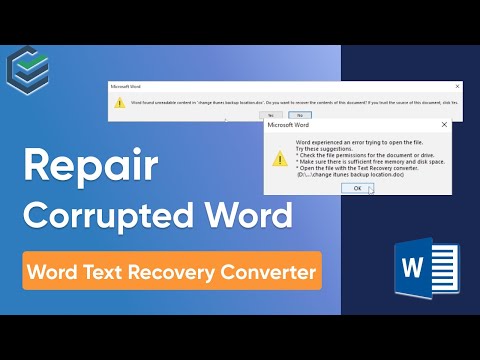
Oh no, your Word file’s gone haywire on Windows 10? Ugh, ain’t that the most frustrating thing ever? We’ve all been there—you click to open a document and bam! A nasty error message pops up. It’s like your computer’s way of saying, “Not today, buddy.”
But hey, don’t throw in the towel just yet. I’ve got your back on this one. Sometimes those files just need a little TLC to get back in shape. Think of it as giving your document a virtual band-aid.
So let’s get you sorted and make that corrupt file behave itself again. Trust me; we’ll have it sorted out in no time!
Repair Procedure for MS Word in Windows 10
Sure! Repairing a corrupt Word file in Windows 10 can be quite the headache. But, I’ll walk you through it step by step, and we’ll get that document back on track. Ready? Here we go!
So first things first, imagine you’re mid-project, and suddenly, boom! Your beloved Word doc is acting up. Panic wants to kick in, but don’t worry—there’s hope.
Try opening the file in Word:
Sometimes it’s just a small glitch. Open the file again to see if it magically fixed itself. If it worked, yay! If not, hang tight.
Use the built-in repair feature:
Microsoft Word has a sneaky tool just for this scenario.
- Open Microsoft Word.
- Select “File” from the menu and choose “Open.”
- Navigate to your troublesome file—but here’s the twist: don’t open it just yet!
- Select “Open and Repair” from the drop-down menu.
It’s like giving your doc its very own spa day!
If that doesn’t do the trick…, you have another option up your sleeve.
Create a new blank document:
- Add in some text or anything simple—don’t stress about making it perfect.
- Select “Insert“, then “Object”, followed by “Text from File.”
- Breathe out as you’re able to retrieve content from your troubled file.
It’s almost magical how chunks of lost text reappear like old friends showing up uninvited.
A third option – use temporary files:
Windows loves creating backups behind our backs (and thank goodness).
- You’ll want to open “C:UsersYourUserNameAppDataLocalMicrosoftOfficeUnsavedFiles”.
- Open Word: First, launch Microsoft Word on your PC.
- Select ‘Open and Repair’: Go to ‘File’, then ‘Open’. Instead of just opening the file like usual, select the drop-down arrow next to the ‘Open’ button and click on ‘Open and Repair’. This feature tries its best to restore your document.
- Create a New Document: If that doesn’t work, creating a new document might help. Copying any uncorrupted content from your device into this fresh doc could salvage parts of your work.
- Use Previous Versions: Did you know Windows has an automatic backup feature? Try right-clicking the corrupted file in File Explorer, selecting ‘Properties’, then finding the tab marked as ‘Previous Versions’. If you’re lucky it’ll have saved an older but intact version for you!
- Third-Party Recovery Tools: As much as we trust built-in solutions sometimes external software can offer different scanning techniques which might do just what we need! Tools like Stellar Phoenix or Wondershare come highly recommended but remember—they might cost something.
- OfficeRecovery Online: This one is pretty user-friendly. You basically upload your corrupt Word file, and they send you back a fixed version if all goes well. Just head over to their site and follow their instructions—it’s as simple as uploading and waiting.
- iLovePDF: It’s mainly known for PDFs but has this amazing feature for Word documents too. You upload your problematic file, let it do its magic, and see if it brings back your document to life.
- Backup Your Files First: Before doing anything crazy, make sure you’ve got copies of everything important.
- Sensitive Information Caution: If your document has sensitive info—like personal data or business secrets—you want to think twice before uploading it anywhere online.
*Note: You might need to enable hidden items in File Explorer.*
If luck’s on our side – ta-da! Your almost-gone work reappears before those eyes longing for hope!
One last bittersweet solution:
Turn head towards recovery software options (or backups). There’s shame admitting defeat—as any exasperated human will testify—but sometimes calling reinforcement means wise decision-making at its finest!
Hey—you got this far without wanting tear out hair strands—it has all become part learning journey maybe?
Remember perseverance helps tackle vexing word ops curveballs life throws… And who knows? Maybe newfound skills rescue next work emergency looming horizon soon calling attention like eager toddler wanting candy aisle time grocery shopping trip says hi yet again nearby aisle nearby!
Ahh—where were we anyway oh right repairing MS_WORD files — nice job!!!
Procedure for Repairing Corrupted Files
Hey there! So you’re dealing with corrupted Word files on Windows 10. Yeah, that can be a real bummer, right? But hey, don’t worry. I’ll guide you step-by-step through fixing it using a conversational style and HTML for clarity.
First thing’s first: when you find out a file is corrupted, try to stay calm. It’s important to have a plan.
Understanding Corrupted Files
A corrupted file is one that has become unusable or fails to open correctly. This may happen due to interrupted saving processes—like if your power goes out—or even because of malware. Imagine you’re in the middle of writing an important letter and your computer suddenly crashes. That unfinished save means trouble!
Steps to Repair Corrupt Word Files
So yeah—the truth is wiping everything clean actually pays off at times too—a good hard cleanup that rids us all inevitable clutter & resets those stubborn configurations once seemed impossible fix by ourselves!
You wouldn’t believe this happened last month with my nephew’s project; he’d spent hours typing only hit re-save button exactly wrong moment followed system crashing due reasons far beyond comprehension (to him). His panic nearly set fire his laptop (figuratively speaking), understandably hesitated trying repairs himself—but gave above suggestions go yielded miraculous results!
Keep backups always safe side :). Anything else missing? Ask away responses guaranteed friendly yet informative every time!
Free Online Word File Repair Solutions
Hey there! So, you’ve got a Word file that’s acting like it just ran through a rainstorm without an umbrella? We’ve all been there. Let me tell you a bit about how you can pull that file back from the brink with some free online solutions.
Sometimes you’ll open a document, and boom—it’s either full of weird symbols or refuses to budge. It’s frustrating, right? But don’t sweat it! There are some nifty tools out there on the internet that might just save your day (or night).
Tools to Try:
A Few Things to Keep in Mind:
Now let’s say you’re not feeling these online options. Windows 10 itself offers some rescue missions! Inside Word, there’s this sneaky feature called “Open and Repair.” When opening a file in Word, pick that option from the dropdown near the Open button.
At times, relying on software magic just isn’t enough, though. Your files might have deeper issues from things like incomplete saves or sudden shutdowns. That’s when having regular backups becomes gold.
You know what really helps? Regularly saving copies of important documents somewhere safe—not trying to lecture you here but imagine how much trouble that could save!
And hey—don’t give up hope! Even the most stubborn files sometimes bounce back with a bit of patience and care. Good luck with recovering those precious words!
Oh, the dreaded moment when you’ve spent hours crafting the perfect document, only to find out it’s corrupted. That sinking feeling when you open your Word file and see nothing but gibberish or get an error message. It’s like seeing a sandcastle washed away by the tide! But hey, if you’re using Windows 10, there are a few things you can try before throwing in the towel.
First off, one little trick is to use Word’s built-in repair feature. Yes, Microsoft gave us this lifeline for those moments of despair! You just need to open Word, click on “File,” then “Open,” and instead of just hitting “Open” right away, choose “Open and Repair.” It’s like giving your document a little nudge to get back on track.
Another thing worth trying is checking your temporary files. Sometimes Word automatically saves versions of your docs in a temp file—sneaky but helpful! You can search for files with the same name in odd places; you’d be surprised where they might end up.
And let me tell you about my cousin who once had a bunch of important documents go wonky right before a big presentation. She found that converting her Word doc into another format (like .txt or even as an RTF) sometimes preserved some content she could rebuild from—or at least gave her access to parts of it. It’s not magic every time but it worked for her once!
Lastly—and it’s often overlooked—keep backups! Regularly save versions of your work elsewhere or use cloud services that auto-sync and store different versions. It might not help with this corrupt file situation now, but boy does it save headaches down the road.
Just remember not all is lost when these technical hiccups come along. With patience and some luck, you’ll have that document back in no time—or at least partially salvaged so you’re not starting from scratch again!