Oh man, those pesky numeric keypads, right? You know what I’m talking about. One day everything’s working fine, and then poof! Gone. Like magic—but the annoying kind.
Picture this: you’re all set for a night of crunching numbers—or maybe playing your favorite game—and then bam! Your trusty numeric keypad decides to take a little unauthorized vacation. Happens to the best of us.
But don’t panic just yet! Seriously, I’ve been there too. We can totally figure this out together and get you back to entering numbers faster than you can say “calculator.” Trust me, it’s probably something simple—like forgetting that little Num Lock key exists (been there!). So let’s roll up our sleeves and see what’s going on with your notebook’s rebellious keypad.
Steps to Fix an Unresponsive Keypad
Oh, the frustration of a keypad deciding not to work just when you need it! We’ve all been there, right? Suddenly your trusty numeric keys act like they’ve taken the day off. But don’t worry, let’s figure this out.
Check Num Lock Key
It sounds simple enough, but we can sometimes overlook the obvious. Double-check if you’ve accidentally toggled the Num Lock key off. There’s usually a small light on or near your keypad that indicates if it’s active. Just press it again and see if it comes back to life.
Restart Your Notebook
This might sound like old advice from grandma, but restarting can solve many quirky issues. You know how sometimes we all need a quick nap to reset our brains? Same thing with your computer.
Dive into Accessibility Settings
Sometimes accessibility features might interfere with normal keyboard behavior. Go to Settings > Ease of Access > Keyboard. Look for any settings related to keys or stickiness and toggle them off if they seem suspiciously linked to your issue.
Update Keyboard Drivers
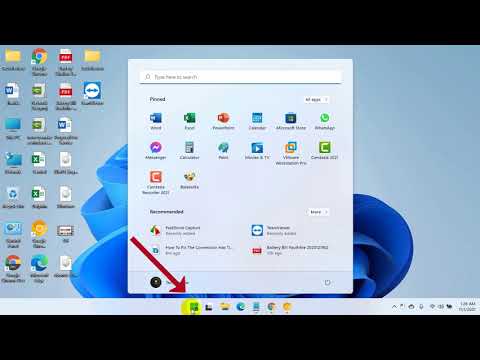
- Open Device Manager: Right-click on the Start button and choose Device Manager.
- Locate Keyboards: You’ll find ‘Keyboards’ in the list of devices.
- Select Update Driver: Right-click on your keyboard driver and hit ‘Update driver’. Follow those straightforward prompts.
Tweak BIOS Settings (With Caution!)
If you’re feeling adventurous (and confident), check your laptop’s BIOS settings during boot-up (usually by pressing F2 or Del). Sometimes there’s an option there about enabling/disabling the built-in numeric keypad.
Troubleshoot Hardware Issues
- If none of these software tweaks help ya’, gently clean around the keys—dust bunnies can sneak in unnoticed.
- If cleaning doesn’t help either, well maybe try plugging in an external USB numeric keypad as a temporary measure while you look into repairs.
Remember though sometimes solutions are just temporary band-aids until you get proper support or repairs done from manufacturers . So give these ideas a try!
Unlocking the NumPad on Your Keyboard
Oh, the numeric keypad! When it’s not working, it can really feel like missing a key piece of your keyboard puzzle. Let’s unravel some easy ways to get it back in action—no sweat!
First thing—let’s check a simple fix: num lock. Sometimes the solution is right under your nose. On most keyboards, there’s a Num Lock key. If this isn’t on, well, those numbers won’t budge. Just press it and see if that brings some life back to your keys.
If that doesn’t do the trick, let’s dive into keyboard settings. Computers, you know them—they can be funny sometimes! Go to your system settings and look for keyboard or input options. Ensure that the “Use numeric keypad” option is ticked on.
And hey, if you’re using a laptop without an obvious numpad area? Some laptops have these sneaky integrated number pads within other keys. You’ll generally access them with the FN key. Look for secondary functions printed on your regular keys and smash up FN with one of these to activate it.
- Check Num Lock: Press it and monitor changes.
- Tweak Keyboard Settings: Head into system settings.
- Laptop Function Keys: Use FN + alternative keys.
After trying these sorcery secrets (a.k.a basic checks), still no dice? Might be worth checking if there’s any trouble with the drivers. That’s like fixing the invisible bridge between software and hardware! Update them via device manager as they ensure everything speaks properly between components.
It might look something like this: Open Device Manager — find Keyboards — right-click and choose ‘Update Driver’. I remember when my friend’s keyboard drivers threw an unexpected swim down incompatibility lane after an update—caused him nothing but headaches until he sorted those out!
Lastly, external interference could be rattling things too—like when you’ve got sticky hands from snack time sticking behind big computing malfunctions: dust or debris is no friend of functioning keyboards.
Feeling lighter yet equipped? Give these troubleshooting ideas a whirl; hopefully turns things around quickly for you!
Numeric Keypad Malfunction on Windows 11 Notebook
If you’ve ever had your numeric keypad acting up on your Windows 11 notebook, you’re not alone. It’s a common hiccup that can feel super annoying, especially if you rely on it for data entry. Let’s see what might be going on and how you can sort it out.
First off, check the most obvious culprits:
- Num Lock Status: This might seem simple, but it’s often the trick. There should be a key labeled “Num Lock” or “Num LK.” Make sure this is turned on.
- Physical Damage: Look at the keys—see anything unusual? Dust, dirt or spills can prevent keys from working properly.
There was this one time my friend was tearing his hair out because his keypad wouldn’t respond. Turned out he had accidentally disabled the Num Lock key!
Sometimes though, it’s about deeper settings or system issues:
- Ease of Access Settings: Sometimes accessibility features can interfere with normal keyboard operations. Head over to Settings, then find “Ease of Access”. Check if “Mouse Keys” is enabled—it can hijack your number pad!
- User Profile Issues: Create a new user account and see if the problem persists there. If not, something’s off in your profile.
Updating drivers is another solution that can’t be overlooked:
- Device Manager Check-Up: Press Win + X and choose Device Manager. Under keyboards, see if there’s a yellow exclamation mark.
- Update Keyboard Driver:If you spot anything unusual there like an outdated driver icon, right-click and select Update Driver.
And when these basics don’t get you results? Try doing a quick restart of the notebook. It’s amazing how often a reboot solves tech frustrations!
If all else fails, there’s always community forums or manufacturer’s support who might have experienced similar issues with specific notebook models.
Now go tackle that keypad mystery! You got this!
Oh, the frustration when the numeric keypad on your notebook just decides to throw a little tantrum and stop working, right? It’s one of those things you don’t realize how much you rely on until it’s gone. I remember this one time when I was crunching numbers for an assignment due the next day, and boom—my trusty keypad just went silent on me! It felt like being stranded without a paddle.
Anyway, there are usually a few reasons why this happens. Sometimes it’s simply because the “Num Lock” key isn’t behaving as it should. You might have accidentally toggled it off. Happens to all of us! On some notebooks, there’s also an option in your settings where you can enable or disable it too. A quick check in there could save your day.
And then there’s software updates… They’re supposed to help us out but occasionally they’ll mess with our settings or even cause drivers not to function correctly. Restarting your device might do wonders, as weirdly simple as that sounds.
If you’ve tried these and nothing’s working, it could be something more complex like driver issues or even hardware problems – in which case you might want to think about reaching out for expert help or checking if warranty covers such fixes.
The roadblocks can certainly be annoying but remember: most times there’s an easy fix hiding around somewhere. And hey, don’t forget about using that top row of numbers if you’re ever really stuck – not ideal for the long term but definitely gets the job done when you’re in a pinch!