Oh, computer stuff, right? It can be a bit like trying to speak alien sometimes. Especially when you’re dealing with something like the Computer Management MMC on Windows. Sounds fancy, huh? You might’ve bumped into it while poking around trying to figure out why your computer’s acting all strange or maybe just out of curiosity.
I remember this one time I was helping my friend Sarah—you know how it goes. Her laptop was giving her those dreaded error messages and running slower than, well, molasses in January. She had that mix of panic and frustration written all over her face. We fiddled around with various settings until I said, “Hey! Let’s check out the Computer Management MMC!” And she looked at me like I had three heads.
But trust me, once you get the hang of it—and I’ll make sure you will—it can become your trusty sidekick for managing tasks and fixing little quirks that pop up. It’s kinda like having a secret toolkit under the hood of your digital world! Curious yet?
MMC Usage Guide in Windows
You know, diving into Windows Management can seem a bit like trying to navigate a maze. Everything’s connected but, at first glance, it’s a jumble of paths. Have you stumbled upon the term MMC? That’s short for Microsoft Management Console. It’s like your toolbox when you’re managing various administrative tasks on Windows computers.
Think of MMC as your control room. It pulls together different administrative tools so that you don’t have to jump from one window to another. Now, let’s get this straight: it’s all about making life simpler.
Here’s the scoop on how it works and why it’s handy:
- Centralized Tools: With MMC, you can open multiple management tools in one place. It’s like having all your kitchen gadgets within arm’s reach when you’re cooking up something big.
- Customizable: You know those times when one size just doesn’t fit all? Well, with MMC, you create what are called “snap-ins.” These are basically bits of programs that manage different parts of your system. You only load what you need—nothing extra cluttering things up.
- User Access Control: Sometimes not everyone needs full access to the system’s inner workings, right? So with custom consoles in MMC, restrict or grant access depending on who’s managing what.
Now onto using it without tearing your hair out!
1️⃣ To fire up the Console: Press **Windows + R** keys together—that’s your trusty shortcut—and type **mmc**, then hit Enter. Bam! Your console’s right there!
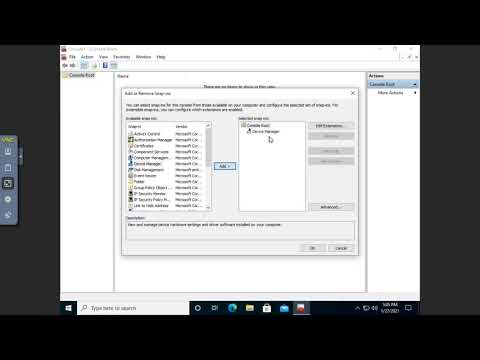
2️⃣ To add snappies (I mean snap-ins!): Go to **’File’** > **’Add/Remove Snap-in’**, and here again you’ll see options galore such as Device Manager or Event Viewer ready at hand!
Why bother? Imagine dealing with network configurations across an entire team; pulling them into one view instead saves time…and maybe a headache or two.
A buddy once shared he’d been pulling his hair over user permissions until he got clued into this feature (MMC). He had this expression “game changer” written all over him afterward—not kidding around—because suddenly tasks felt streamlined rather than chaotic well everything’s just clickable from thereon out…
So dive headfirst—it doesn’t bite…promise!
Launching Computer Management in Windows
Opening Computer Management in Windows is like peeking under the hood of your car. There’s a lot you can do to tweak and maintain your system. Let’s walk through this step-by-step, with some interesting conversation along the way!
Starting Your Journey:
The first thing you need to do is access the Control Panel. Yeah, I know it’s kind of old-school now, but trust me, it’s still super useful! Here’s how:
- Search: Click on that little search box next to the Start button and type “Control Panel.” Simple as pie!
- Navigation: Once you’re in, look for “Administrative Tools.” It’s like finding the hidden treasure chest on a pirate map!
The Main Attraction: Computer Management
After locating Administrative Tools, you’ll see “Computer Management” listed there. It’s not just another icon; it’s your gateway to ruling over your computer!
- Alternative Access: You could also directly search for “Computer Management” in that same trusty search box.
- Diving In: Click it open and voilà, you’re sitting in front of a powerful tool that can help manage everything from disks to services.
There’s nothing quite like remembering when I first stumbled upon this tool myself. It was like unlocking a secret level in a game – suddenly so many options were available!
A Few Nifty Uses
Now you’re probably wondering what kind of magic tricks you can perform here:
- Device Manager: Fix or update drivers right from within this interface.
- Disk Management: Create and format partitions; it’s DIY surgery for your storage space!
- User Accounts:Create or delete local users – ever wanted to play god?
Remember messing with these settings without fully understanding them is akin to rearranging furniture in total darkness – proceed with caution!
In essence every techie needs their tools-of-the-trade. And Computer Management? It’s definitely one worth having up your sleeve! Happy exploring!
MMC Process in Windows Explained
So, you ever opened up your Windows computer and wondered what on earth MMC is? I mean, it’s okay if you haven’t because it’s not something everyone stumbles across. But trust me, it can be super handy once you get the hang of it. Think of it as a little toolbox tucked away inside your computer that helps you manage stuff more smoothly.
What is MMC? Well, MMC stands for Microsoft Management Console. It’s like this framework that allows different management tools (called snap-ins) to work all from one place. Imagine trying to fix a bike with each tool in a separate room—super annoying, right? Snap-ins put everything in the same drawer for easy access.
The Purpose of MMC: It’s mainly for system administrators or those who love tweaking their computers! Whether you’re adjusting user accounts or managing system performance, MMC helps bring everything together. You can view and control settings without having to jump through several hoops.
- Accessing the MMC: Just press Win + R, type “mmc,” and hit Enter. Voila! The window pops up.
- Using Snap-ins: These are like mini-tools within the console that help manage different areas of your machine. Think about adding “Device Manager” or “Event Viewer”—you can do all this by selecting ‘Add/Remove Snap-in’ from the menu.
- Create Custom Consoles: If there’s a set list of tasks you perform often, save time by customizing a console with just those snap-ins.
Say you’re having trouble with your network connections acting wonky at times. Opening up Network snap-in via MMC lets you easily spot what’s going on—from checking specific settings down to seeing active connections.
It’s like that time when my friend kept struggling before an online game session ’cause his network wasn’t syncing properly. Turned out there was some tiny setting he’d missed! With MMC’s help, troubleshooting gets way easier since everything needed lives under one roof.
Ah, computer management on Windows systems. It’s that hidden yet powerful feature not a lot of people talk about at dinner parties. And I guess it’s up to us tech enthusiasts—or maybe just the curious at heart—to poke around and see what’s going on under the hood. You know, have you ever stumbled upon something that sparked your interest by sheer accident? That’s how I first got into the MMC, well, one sunny afternoon while trying to help my uncle figure out why his printer wasn’t connecting.
Alrighty then, let’s dig into it. The Microsoft Management Console (MMC) is kind of like a Swiss knife for managing different aspects of your system. It’s got all these snap-ins which are essentially tools you can add or remove depending on what exactly you’re looking to manage—things like disk management, event viewer, and services come to mind.
So picture this: you’ve turned on your computer and everything’s running smoothly until suddenly it’s not—not exactly an uncommon scenario right? Maybe applications start dragging their feet or there are cryptic error messages popping up left and right—a little nerve-wracking if you ask me! That’s when knowing your way around the MMC can be really handy.
If you’re wondering where to find this gem, it’s really as simple as typing “mmc” in the run dialog (Win + R). From there you’ve got access to a world of information about your PC—disk performance, active processes—like being backstage in a theater production; there’s much more going on than meets the eye!
A neat trick? That would be creating custom consoles with just the snap-ins you find useful; no need wade through endless lists every time—you save them for future use! It’s tailor-made management at its finest.
Now don’t get me wrong—it might feel intimidating at first glance but messing around cautiously is part of learning curve here—and who doesn’t enjoy conquering new tech territories anyway? Just remember: always double-check changes before hitting apply because there’s nothing quite worse than fixing what wasn’t broken in first place…
And there we have it—the secret life behind managing computer management through MMC isn’t rocket science though surely gives insight into optimizing those pesky OS challenges makes living within windows ecosystem ever-so-slightly easier…or dare might even say fun?!