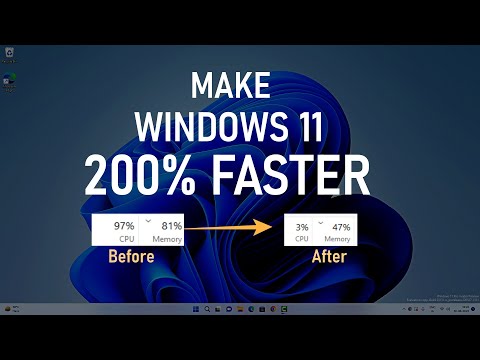
You know when you’re cruising down a smooth, open highway, windows down, music blasting? That’s what we all want our computers to feel like—fast and seamless. But sometimes, just like traffic jams, our beloved Windows 11 can get a little sluggish.
Imagine this: you’re about to start a Zoom call with your boss or stream the final episode of that series you’ve been hooked on for weeks. And then boom! Your computer decides it’s nap time. Frustrating? Oh yeah.
So let’s cut straight to it: keeping Windows 11 in tip-top shape isn’t rocket science. There are these little tricks anyone can do—seriously, no tech degree needed—that’ll have your computer running as smooth as butter again.
Grab yourself a coffee (or whatever you’re into), and let’s explore some nifty ways to keep things running smoothly. You got this!
Ways to Optimize Windows 11 Performance
When you’re working with Windows 11, making it run smoothly can really make a difference, you know? Imagine you’re in the middle of an intense video call and your system just decides to slow down. Frustrating, right? Let’s go over a few things you can do to keep everything zipping along nicely.
First off, one of the easiest things you can do is manage your startup applications. These are the programs that automatically start up when you turn on your computer. They can slow your system down before you’ve even had your morning coffee.
- Check Startup Programs: Press Ctrl + Shift + Esc to open Task Manager. Switch to the “Startup” tab and disable unnecessary programs.
Another tip is about keeping your system updated. I know, updates sometimes feel like a nuisance, but they often come with fixes that improve performance and security.
- Enable Automatic Updates: Go to Settings > Windows Update and ensure automatic updates are turned on.
Also, disk cleanup is a surprisingly effective tool for improving performance. It gets rid of all those temporary files and other things that clutter up your system over time.
- Use Disk Cleanup: Type “Disk Cleanup” in the search bar and select the drive you want to clean—usually it’s C:—and follow the prompts.
Have you heard about adjusting visual effects? Windows 11 has some fancy effects that make everything look sleek but sometimes at the cost of speed.
- Tweak Visual Effects: Search for “Performance Options” in Start menu. Select “Adjust for best performance,” which will disable some visual features but speed things up.
Keep an eye on background apps too! These are sneaky little guys that run quietly behind the scenes and may hog resources without being obvious.
- Manage Background Apps: Head over to Settings > Privacy > Background apps and turn off ones you don’t need all day long.
And finally, if storage space is getting tight, consider uninstalling apps or files you don’t use anymore or moving files onto external drives or cloud storage if possible.
Trust me—with these tweaks here and there—your device should be more sprightly than ever! Trying out just one or two might not seem like much—but together—they pack quite a punch!
Windows 11 Optimization Tool Features
Alright, talking about Windows 11 optimization tools can be quite the adventure! You know, over time, even our shiny new systems can slow down a bit. It’s kind of like when your kitchen gets cluttered after a big meal—you need to tidy up for things to run smoothly again. So let’s dive into what these tools can do for you.
1. Disk Cleanup
Disk Cleanup is like having that magical vacuum cleaner. It gets rid of all those temporary files you really don’t need anymore, making more space on your hard drive.
- Temporary Files Things like old updates or leftover installation files.
- Recycle Bin Remember to empty this from time to time!
2. Storage Sense
Now here’s something cool—Storage Sense is an automatic cleaning lady! It keeps track of your storage levels and cleans up unnecessary files when space is low.
- Automatic Cleaning Just set it and forget it.
- Saves Space Frees up room by managing junk files without bothering you.
3. Startup Management
You ever notice how sometimes your computer takes forever to boot? That’s often because too many programs are trying to start at once.
- Selective Startup Choose which apps really need to open right away.
- Smoother Boot-Up Fewer apps mean a quicker startup time!
null4. Performance Monitor/b>b0
Here’s one for the techies Performance Monitor helps you keep an eye on what’s happening under the hood — it’s like having a health report for your PC.
-
Keeps track of system activity so you know where resources are going.
- S
null5.b Power Settings/b>/nullbr>)
Using the right power settings plays a big role in how well Windows performs.
- Check for Updates: Use the Device Manager. Right-click on Start, choose it, and find your graphics adapter. Right-click on it and select Update driver.
- NVIDIA & AMD Users: Use their dedicated software—GeForce Experience or AMD Radeon Software—to ensure everything’s up-to-date.
- Resolution: Navigate to Settings, then System, followed by Display. Here, you can find options to adjust your resolution. Higher resolutions mean better clarity but could strain older hardware.
- Refresh Rate:: A higher refresh rate means smoother gameplay (if your monitor supports it). In the same menu under “Advanced display settings,”, you can tweak this setting.
- Toggling Game Mode:: Head over to the Settings app again, go into Gaming, then click on Game Mode. Simply switch it on if it’s not already activated.
- Makes a Difference?: This mode limits background activities that aren’t essential when gaming.
- Select High Performance:
Press Win + X and choose Power Options from there.
Select a high-performance plan—not always available without expanding additional plans.
This setting makes sure more power goes toward running demanding applications like games effectively..isValidLiText – JSON.parse(line(134)) / n = 2(bad score) isValidLiText = False () – JSON.parse(line(192)) END
“`
Better luck next time?
You know, maintaining Windows 11 can feel a bit like taking care of a plant. It needs the right balance of attention to keep things smooth and breezy. I remember once, after installing Windows 11 on my laptop, I noticed it was running slower than my old-school coffee maker. That was a cue for me to start figuring things out—like where I’d gone wrong.
First off, keeping your system updated is quite like watering that plant—essential but easy to overlook when life gets busy! Windows updates might seem pesky at times, popping up just when you’ve got something crucial open. Yet they often carry those little fixes and enhancements that keep everything rolling smoothly.
Then there’s storage management. Oh boy! We all have that moment—we stare at our cluttered desktop and think “where did all these files come from?” Keeping your storage tidy not only frees up space but also helps your device run more efficiently.
And let’s not forget about checking background apps! They can sneakily hog system resources without you knowing it. It’s like those house guests who still hang around long after the party’s ended.
Still uncertain about what might be slowing things down? The built-in performance troubleshooter can be really handy—it’s kind of like calling in reinforcements when things get tough.
So yeah, with regular check-ins and a bit of love, your computer will thank you by being quick and responsive just when you need it most! Isn’t it just satisfying to know your trusty machine is performing well?
Adjusting Windows 11 Graphics Settings for Gaming
When you’re looking to get the best gaming experience on Windows 11, adjusting your graphics settings can make a big difference. It’s not just about better visuals, but also smoother performance. Let’s chat about how you can tweak those settings.
Graphics Drivers: Keeping these up-to-date is crucial. Graphics drivers are like the translators between your hardware and software, and they can really boost your game’s performance when updated. You might have noticed that sometimes games update alongside driver updates—they’re often related!
Adjusting Display Settings: You’ll want to balance resolution and refresh rate based on your monitor’s capabilities.
The Game Mode Feature:: This is built into Windows 11 to help optimize system performance while you’re gaming.
The Power Plan Adjustment:: Some of us forget about this one! It’s hidden in the control panel and impacts overall performance.