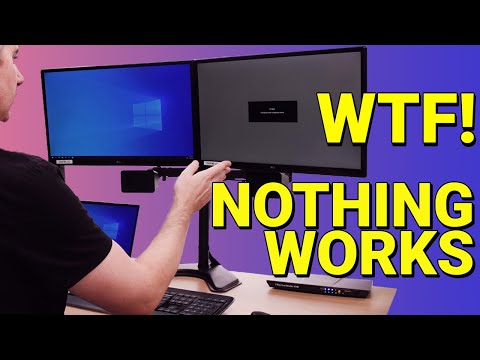
Okay, picture this: you’re sitting at your desk, ready to get some work done. Coffee in hand, computer fired up. Then boom, nothing. Your monitor gives you that cold shoulder—no signal detected. Really?
You check all the cables like a pro detective on a big case. Everything seems snug as a bug. Could it be that trusty KVM switch of yours? Ah, maybe it’s not feeling so trusty today.
I know the pain! A little thing like this can just throw off your whole day. But don’t worry because there are some simple things you can try to fix this hiccup.
Let’s dive into what might be going on and see how we can get that screen shining again!
Multi-Monitor Signal Detection Issue
If you’ve ever tried to set up a multi-monitor system and found yourself facing a **signal detection issue**, you know how frustrating it can be. Especially if you’re using a KVM switch to juggle between different devices, things can get a bit tangled. Okay, picture this: you’re setting up your workstation with two or more monitors, excited to expand your digital workspace, and then—bam! One monitor decides it’s not going to play nice and just doesn’t detect the signal from your computer. Let’s unravel this little puzzle.
First off, let’s chat about what might cause these problems with KVM switches. A **KVM switch** is like this handy gizmo that lets you use one keyboard, monitor, and mouse for multiple computers. Sounds like magic, right? But sometimes the magic falters.
- Cable and Connection Issues: Ensure that all cables are securely connected—that no loose ends are causing trouble. Sometimes we overlook the simplest solutions!
- Compatibility Problems: Check whether your KVM switch supports the resolution and refresh rate of the monitors you’re using.
- Power Supply: Some KVM switches need their own power source besides USB connection to work properly.
Oh! It reminds me of my friend Mike who had just bought his dream setup. He was all geared up with his dual monitors but guess what? One wasn’t detecting any signal due to an older version of HDMI cable—it simply wasn’t equipped for high resolutions!
Now as far as troubleshooting goes:
- Swap Cables: Try swapping out cables between monitors or devices—to make sure it’s not just one faulty wire.
- Direct Connection Test: Attach the monitor directly without involving the switch; check if signals pass smoothly when bypassing it entirely.
- KVM Switch Firmware Update: See if there might be firmware updates available which address compatibility concerns or bugs in software functionality.
So if anyone out there’s tangled with similar issues remember—you’re not alone in this connectivity maze!
Monitor Signal Detection Issue with KVM Switch
Ah, the age-old struggle with technology! Picture this: you’re all set to work, flick on your monitor after connecting everything through a KVM switch… and nada. Your screen stares back, blissfully blank. It sounds frustrating, right? But hey—let’s take a deep breath and tackle this head-on.
First off, what is a KVM switch? In case you’re new to the term, it’s that handy little device allowing you to control multiple computers using a single keyboard, video monitor (the ‘V’ in KVM), and mouse. Super convenient and tidy!
But sometimes these devices don’t quite play nice with our monitors. When your monitor stubbornly claims “No Signal,” don’t panic! This is actually pretty common.
Let’s try some simple steps:
- Check Connections: Honestly, start by making sure everything’s plugged in correctly. It sounds basic but we’ve all been there—assuming that things are hooked up while they’re really not.
- Cables: Consider swapping them out for another set. Even if they look fine; cables can sometimes be sneaky culprits!
- KVM Switch Setup: Double-check its setup procedure from any manuals you have or online instructions if it gets moody like that.
And now for one more trick! Depending on how advanced or modern your setup might be – there could be an issue with compatibility between the resolution settings of each device connected through the switch (especially pesky when dealing with different systems).
Why not try lowering resolution/output settings temporarily via hardware limits before adjusting per machine basis afterward? More often than not… Voila–problem solved!
In case everything fails despite trying out these handy dandy fixes above—it might make sense reaching out directly towards support channels related closely around specific product models involved (& how complicated personal scenarios may get).
Monitor Signal Detection Issue with KVM Switch on Windows 11
Ah, the joys of technology! You’re probably sitting there, staring at a blank screen, wondering why your monitor signal isn’t detecting when you’re using a KVM switch on Windows 11. Well, you’re not alone. Let’s untangle the knots and get that display working again.
First off, let’s make sure we’re all on the same page about what a KVM switch is. In simple terms, it’s a nifty device that lets you control multiple computers with one keyboard, video monitor, and mouse setup. Sounds magical, right? But sometimes it can throw a wrench in the works.
Common Culprits for Signal Issues:
- **Loose Connections:** Let’s start by checking if everything’s plugged in properly. It might sound basic but you’d be surprised how often cables wiggle out just enough to cause problems.
- **Unsupported Resolutions:** Double-check if your monitor’s resolution is supported by both your computer and KVM switch simultaneously.
- **KVM Compatibility:** Not every KVM switch plays nice with every computer or operating system combo. Your current setup may have compatibility quirks with Windows 11.
Now onto some action steps:
Steps to Tackle the Problem:
1. **Cable Check-up:**
– Ensure all cables are securely connected.
– Consider swapping out cables to rule out any faulty ones.
2. **Resolution Matters:**
– Inspect your display settings on Windows 11.
– Go to Settings > System > Display and ensure your resolution matches what’s supported by both monitor and switch.
3. **Power Cycle Magic:**
– Sometimes just turning things off and back on can fix hidden issues.
– Disconnect power from both KVM switch and monitor for about 10 seconds before reconnecting them.
4. **Driver Updates:**
– Outdated software can throw everything off.
– Check for updates under Settings > Update & Security > Windows Update.
5. **Specific Model Glitches:**
– Some models have quirky issues known only through experience or community forums where other users generously share their fixes or workarounds.
And remember—in my experience—when things get frustratingly stuck despite these attempts at troubleshooting… taking breaks helps clear mental clutter (and possibly avoids hair-pulling)!
Hopefully this guides gets you closer toward happy computing once more! If things remain stubbornly deadlocked though—consider reaching out directly within support communities related either specifically towards devices like yours…or even consult dedicated tech support services where professionals could provide further insights tailored precisely according individual needs without delay!
You know, dealing with technology can sometimes feel like trying to solve a really tricky puzzle, right? The kind where you’re left holding two pieces that just won’t fit. That’s a bit how it feels when your KVM switch decides it’s had enough and stops playing nice with your monitor. It’s like it suddenly has its own little rebellion.
Let me take you back to this moment not so long ago. I remember scrambling through cables under my desk, dust bunnies everywhere, trying to figure out why on Earth my monitor wasn’t detecting a signal from the KVM switch. The frustration was real! The thing is, usually these devices work seamlessly—they’re supposed to let you control multiple computers with one set of keyboard-video-mouse connections. So when something goes awry, it’s like a favorite tool just decided to stop cooperating mid-job.
I found myself doubting everything: Was the cable faulty? Did I press the wrong button again? Maybe the monitor itself was playing games with me! But hey, turns out I wasn’t alone in this—many folks have traveled down this same rocky road. Sometimes switching the cables around or rebooting everything in sight does wonders; other times it’s more of an issue that digs deeper into settings than you’d like.
It’s strange how a small hiccup in technology can remind us of our reliance on these gadgets for everyday tasks. When everything clicks back into place though—oh boy—it’s such a relief! You truly cherish those moments when everything works smoothly after fighting through what felt like tech chaos.
Anyway, maybe at some point you’ve been there too? Wrestling with cables and settings until suddenly that joyous “Aha!” moment strikes and signals start flowing again. It’s all part of life’s grand balancing act between man and machine…and keeping your cool while you’re at it!