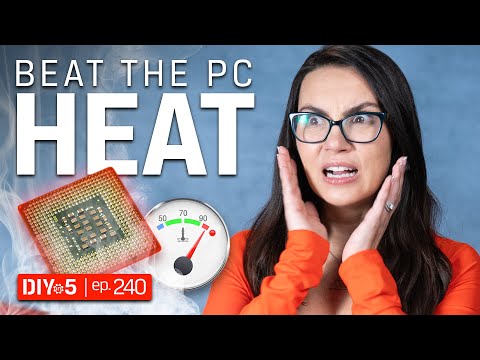
You know that moment when you’re cooking in the kitchen and things get a bit too hot to handle? Like, suddenly there’s smoke, and you’re rushing to open windows? Well, computers can have those moments too. Especially when we’re talking about the i5 11600K processor. It’s like this little powerhouse that sometimes feels the heat a bit too much.
I’ve been there, frantically trying to cool things off before I start worrying if something’s gonna burn out. It’s not just about keeping your PC healthy; it’s also about keeping your sanity intact! Trust me—things can get really intense.
Usually, there’s more than one reason behind this kind of overheating. Just like how leaving a pot on high without watching it can lead to disaster in your kitchen. Could be dust buildup or maybe something funky with the thermal paste acting up.
And hey, no one wants their gaming session interrupted by an overheated CPU! So if you’re feeling like your computer might be throwing little fits of rebellion against you—or maybe just running hotter than usual—there are definitely ways to keep things chill and sorted out.
Maximum Temperature for i5 11600K
Hey! OK, so you’re curious about the maximum temperature for your Intel Core i5 11600K, right? It’s important to know this stuff because keeping an eye on your CPU’s temperature can save you from a world of trouble later on.
First things first, the maximum temperature that Intel lists for the i5 11600K is around 100°C (212°F). Yep, that’s pretty hot. But don’t panic! This doesn’t mean your processor should always hover around there. In fact, it’s kind of like saying you can drive your car at top speed all the time—not a great idea!
Consider this: Running your CPU too close to its max temperature regularly isn’t healthy. You want it running cooler than that for better performance and longevity. Normally, you’d aim for it to stay below 80°C during heavy use.
- Idle temperatures: Ideally between 30°C and 40°C.
- Normal usage: When you’re browsing or working on documents—something like 50°C-65°C is common.
- Heavy loads or gaming: It might climb up towards 85°C but going beyond consistently isn’t recommended.
So why might it overheat? Well, things like poor ventilation can turn up the stress. Or maybe the thermal paste—the stuff between CPU and cooler—has dried out over time.
Here’s a personal story: I once opened up a friend’s PC because their computer was shutting down randomly. Guess what? Dust bunnies had colonized inside! Cleaned them out and presto—they were back in business.
Want some tips to keep things chill? Make sure your fans are spinning nicely and aren’t blocked by dust bunnies; change thermal paste every couple of years; consider an aftermarket cooler if you suspect yours isn’t cutting it; finally check those airflow configurations—make sure cool air’s coming in front/bottom while warm air exits back/top.
Remember though: Temperatures vary with workloads & ambient room conditions too! So having software like HWMonitor helps track those stats real-time.
Hope this gives you peace knowing where not-to let temps reach rather than worrying much…
Idle Temperature of Intel Core i5-11600KF
Hey, if you’re curious about the idle temperature of the Intel Core i5-11600KF, you’re in good company! Let’s dive into what that actually means and why it matters. In simple terms, idle temperature refers to how hot your CPU runs when it’s not doing much work—like when you’re just browsing the web or checking emails. Kind of like when you’re lounging on the couch after a long day, you know?
So what’s a normal idle temperature for this CPU? Well, typically you’d expect it to hover between 30 to 45°C (86 to 113°F), depending on factors like your room temperature and how well-ventilated your computer case is.
- Good airflow: You want to make sure your PC case has enough fans and ventilation. Just like a well-ventilated room feels cooler!
- Quality thermal paste: The gooey stuff between your CPU and cooler. Yup, it plays a big role in keeping temperatures down.
- Bios settings: Sometimes tweaking settings can help optimize performance without heating up too much.
You might be wondering why this is important? Because keeping an eye on those temps helps prevent overheating issues down the line. Speaking of which…
Avoiding Overheating!
If you notice higher temps even at idle, you might be dealing with some overheating issues—which can shorten that trusty CPU’s lifespan. Bummer, right? Here’s some common reasons these chips get hotter than expected:
- Poorly seated cooler: Make sure it’s sitting tight—as loose coolers don’t do their job properly.
- Dust buildup inside the case: Seriously dusty PCs need cleaning from time-to-time—it’s like spring cleaning but more techy!
- Lack of airflow: Double-check those fan configurations; add another fan if necessary.
- Inefficient cooling solutions: Upgrading coolers often makes worlds difference!
The bottom line here? Regular maintenance pays off big time! So go ahead—give that tech companion o’ yours some tender love ‘n care now before running into trouble later… because nobody likes having fried electronics unexpectedly during online meetings where everyone suddenly lags behind except themself looking blurry as pixel soup amid audio stutters galore . Yeah—not fun times indeed…
I5 11600k Overheating Causes in Gaming
Having a gaming setup is quite an experience, right? Let’s be honest, sometimes we face hiccups like overheating. If your i5 11600k is getting too hot during gaming sessions, it might be time to investigate why your system’s acting like you’re running a marathon.
Possible Causes of Overheating:
- Poor Ventilation: Believe it or not, just like us needing fresh air, your PC needs proper airflow. Lack of it can trap heat.
- Thermal Paste Issue: Now this is one slippery little devil! It’s supposed to help transfer heat from the CPU to the cooler. Worn out or poorly applied thermal paste can lead to overheating.
- Yep, dust bunnies are not just under your bed but inside your PC too. They clog fans and vents causing the temperature to spike.
- If they’re not spinning properly or are undersized for the task at hand, they won’t do much good cooling things down when you’re deep into Gaming World!
Anecdote Time! Why Cooling Matters
Picture yourself running outside on a summer day with a thick winter coat. That heavy feeling? That’s kinda how your processor feels without adequate cooling while you’re gaming with all those beautiful graphics.
Tackling The Heat:
- Sometimes simply relocating your PC tower helps — away from walls or corners where air gets trapped yet letting more cool air come in around it!
Revamp Fans if Necessary Add extra fans that fit; maybe even upgrade existing ones if they have seen better days.
Clean Regularly! Ensure all areas free remain debris free – clear ’em out frequently keep things breezy again reduced temperatures benefit both device hardware itself longer run lifespan entirely.
Gaming becomes more enjoyable knowing any sudden shutdown isn’t gonna ruin progress-right?! By countering causes ensuring effective preventative maintenance fixes similar cases future joy seamless performance await eagerly anticipated playtime adventures ahead next queue queued up game waiting quick escape reality ordinary routines enjoyably accomplished’-routinely better functioning computers true peers amen companion life practically sometimes every moment matters embodied digital exploration guiding customizable venture discover boosts aplenty awaiting patient simultaneous involvement… you catch my drift?
Oh boy, dealing with an overheating CPU can be quite the hassle, can’t it? Especially when it’s the i5 11600K. I remember a few months ago chatting with a friend who was pulling his hair out over this exact issue. He’s a big gamer and noticed his screen would freeze or his computer would suddenly turn off in the middle of an intense gaming session. Not fun, right?
Turns out, CPUs like the i5 11600K can overheat for several reasons. A common factor is inadequate cooling. You know how sometimes we can overlook cleaning out our PC’s fans or checking on our thermal paste? All that dust does not do any favors. Another culprit could be the case itself—if your setup doesn’t allow enough airflow around the CPU, heat gets trapped inside like clothes in a dryer! And if you’re anything like me, you love pushing your hardware to its limits (overclocking anyone?), which just adds more heat to the mix.
But hang on; don’t panic—there are ways to sort this out! First things first: routine maintenance is your best friend. Ever tried giving your PC case a good clean-up? Dust off those parts and ensure there’s nothing blocking air vents. Trust me: it makes a world of difference!
You might also want to invest in better cooling solutions—a good heatsink or even liquid cooling can really help keep temperatures down.
And hey, remember those thermal pastes I mentioned earlier? Well, applying fresh paste every now and then ensures efficient heat transfer from your CPU to its cooler.
It’s amazing how maintaining these small details can prevent major headaches down the line!