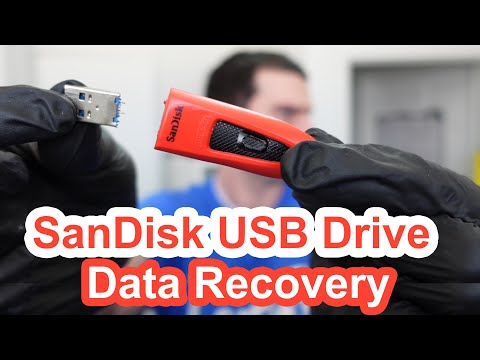
Ah, the joys of technology, right? There you are, ready to save some important files on your SanDisk flash drive, and boom—it decides not to work. Frustrating, huh?
I’ve been in that spot before. You know that sinking feeling when your trusty little gadget suddenly stops cooperating? Absolute chaos follows when those documents just don’t transfer.
But hey, no need to panic! Getting your flash drive back up and running is more doable than it seems. Just a little bit of patience and some friendly guidance can make all the difference.
So if you’re sipping coffee trying not to throw things around in frustration—take a deep breath. Let’s see what we can do about bringing that flash drive back to life!
Data Recovery from a Corrupted Sandisk Flash Drive
Oh no! You’ve got a corrupted Sandisk flash drive. That’s the worst feeling, right? Well, don’t fret too much; there are things to do to try and recover that data. Let’s dive into it.
Step 1: Check the Connection
Sometimes, it’s just a simple connection issue. Make sure your flash drive is firmly plugged into a USB port that’s working properly. Try another computer or port if needed—it might just spring back to life.
Step 2: Use Built-in Tools
Windows has a knack for fixing certain issues automatically! Here’s what you can do:
- Open ‘This PC’ and find your flash drive.
- Right-click on it and choose ‘Properties’.
- Go to the ‘Tools’ tab and click on ‘Check’. It checks for file system errors and tries fixing them.
Step 3: Command Line Magic (Command Prompt)
If you’re okay with some techy stuff, this might be your thing:
- Press Win + R, type “cmd”, and hit Enter.
- Type the command:
chkdsk X: /fHere, replace “**X**” with your actual drive letter.
Step 4: Data Recovery Software
When Windows tools don’t cut it—specialized recovery software might help out.
Consider options like Recuva or EaseUS Data Recovery Wizard. They often dig deeper into drives for lost data.
Just open the software:
- Select your corrupt Sandisk flash drive.
- Start a scan for recoverable files.
- The found files preview—choose what you want to save!
Remember—never save recovered files back onto the same flash drive!
Anecdote Time!: I once had all my college project slides saved on an old SanDisk drive. Out of nowhere, one day none of my laptops would recognize it—all panic no chill! After trying some recovery software on my friend’s advice—I got everything back without breaking apart (just). What relief!
And hey—once you get back that precious content (hopefully), remember making regular backups prevents these nerve-wracking moments in future ones too!
Keep trying these steps as different ones could work based upon specific scenarios impacting storage devices! Good luck bringing yours’ functionality restored pronto!!
Sandisk Flash Drive Recovery Steps
Ah, the SanDisk flash drive. We’ve all been there, right? You plug it in and literally nothing happens—total panic mode! But maybe don’t worry just yet. Sometimes these little devices just need a tiny bit of attention to get back on track. Let’s walk through some easy steps to get your SanDisk working again.
Check the Basics
First things first, make sure the flash drive is inserted correctly into a working USB port on your computer. Unplug it, wait a few seconds, and then plug it back in. You wouldn’t believe how often this fixes things!
Try Another Port or Device
Okay, if that didn’t do it: try plugging your flash drive into another USB port or even a different computer altogether. Maybe it’s not the drive at all but something strange with your current setup.
Update Drivers
If nothing’s changed, let’s consider updating the drivers for your USB ports. Here’s how to do that:
- Go to Device Manager. You can find this by searching in your Windows Start menu.
- Look under “Universal Serial Bus controllers” for anything with an exclamation mark.
- If you see one: right-click and select “Update driver.”
Sometimes computers can be like needy pets—they need constant attention from proper drivers!
Error Checking Tool
Your next option might be using Windows’ built-in error-checking tool:
- Open File Explorer and right-click on your SanDisk under “This PC.”
- Select “Properties,” then go to the “Tools” tab.
- You’ll find an option for checking errors—run that!
This tool will scan for file system errors and fix them automatically if it’s possible.
Use Disk Management Tool
If you’re still stuck: check out Disk Management.
- Right-click on “This PC” or “My Computer,” then choose “Manage.”
- Select “Disk Management” from the left sidebar.
- Your SanDisk should show up here; if not… oof.
When it’s visible but unlabeled or blank (like weird), try formatting or giving it a new letter via right-click options.
The Data Recovery Last Resort!
Let’s say none of this helps—heartbreaking! At such moments data recovery software might come handy (Stellar Data Recovery is popular). Install one onto your computer (but not on that same troubled flash drive) so as not overwrite any valuable information inadvertently lost beforehand.
Sandisk Flash Drive Compatibility Issues
Hey there! If you’re feeling a bit stuck with your SanDisk flash drive not playing nice with your devices, don’t worry. I’ve got some insights to help you out. Things can get annoying when something as simple as a flash drive decides not to work properly, right? But let’s try to make some sense of it here.
So, first off, let’s think about *compatibility*. You might plug in your flash drive and boom—nothing happens. A moment of panic ensues, but relax. It’s often just a little hiccup in the connection or system recognition. Here are some pointers that might just do the trick:
- Check the Port: Start with the basics—make sure the USB port is functional. Try plugging your SanDisk into a different USB port on your computer. Sometimes certain ports can be finicky.
- Look at the File System: Your SanDisk might use a file system not compatible with all devices. Common file systems include NTFS, FAT32, and exFAT. To see what yours is using:
- If you’re on Windows, open “This PC,” right-click on the drive icon and choose “Properties.”
- If it’s formatted in something odd like NTFS and you’re trying to use it on a device that’s more friendly with FAT32 (like many TVs or older systems), you’ll want to reformat it.
- Drivers Up-to-date?:You’d be surprised how many compatibility issues stem from outdated drivers.
- On Windows: Type “Device Manager” in search bar, open it up, find “Universal Serial Bus controllers,” and update drivers by right-clicking them.
Alrighty then! Moving deeper into troubleshooting: You could also glance at your antivirus settings—sometimes they’re overly cautious and block new devices from connecting properly.
Error Messages? Maybe you see error messages like “USB Device Not Recognized.” That’s usually tied to driver issues. There’s always that chance; it’s just being ornery for no apparent reason!
Also helpful is checking things like firmware updates from SanDisk’s official site—they might have fixes for common problems without us having realized it.
And look sometimes all else doesn’t quite cut through these mild roadblocks—it may call for reaching out directly either via tech forums filled by folks sharing tales similar adventures or getting professional repair if device itself malfunctions entirely irreparably!
So yeah keep calm troubleshoot patiently most cases compataiblity once identified resolved quickly efficiently ensuring data safe secure future usage enjoyment happy computing trip ahead friend hope finds useful funny way hopefully smoothly again snapping smarter annoyances minor workflow disruptions instance lifetime experiences surprise rewards gained perseverance insight character etcetera best regards!
Alright, let’s chat about that moment when your trusty SanDisk flash drive suddenly decides to take a day off. We’ve all been there, right? You’re just going about your day, plugging it in like usual, and—surprise!—your computer can’t seem to recognize it. Now what do you do?
First things first, don’t panic. I remember this one time, my flash drive didn’t show up for a big presentation at work. My heart skipped a beat! What I learned from that little scare is that patience and a bit of tinkering can save the day.
Here’s what you might try: Start by checking different USB ports or even another computer—it sounds too simple to be true, but sometimes these things just need the electronic equivalent of shaking them awake.
If it still plays hide and seek, consider updating or reinstalling the drivers on your computer. Head into the device manager (it sounds fancy but it’s not too weird), find your USB controllers, and give them a refresh with either an update or disable-enable trick.
Now let’s say you’re still having no luck…you might want to use some disk utility software. These programs are like detective tools—they look for issues and attempt fixes behind the scenes without requiring us to have IT degrees.
There was also this one instance where I found out formatting the drive worked wonders. Just remember: formatting erases everything so backup anything important ahead of time using another working device if possible!
And finally—and yes there is hope for those stubborn cases—some manufacturers provide recovery tools specifically designed for their products which might help save crucial data trapped inside unfriendly filesystems.
So next time life throws such obstacles our way again? We’re prepared (and smarter) now thanks partially due these unexpected lessons in problem-solving! Trust me; we’ll figure things out together.