Oh man, remember Windows XP? It was like the charming old car you couldn’t just let go of. If you’re still rocking it, you’ve got some serious nostalgia going on!
Now, you might’ve hit a bump in the road with your old pal XP. Maybe it’s acting up or refusing to boot—what a pain! But fear not, my friend.
We’re gonna walk through bringing it back to life. No technobabble here. Just plain, simple steps—like having coffee with an old friend who knows a thing or two about computers.
So let’s get our hands dirty and bring that system back from the brink! Ready?
Restoring Windows XP on Windows 10
Restoring Windows XP on a machine running Windows 10 seems like a nostalgic trip, doesn’t it? Maybe there’s an old software that only runs on XP or you simply miss the classic look. Whatever your reason, it’s possible to recreate that retro feel while navigating the modern world of Windows 10.
You might be wondering how to go about doing this without actually uninstalling Windows 10. Good news! You can use virtualization software. This tool creates a “virtual” computer within your current system where you can install and run different operating systems like good ol’ XP.
Here’s how you do it:
First, you need to download software like VirtualBox (it’s free and popular). Once that’s done, you’ll need a legal copy of the Windows XP installation files or disk. If you’re scratching your head thinking where’d they go?, check that dusty shelf in the garage!
Now setting up is pretty straightforward but takes some time:
- Open VirtualBox and click on “New”. Name it as “Windows XP”.
- Select the type as Microsoft Windows and version as Windows XP (32-bit or 64-bit depending on what you have).
- Allocate some memory—1GB should do—it’s literally just dragging a slider!
- Create a virtual hard disk by following steps; pick VDI format for flexibility.
Once you’ve set up the virtual machine, start it up—just hit that shiny green arrow! You’re prompted to select startup disk; this is where you’ll point to your WinXP installation image.
Installing from here works just like on an actual computer: clicking through familiar blue screens, entering serial keys if needed—oh those were unforgettable times!
Okay got WinXP running? Congratulations! You’ve made yourself an island in time with technology from early 2000s right there under Win10 umbrella.
Take note: Internet connectivity may not always be seamless due limitations in compatibility with modern web protocols but hey once setup most apps should work fine offline anyway…
Isn’t tech amazing? Bridging decade gaps effortlessly while sipping morning coffee…
Steps to Recover Windows XP Without Data Loss
Oh, Windows XP! Brings back memories of those good ol’ days when things were a bit simpler, right? If you’re still using it and facing issues that require restoring your system without losing data, here’s how you can do it.
First off, let’s breathe. Losing data is a big concern but it’s often avoidable with the right steps. I remember this one time my friend almost lost all her school projects because she clicked on something she shouldn’t have – the panic was real!
Ready to start? Here are some simple steps:
- Back up Your Data: You won’t lose your files if you have a backup ready. Use an external hard drive or a USB stick. Trust me, it’ll save a lot of heartache.
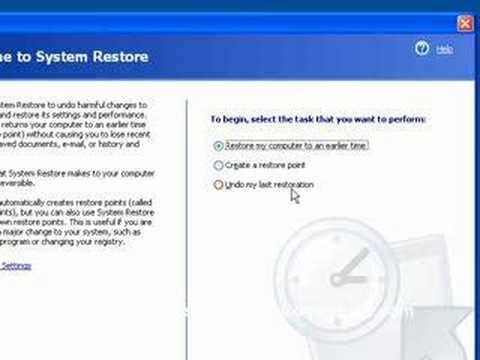
- Use System Restore: Windows XP has this neat feature called System Restore that lets you roll back your computer’s state to an earlier date when everything was running smoothly. You can find this by going to Start > All Programs > Accessories > System Tools > System Restore.
- Select the Right Date: When you’re in System Restore, it’s important to pick a date where you know everything was working fine. Click through the calendar and choose wisely!
- Follow the Prompts: Once you’ve selected that golden date, follow any prompts it gives you. Your PC will restart during this process (fingers crossed!), and come back as new as possible.
- Avoid Interruptions: Try not to meddle with your computer while it’s restoring itself – go make yourself some coffee or something.
If by any chance there’s no system restore point available or things are going downhill fast and furious… There’s always recovering via booting with the original Windows XP installation disk too (just cross-check you remember your product key!)
One more thing: Keep antivirus software updated even on older systems like XP; prevention’s better than cure!
Hope these help out—fingers crossed for smooth sailing!
Windows XP Restoration on Windows 7 Systems
Restoring Windows XP on a system running Windows 7 can seem tricky, right? But it’s not as hard as it sounds. Let me give you a simple, step-by-step guide with some essential bits highlighted.
Why Restore Windows XP?
You might be wondering why someone would want to do this. Well, maybe you have old software that only runs on XP or just prefer that good ol’ interface. Whatever your reason is, let’s get started!
What You Need:
Before taking any steps, make sure you have:
- A full backup of your current data—just in case anything goes south
- Your original Windows XP installation CD
- A legitimate product key for activation
It’s always better to be safe than sorry!
The Process:
All right, ready?
- Boot from the XP Installation CD:, Pop it into your CD/DVD drive and restart the computer. Watch closely: press any key when prompted to boot from the CD.
- Create a New Partition:, When you’re in setup mode, choose where to install XP carefully so it doesn’t overwrite Windows 7. You’ll probably need to create or select a new partition.
- Install Drivers and Updates:, Once installed, check which drivers are needed (graphics card ‘n stuff). Many of them might still work from manufacturer websites.
- Duel-Boot Setup:, If you wish to keep both systems (XP & Win7), set up a dual-boot environment. Use tools like EasyBCD for user-friendly configuration.
Tales From Experience:
Now here’s a little story; I once helped my neighbor who was quite fond of his old games that ran best on Windows XP. We went through this process together on his newer Windows 7 machine one weekend afternoon over some pizza—good times indeed! It did take some patience though because he accidentally deleted an important partition once… oops!
And there you go! You got everything here without fretting too much over it—hope it’s been helpful! Remember: tech roads may have bumps but they’re never endless.
Got any burning questions or something didn’t quite click? Just let me know—we’re all in this tech journey together!
Thinking about the days of Windows XP, it always gives me a nostalgic feeling. Remember those big chunky monitors and dial-up internet? It’s hard to imagine we once had the patience to wait for that connection sound! If you’ve got an old machine running XP, maybe it’s turned into a treasure chest of memories or useful software that just can’t seem to work on newer systems. But sometimes, like with anything old, things can go a bit haywire.
First things first, let’s not forget how important it is to back up your data. Imagine finding old family photos or forgotten documents that you thought were long gone. There’s real joy in uncovering those little gems! Alright, onto restoring—bear with me as I walk you through it.
Starting off, grab your original Windows XP installation disc—it might be collecting dust somewhere in your closet. Pop that bad boy into the CD drive and restart your computer. You’ll probably see a prompt asking you if you want to boot from the CD—hit any key like you’re swatting a fly before it skips ahead!
The setup program will load its files—this takes some time so sit tight—and soon you’ll reach this blue screen that’s not scary at all (unlike some blue screens!). Follow the friendly instructions and choose “Repair” when asked. It feels like giving an old friend a hand up when they’ve stumbled.
Your system will then trundle along copying files over; honestly this is where you should make yourself some tea because it’s gonna take awhile! When done you’ll need to input your product key which should be on a sticker stuck somewhere on top of or under the machine.
Now what’s next? Well don’t rush away just yet, it’s best practice afterward updating drivers if needed by visiting manufacturer websites since they’ll have what works like new medicine for these slightly vintage machines.
Lastly remember those amazing tech moments from times past: catching up with friends via MSN Messenger or playing Solitaire endlessly? Sure there are far more sophisticated alternatives now but there was something wonderfully uncomplicated about using Windows XP wasn’t there?
Sometimes bringing back what was once lost feels kind of magical—even if only temporarily putting life back into something presumed forgotten adds warmth inside us much beyond mere computers themselves being revived again!
So happy restoring my friend!