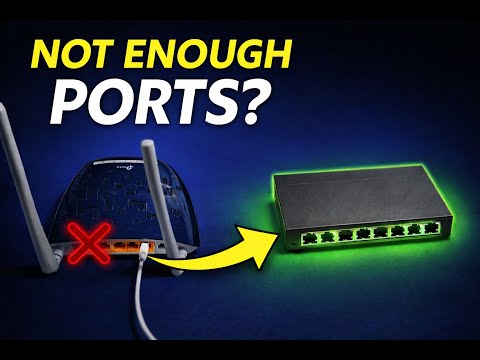
Oh man, ever had one of those days when your Ethernet connection just plays hide and seek with you? You’re all set to dive into some work or maybe binge-watch the latest series, and bam—no dice. That little 1GB connection ghosting ya. I mean, come on, technology! Why do you gotta be like that?
Anyway, here we are trying to wrestle with this issue. It’s like trying to find a needle in a haystack sometimes. But don’t worry, we got this! Breathe deep and stay cool.
Everything was working fine yesterday… right? And then today—poof! No detection of that sweet high-speed connection. It’s kinda like when you misplace your keys but swear you left them on the counter.
Let’s try to make sense of this mess together, okay?
Enabling Gigabit Ethernet Port Settings
Alright, let’s tackle the issue of enabling Gigabit Ethernet port settings when your Ethernet switch is not detecting a 1GB connection. It’s like your tech isn’t shaking hands the way it’s supposed to. Let’s figure this out.
First things first, make sure you’ve got the right equipment. Check your cables: are they Cat5e or Cat6? These types are essential for Gigabit speeds, believe it or not! Some folks think any old cable will do, but that’s not always true for gigabit connections.
Now let’s poke around in some settings:
- Access your Router/Switch Settings: Dive into your router’s settings through a web browser by typing in its IP address (often something like 192.168.1.1). You’ll need login credentials, so keep those handy.
- Enable Gigabit Mode: Once inside, head to the network or Ethernet section and ensure that gigabit mode is actually enabled—sometimes it hides under names like “1000Base-T” or “Gigabit Ethernet.”
- Check for Duplex Settings: In the same area, check duplex settings too; they should be on “Full Duplex.” This ensures data can flow smoothly both ways at once!
You ever had that moment where you’ve tried everything and then realized something wasn’t plugged in properly? Happens to me too often! Make sure all cables are securely connected.
Now onto drivers—yep, they’ve got their quirks:
- Update Network Drivers: Outdated drivers can be sneaky culprits for connection issues. Head over to Device Manager (just type it into your start menu search) and look under “Network Adapters.” Right-click on your ethernet adapter and select “Update Driver.”
Sometimes you’ll find that toggling certain power-saving features can impact performance:
- Adjust Power Management Features: Go back into Device Manager under the properties of your network adapter—there could be a power management tab with options that should be unchecked if you’re aiming for relentless full speed.
Finally check out this common oversight: mismatched configurations between devices on different ends—for instance if one device thinks it’s connecting at gigabit speed but another hasn’t gotten aboard yet.
Do give these steps a whirl & see if they solve things up! Hopefully it’s just been one step getting missed along way – simple stuff happens everyday huh? Luckily we’ve got tech friends helping put heads together again when bits ‘n pieces aren’t playing nice…
Ethernet Switch 1GB Connection Detection Issue
Oh, the good old Ethernet switch adventures. Sometimes, they just give you those little headaches. You plug your device in, and suddenly it’s like the switch decided to take a break from work. Let’s jump into this!
First off, let’s get to the heart of the matter: why isn’t your 1GB connection being detected? There could be a few culprits hiding in plain sight. Here’s what you can do:
- Check the cables: Yeah, I know it sounds basic, but you’d be surprised how many times a loose or faulty cable is the problem! Make sure your Ethernet cable is securely plugged into both your device and the switch.
- Inspect for LED lights: Most Ethernet switches have those tiny LED indicators next to each port. Look for blinking lights; they usually mean data is being transmitted. No light? That could point to an issue.
- Dive into settings: Head over to your network adapter settings on your device and ensure that it’s set to auto-negotiate or is set manually at 1GB if needed. Sometimes devices might not auto-detect properly.
- Update drivers: If you’re using a computer or any smart gadget with drivers involved, make sure they’re up-to-date. Outdated software can cause weird hick-ups.
- Examine port configurations: Switches can sometimes have specific ports set up differently – maybe limited speed or restricted access due to prior configuration quirks.
Now imagine this: You’re sitting there trying everything under the sun and nothing seems to work! Frustrating, right?
A possible hardware issue?: If none of these steps fix it there might be something wrong with either the switch itself or even worse – all ports could’ve gone on strike together! Swapping ports might help determine if one specific port is problematic.
Now let’s put ourselves in someone else’s shoes—I had this pal once who went through precisely such chaos! He kept changing cables until he found out one perfectly operational one was just too sneaky about pretending malfunctioning every alternate week…(those grumpy wires). Not everyone gets lucky with their first checks though…
And remember folks – when things seem bleak always double-check initial setups so easily skipped past during panics before calling tech support despairingly hoping magic will suddenly sprinkle connections place again.
So keep these tricks handy next time you encounter peculiar network issues maybe lend them fellow sufferers friends whenever possible too—they may thank profusely afterwards fed grateful sighs relief finding resolutions elsewhere without longer struggling unknown reasons crossing paths unexpectedly at home environments work settings wherever takes along voyages technology landmines avoid stumbling comically upon misunderstood complexities networks junctions life happens simpler joy lessened burdens brought forward answers solace shared collective growth experience overcoming challenges alongside others understanding jointly facing baffling shared battles together becomes better part enlightening journey overall travel discoveries pave smoother highways us onward across web universe expanded horizons embrace vast mysteries harnessed digital age expeditions made meaningful accompanied companionship amidst tricky realms internet connectivity wonders unravel uncovered truths revealed wondrous interactive destinies unfolded united intrepid explorers legacies continue build enriched bridges unseen terrain paves timeless futures welcomed wholeheartedly step towards boundlessly connected world…
Samsung Ethernet Switch 1Gb Connection Detection Issue
When dealing with a Samsung Ethernet Switch and running into problems with the 1Gb connection detection, it can be frustrating. Imagine you’re trying to stream your favorite movie, but it’s buffering because the connection won’t kick into high gear. Let’s work this out together.
One common issue might be related to the cables. You see, it’s really important to use a Category 5e or Category 6 Ethernet cable. If you’re using an older Cat5 cable, it might not support gigabit speeds properly.
If the cable checks out, look at the switch’s configuration settings. Sometimes a switch is set to handle only lower-speed connections by default. Dive into those settings (but not literally!) and ensure it’s set for auto-negotiation. This setting allows the switch and connected devices to communicate and identify maximum supported speeds.
Here are some other things you could consider:
- Port Status: Ensure that the port on both the switch and connected device is active and enabled.
- Firmware Updates: Outdated firmware can cause connectivity hitches. Check if there’s an update for your Samsung Switch.
- Cable Length: Ideally, keep it under 100 meters for optimal performance—more than that, signals might degrade!
- Straight-Through vs Crossover Cables: Double-check whether you’re using the right type of cable depending on your network’s needs.
I once faced an issue where my system wouldn’t detect gigabit speeds due to a misconfigured device driver on my computer (you know how these things go!). Updating drivers solved everything like magic! But don’t forget that computer-related problems sometimes have quirky solutions like turning things off and back on again!
So if all else fails, rebooting both your network devices can clear up temporary hiccups. Think of it as giving them a little nap before waking them up refreshed.
Hopefully this helps shed some light! If problems persist despite these efforts—it wouldn’t hurt calling in some additional technical support just remember technology has its way of persevering when given proper attention!.
Alright, so there’s this thing that happens sometimes with Ethernet switches, and it can be a bit of a head-scratcher. You plug everything in, expecting your devices to say “Yay! We’re connected at 1GB!” But nope, nada. It just sits there stubbornly blinking at you.
Let me tell you a little story from not too long ago. My neighbor Dave called me over because his new Ethernet switch wasn’t giving him the Gigabit connection he expected. The thing is, Dave had just upgraded his internet plan and was itching to enjoy faster speeds for his streaming marathons and gaming sessions with his son.
We started poking around to see what was up. First things first, we made sure all the cables were plugged in snugly—believe it or not, sometimes they aren’t clicked all the way in! Then there was this moment where we both looked at each other and asked if the cables were Cat5e or higher… turns out some of them weren’t! That was our first clue.
Dave also mentioned he updated some network drivers the day before but wasn’t sure if it affected anything. That’s when I remembered that sometimes outdated drivers don’t play well with new speeds.
Anyway after updating those drivers too, voila! His devices finally decided to recognize the 1GB connection they’d been ignoring like an old friend at a party.
It’s a funny thing how small details like cable types and driver updates can stand between you and smooth internet browsing or gaming nights without lag. Makes you appreciate how complex yet wonderfully intricate these tech webs we weave truly are!