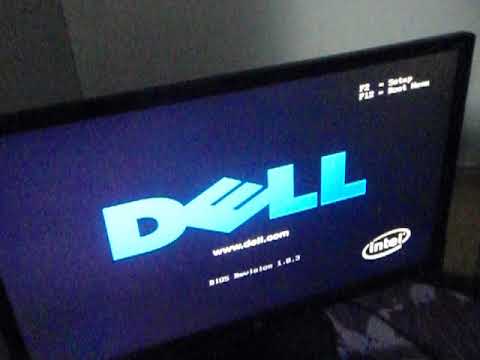
You know, there’s nothing quite like the feeling of cracking open your laptop, ready to dive into some work or just binge-watch your favorite series. But hold your horses! Suddenly, you’re face-to-face with the BIOS screen. Yeah, that one. Your Dell’s not budging an inch.
It’s like when you settle in for a movie night and find out you lost the remote. Oh boy, frustrating! Been there? You’re not alone.
But no worries! This kind of situation happens to a bunch of us tech aficionados from time to time. It’s just technology’s quirky way of reminding us who’s boss sometimes, huh?
So let’s dig into this little hiccup and help get things rolling again with those frustratingly frozen screens. Ready?
BIOS Screen Boot Stuck Causes
Ah, getting stuck on the BIOS screen—it’s like your laptop’s frozen in time. If you’ve got a Dell laptop that’s being stubborn and refusing to boot past the BIOS screen, don’t worry. Let’s chat about some reasons why this might happen and what you can do.
Hardware Issues
Sometimes it’s just a stubborn piece of hardware causing issues. Happens to all of us! The connection between components may just need a little check-up.
- Loose Connections: Open your laptop (carefully!) and make sure everything’s snug—hard drive, RAM… those little guys can slip out of place.
- Peripheral Confusion: Unplug all the extra stuff like USB drives, external hard disks, or anything else you’ve got hanging off the sides.
Corrupted BIOS
A corrupted BIOS might sound scary. But don’t worry, every problem has its solution!
- Flash it Back: Re-flashing or resetting your BIOS could give it a fresh start. If that’s possible for you without opening new cans of worms!
- Bios Setting Mess-Up: Sometimes settings get changed because—you know technology! Find the option to restore factory settings in your BIOS menu.
Error Messages Galore
Your laptop may actually be sharing what’s up through error messages that we sometimes overlook.
- Error Codes: Look closely at any error codes that pop up—they’re like breadcrumbs leading you back home. Use another device to search for these codes online—the internet’s brilliant for that!
- Status Lights: Pay attention also to any lights blinking on your laptop—they’re telling a story even without words.
Sneaky Software Problems
You’d think software would behave better… but no! It likes causing issues too.
- Recent Changes?: Did anything update recently? New software can occasionally upset things by messing with system files.
- Messed Up Boot Order:
: Check if something went wrong with how devices boot in sequence from within those mystical setup options…
Remember when I said not to worry? You’re definitely not alone—we’ve all faced similar hiccups along our tech journey; goodness knows I have more than once! Feel free reach out if you bump into more hurdles—sometimes talking helps find solutions faster… keep us posted alrighty?!
Dell Laptop BIOS Stuck on Windows 11
Oh, dealing with a computer issue can be such a headache, right? Imagine this: you’re trying to boot up your trusty Dell laptop running Windows 11 and it just gets stuck on the BIOS screen. Ugh, frustrating! Let’s walk through this step by step and see how we can sort this out for you.
What’s going on? Essentially, when your laptop is stuck on the BIOS screen, it means that there’s a hiccup in loading the operating system. The BIOS is like the brain of your computer that checks everything out before letting Windows take over.
Here’s what you might want to do:
- Check external devices: Unplug any USB drives or peripherals connected to your laptop. Sometimes they cause the boot process to stall.
- Hard reboot: Press and hold (yeah, really press it) the power button for about 10 seconds until your laptop powers off. Wait a few seconds then turn it back on.
- Access BIOS settings: Restart your computer and as soon as you see the Dell logo, press F2 repeatedly. This should bring up the BIOS setup (don’t worry if it takes a few tries).
- Check boot sequence: Once you’re in BIOS settings, look for an option labeled ‘Boot Sequence’ or ‘Boot Order’. Make sure that your internal hard drive is listed first.
- Troubleshoot hardware issues: Ensure everything inside is properly connected—things like RAM sticks coming loose can happen; ask me how I know!
- Bios reset: There’s often an option within BIOS settings to restore defaults. This won’t hurt anything you’ve saved in Windows but might solve some hidden setting issues.
If nothing above works, there may be deeper issues at play—like corrupt files or hardware malfunctioning. Those situations could require professional help.
I remember once having my own hardware panic moment. There was this one time my dog ran into my desk knocking everything askew during an update! My heart jumped but resetting things physically helped me realize nothing vital was damaged—it’s amazing how these things happen sometimes without even thinking!
Anyway—I hope these steps help get things sorted out so you are up-and-running again soon! Isn’t technology great—when it’s not being pesky?
Dell Laptop BIOS Screen Freeze on Windows 10
Oh, getting stuck on the BIOS screen with a Dell laptop running Windows 10 can be quite the head-scratcher, huh? It’s like you’re halfway through a door but something’s blocking it. Let’s try and tackle this together, shall we?
Understanding the Freeze:
When your Dell laptop gets stuck on the BIOS screen, it’s probably wrestling with some technical hiccup before even touching the operating system. Picture your laptop as waking up groggily but not finding its glasses—kinda frustrating, right?
- Hardware Connections: First things first. Check if everything is snug and tight inside. The RAM and hard drive should be well-connected. Sometimes a loose connection can cause all sorts of funny business.
- External Devices: Unplug any extra stuff like USBs or external drives connected to your laptop. Believe me, occasionally they throw a wrench in things during startup.
- Resetting BIOS Settings: There’s a friendly option called “Load Setup Defaults” in your BIOS setup menu. It’s like hitting refresh without any risks—you might want to give it a shot.
- BIOS Update: An outdated BIOS might also be what’s holding things back. You can download the latest version from Dell’s support site and install it via USB.
- Battery Test: Inspect if there’s enough juice in that battery or test with another power source just to rule out power-related issues.
- Safe Boot Option: Try booting into safe mode by using F8 during startup—it skips non-essential drivers for an easier start-up.
- Corny One: Be Patient!: Sometimes patience is key; give it a few minutes—your computer might just need some extra time! We all have those days!
Remember that tech problems are much more common than you think—they always seem to pop up when you least expect them! Give these steps a whirl, see if they get you past that stubborn screen.
And hey! If nothing else seems to work its magic don’t hesitate reaching out to professionals—they usually have superpowers when dealing tech troubles!
You’re not alone battling this computer gremlin; many others have been there too—good luck sorting him out once-and-for-all!
Alright, so you’ve got a Dell laptop and one day it decides to hit you with the dreaded BIOS screen freeze. Yeah, it’s like your beloved device suddenly gave you the silent treatment. You know what I mean? It’s frustrating when you’re just trying to start your day and the laptop’s like “Nah, I’m gonna chill here.”
Once upon a time—or rather last month—my friend Maya faced this exact issue right before an important virtual meeting. You should have seen her; she was frantically clicking buttons as if the keyboard was gonna magically fix itself. And I totally get that feeling of dread because guess what? It turns out it can happen for several reasons and sometimes it feels like technology has its own mischievous personality.
So, if that happens, don’t panic first. Try restarting your laptop by holding down the power button until it shuts off completely—that’s usually step numero uno. If luck isn’t on your side and it’s still freezing after restarting, there might be other things happening backstage. For instance, BIOS settings could have gone awry or there might be some hardware issues lurking beneath.
Now here comes what tech folks say: check if there’s any external hardware connected that’s causing all this fuss—sometimes unplugging everything and plugging back only necessary things can work wonders! It’s kind of like giving your laptop a fresh start without any distractions.
And another trick up our sleeves? Getting into safe mode can also help bypass these issues by loading only essential stuff. It’s kinda like inviting less drama into your digital life momentarily while figuring out what’s wrong.
Remember Maya from earlier? She eventually found out her battery needed replacing—a simple fix—but taught us both patience is key when dealing with these quirky devices we rely upon every day!
Anyway hope that helps give you some insight into wrangling with a stubborn Dell that’s stuck in BIOS-land!