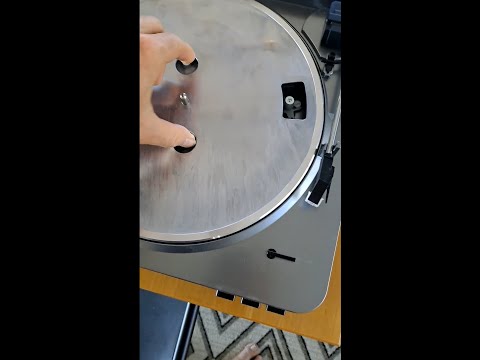
You know that feeling when you’re all set to listen to your favorite vinyl, and bam—your computer acts like it’s never met your turntable before? Oh, I’ve been there! It can be super frustrating. Everything’s ready. Record lined up, coffee brewing, and then suddenly… silence.
Sometimes gadgets just have a mind of their own, don’t they? It’s like they pick the worst moments to play hide and seek. But no worries, we’ll figure this out together. Let’s dive into what might be going on with that sneaky turntable of yours.
Think of it as a little mystery-solving session—minus the drama! Ready? Let’s get into this!
Connecting Audio-Technica Turntable to a Computer
If you’re trying to connect your Audio-Technica turntable to a computer and having a bit of trouble, you are not alone. Let’s explore how you can make that connection and enjoy those vinyl tunes digitally.
First things first, check the cables. Ensure you’re using the correct USB cable that came with your turntable. Sometimes it’s just a matter of swapping a cable, and poof! Your computer might suddenly recognize the device.
Install or update drivers. Some Audio-Technica models require specific drivers. Visit their official website to find any necessary software updates. Installing these could be the key to solving your problem.
- Go to Audio-Technica Support.
- Search for the model number of your turntable.
- Download and install any available driver or software.
Once you’ve got these installed, try reconnecting your turntable to see if things have improved.
Another thing is checking the audio settings on your computer. It’s like when you’ve got two audio sources plugged in at once and need to tell which one should work.
Selecting the right input device:
- On Windows: Head over to Control Panel – Sound – Recording tab.
- Select USB as an input option.
For Mac users:
- Open System Preferences – Sound – Input tab.
- Select USB option from there.
Sometimes, it’s all about tweaking those little settings!
Maybe it’s just stubborn software hiccups messing with you? In that case, consider using recording software like Audacity – it often helps in recognizing devices others don’t.
And remember, keep an eye on volume controls—hardware issues aside sometimes all that’s off is volume on laptop or speakers.
In my own experience connecting similar devices was frustrating until I realized my toddler had turned down speaker output! Always check simple things first before diving deep into technology labyrinths!
Isn’t it satisfying when things finally click into place after struggling with them for hours? plugging everything back in correctly somehow feels like completing jigsaw puzzle doesn’t it? If nothing works contacting support might provide solutions no online guide would offer regarding specific hardware quirks involved here & now connected sound magic awaits rediscovery!
Audio-Technica Turntable Windows 10 Recognition Issue
Oh, those moments when your Audio-Technica turntable won’t play nice with Windows 10, right? It can be super frustrating! But don’t panic—fixing this isn’t as complicated as you might think.
First things first: check if the turntable is properly connected. You want to make sure all cables are snugly in place. Sometimes a loose USB connection is all it takes to cause chaos.
Now, let’s jump into your computer settings. Windows can be a bit quirky when it comes to recognizing new devices.
- Device Manager: Hit the Start button and search for “Device Manager.” Once you’re there, look under “Sound, video and game controllers” for any yellow triangle warning icons. This usually indicates a driver issue.
- Update Your Drivers: Right-click on the device with issues and select ‘Update driver.’ If you’re lucky, Windows will automatically find and install the right one.
- No Luck?: Go directly to the Audio-Technica website and look for drivers compatible with your model and Windows 10 version. Sometimes getting them directly from the source does wonders.
- USB Ports: Try plugging your turntable into a different USB port—preferably one that’s on the main part of your computer rather than an external hub. Computers can be picky that way!
Here’s a little story: My friend Sarah recently had this same headache with her turntable not showing up on her computer. You know what did the trick? Unplugging other unnecessary USB devices she had connected (like that old printer she never uses). Boom! Her music was spinning again.
Finally, don’t forget to check if there’s any software conflict or update needed in apps like those used for recording or playing vinyl music digitally.
Fixing this won’t always involve rocket science steps—it’s often just about taking care of small things step-by-step (and maybe giving your PC an encouraging pat).
Give these tips a whirl; good luck unraveling this tangled mess! If nothing works though… well… it might just be time for some professional advice from customer service or tech support nearby who could have other ideas at hand!
Audio Technica Turntable Windows 7 Recognition Issue
Oh, the joys of dusting off your vinyl collection and getting ready to jam out on your Audio-Technica turntable. Only to find out that your Windows 7 computer decides it just doesn’t want to play nice. Trust me, it’s annoying—I’ve been there! But let’s work through this together.
- Check Your Connections: First things first, ensure all cables are securely connected. Sounds simple, but hey, we’ve all missed a plug here or there! Make sure the USB cable is snug in both the turntable and the computer ports.
- USB Port Issues: Not all USB ports are created equal. Try plugging into a different port on your computer. Sometimes front ones act wonky; opt for one directly on the motherboard at the back.
- Drivers Update: Ah, drivers… those little bits of software that make everything tick behind the scenes. Head over to Device Manager (you can type it in the start menu search bar). Check under “Sound, video and game controllers” or even “Unknown Devices” for anything with a yellow exclamation mark.
- Automatic Driver Search: Right-click on any concerning entry you find (or even on all audio-related devices), choose “Update Driver Software,” then pick “Search automatically.” With some luck, Windows will fetch what you need.
- Installing Manually: If automatic doesn’t help and you know which driver you need, download it from Audio-Technica’s site directly onto your PC. Then repeat above steps but choose “Browse my computer” and point it where you’ve saved them.
- Troubleshoot Sound Settings: Open up Control Panel > Hardware and Sound > Sound > Manage audio devices. Under Playback tab: do you see Audio-Technica listed? If yes – great! Make sure set as Default Device by right-clicking on it.
- Tweak Power Management Settings:: Sometimes power saving features sneakily disable USBs when not used after certain period—so cheeky! Go into Device Manager again; this time expand Universal Serial Bus Controllers list. For each “USB Root Hub,” right-click -> Properties -> Power Management tab: uncheck “Allow computer to turn off device…”.
There was once a time I was about throw my printer out window because of connection issue very similar way back when tech had mind own too though—turns wasn’t tight cable joint like thought crazy right?!
Give these tips shot—they’ve worked wonders for many folks experiencing same struggle—you got this! Let me know if anything’s still playing hard ball or if other tech demons need exorcising perhaps another day perhaps yeah?
You know, it can be really frustrating when you’re all set to enjoy some tunes, and then your technology just doesn’t cooperate. Imagine being super excited to play your favorite vinyl on a shiny new Audio-Technica turntable, only to find out that it’s not recognized by your computer. Ugh! Feels almost like when you’re ready for movie night but can’t find the remote.
First things first, double-check those connections. It’s always the simple stuff we overlook, plugging things in firmly and using the right cables can solve more problems than you’d think. And hey, if it’s a USB connection, why not try another port? Computers sometimes have their quirks with certain ports. It’s like they have a mind of their own.
Another thing is about drivers—those little bits of software that make sure devices play nice with each other. Sometimes they just need an update or even a fresh installation from the manufacturer’s website. Can you believe how much hassle something so small can cause?
And then there’s the operating system’s settings! Make sure it’s set up to recognize external devices properly. Once I spent hours troubleshooting only to realize that my settings were off by one tiny click—so annoying!
If it still doesn’t work after all this sleuthing around, maybe check online forums or user groups. People who’ve been there before might have discovered solutions you haven’t thought of yet.
Technology isn’t fail-proof and sometimes devices just don’t want to play together nicely. But hey—with patience and some experimenting you’ll likely get those records spinning and enjoy music in no time!