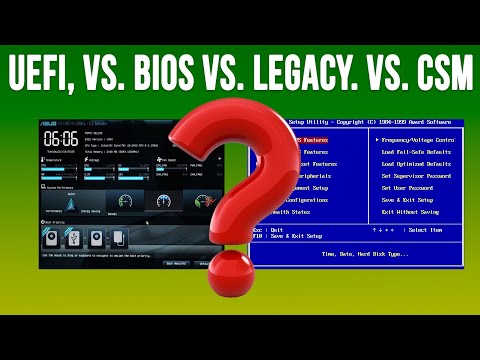
You know, sometimes technology can feel like an old friend who’s stuck in their ways, right? You’ve moved forward, but they’re still wearing those 90s jeans. That’s kinda how it is with legacy BIOS modes on modern computers.
Here’s the scoop: BIOS is like the brainy manager of your computer’s hardware when you hit that power button. But here’s the kicker: even if you’ve got this shiny new PC, it might still be using this pretty old-school method to get going. Strange, huh?
Now, why does this matter? Well, imagine trying to run a marathon in flip-flops—awkward and not really efficient! Sometimes sticking with these legacy systems can cause hiccups when your newfangled device tries to do its thing.
Stick around because we’re gonna chat about why holding onto the past with this legacy stuff might not always be the best move and what kind of weird issues you could bump into along the way.
UEFI as the Replacement for Legacy BIOS
You know, computers have come a long way since the old days. I remember when booting my PC was like watching paint dry; it took forever! That’s mostly because of something called the BIOS, or Basic Input/Output System. It ran all the essential startup processes but at a glacial pace compared to what we’re used to now.
These days, we’re moving toward something much faster and more efficient: UEFI. Now, UEFI stands for Unified Extensible Firmware Interface. Quite a mouthful, right? But it’s basically the modernized version of that ancient BIOS everyone used in older computers.
- Speed: One immediate benefit you’ll notice with UEFI is how quick it is. Boot times are dramatically reduced – no more waiting an eternity for your system to start.
- Security Features: UEFI also packs advanced security features like Secure Boot. It helps make sure your operating system hasn’t been tampered with by any nasty malware before it starts up.
- Support for Large Drives: With Legacy BIOS, you were limited when it came to disk sizes – only supporting up to 2TB drives. UEFI doesn’t have those limits; perfect if you’ve got massive storage needs!
Switching from Legacy BIOS to UEFI might seem intimidating if you’re comfy with what you’ve known for years. But trust me—it’s worth considering! The switchover is becoming increasingly relevant since legacy mode can encounter issues on new hardware.
For instance, think about drive support: newer systems often come outfitted with crazy large SSDs or hard drives—way beyond anything legacy knows how to deal with effectively! Folks upgrading hardware find out sooner or later they need that sweet spot of modern compatibility offered by switching over fully onto native UEFISes inside their setup instead opting purely staying stuck behind stuck in older times!
So yeah—that’s my little dive into what makes UEFIs rock around town these days whenever someone yells computer update party time hopping aboard staying technologically street-smart enough navigate yourself familiarizing latest-fangled upgrades living breathing world computing improvements exist onward upward friend-oriented party adventures unto infinity beyond mentality United Federations Individualist Explorers International Society (UFEISS), catchiest club acronym ever coined ingeniously…right?!
Security Risks of Legacy Boot Procedures
You know, technology evolves at a rapid pace, and what’s cutting-edge today quickly becomes yesterday’s news. Take boot procedures, for instance. The shift from **Legacy BIOS (Basic Input/Output System)** to the more modern UEFI (Unified Extensible Firmware Interface) is one of those significant leaps forward. But hey, let’s not forget that some folks are still hanging onto that good ol’ Legacy BIOS mode on their computers.
Now, why would anyone bother about these old boot methods? Well, Legacy BIOS has been around for ages and provides the basic instructions a computer needs to start up. It’s like that friendly stranger helping you find your way in an unfamiliar place—albeit this stranger is a bit outdated nowadays.
But here’s where things get tricky: sticking with **Legacy Boot Procedures** isn’t always sunshine and rainbows. There are some security concerns you should know.
- Limited Security Features: Modern systems use UEFI, which supports features like Secure Boot. This protects against unauthorized code during startup. Legacy lacks these defenses.
- Lack of Regular Updates: Old tech doesn’t get much love when it comes to updates anymore. Missing patches means vulnerabilities stay wide open for attackers.
- Compatibility Issues with Modern Systems: As hardware advances, new components may not support Legacy BIOS well—or at all—leading to pesky compatibility problems.
- Difficulty Integrating Modern Security Solutions: Newer antivirus or encryption tools might struggle with systems booting via Legacy due to compatibility issues.
Imagine someone deciding they want extra security locks installed on their house’s door but realize their door is too ancient for such hardware! It’s frustrating seeing something so important outpaced by time.
A friend once shared how his computer refused to enable any advanced security features because he was stuck using those old boot settings—quite the hassle!
In short terms? If you’re running anything built after Windows 8 rolled out or relying heavily on data protection tools—it’s probably best steering clear from solely depending upon legacy modes unless absolutely necessary; upgrade when possible! Sometimes embracing change brings peace-of-mind beyond measure – no drama attached whatsoever here… Just smooth sailing tech experiences ahead!
Legacy BIOS Compatibility on Windows 11
Oh, legacy BIOS! It’s like an old friend showing up at a party full of unfamiliar faces. When you’re dealing with Windows 11, though, this old pal might not always fit in as seamlessly.
Why is Legacy BIOS a topic here?
Well, Windows 11 is designed to work with UEFI—a fancier version of the BIOS that many modern computers have. You can think of UEFI as the new smart home system compared to your trusty old alarm clock—way advanced and quite different.
- Security Benefits: Unlike legacy BIOS, UEFI offers better security features. Things like Secure Boot help prevent unauthorized boot devices from loading malware. It’s almost like having a bouncer at the entrance of your computer.
- Faster Boot Times: UEFI also tends to be quicker when starting up your OS. Gone are those lengthy coffee breaks while waiting for your machine to kick off.
The compatibility hiccup
Windows 11 requires certain features that are often tied only to systems running in UEFI mode. If you’re still using Legacy BIOS on a modern machine, you might bump into some challenges installing or running Microsoft’s latest OS.
A personal tale
A friend of mine recently dusted off his somewhat ancient PC hoping to upgrade it. Excitedly popping in the Windows 11 disk—and poof—he hit a wall. The installation was grumbling about TPM (a security feature) and wouldn’t proceed until he switched his system over from Legacy BIOS mode.
Solve this puzzle:
If you happen to be in such a pickle with legacy hardware but want all those whistles and bells of Windows 11:
- Check Your Computer’s Compatibility: Peek into your system settings to see if there’s an option for switching from Legacy BIOS to UEFI mode.
- Backup Everything: Switching modes can require wiping your drive clean first! Make sure you have copies (you know how it goes).
Alright then! Wrapping things up—yes!, embracing something new sometimes means letting go…or atleast finding ways around things—like living peacefully along side both our retro gadgets & shiny futuristic toys!.
You know, legacy BIOS mode issues on modern computers can be a real puzzle sometimes. It’s like when you’re trying to use an old map for a city that’s drastically changed its roads and buildings. A couple of years ago, I remember helping my cousin with his new PC, and we stumbled upon the whole BIOS situation. We thought everything was good to go, but then realized the system wasn’t recognizing the hard drive properly because it was set to legacy BIOS mode instead of UEFI. What a day!
The thing is, with technology moving forward faster than we can say “update”, these modern computers typically prefer something called UEFI over legacy BIOS. Think of UEFI as a smarter way for your computer’s basic system to talk to its hardware when it boots up. So, if you’ve got one of those newer machines and it’s set on the old school BIOS mode by mistake—or perhaps default—it might not behave just how you’d expect.
It’s kind of funny though; you might even find yourself wondering why your state-of-the-art device acts like it’s from another decade! The other day I read about someone who couldn’t get their fancy graphics card running due to this same issue—it’s more common than you’d think.
Changing these settings is often no biggie—you need to dive into the BIOS menu when your computer starts up. It could feel a bit like popping open the hood of your car for some quick maintenance checks, right? And switching from Legacy to UEFI involves looking around in those options carefully.
So yeah even if it feels daunting initially with little patience—and maybe some guidance from online forums or pals who’ve been there—it becomes manageable eventually! And who knows? You might emerge out learning more technical stuff in ways that make future troubleshooting less scary… almost like an unintended bonus!