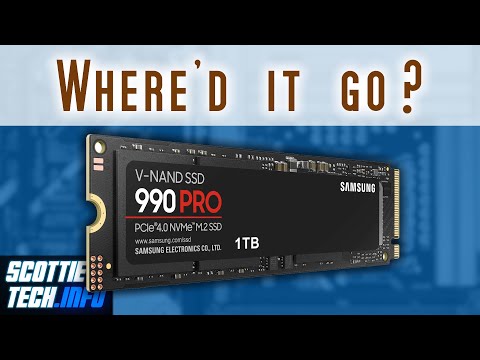
Oh man, you’re having a day, huh? You’ve got this super speedy M.2 SSD PCIe 3.0, ready to make your computer fly like the wind. But then…bam! The BIOS just shrugs and says, “Nope, don’t see it.” Like it’s playing hide and seek with you.
I get it; it’s probably driving you bonkers. You’re sitting there thinking if the SSD went invisible or something. That moment when you’re all set up for some smooth sailing and suddenly hit a snag—it can be super frustrating.
Don’t worry though! You’re not alone in this tech mystery. Let’s hang out and figure out what might be going on with that sneaky SSD of yours—you know, piece by piece.
BIOS Compatibility with SSD
Oh boy, nothing’s more frustrating than when your shiny new M.2 SSD isn’t showing up in the BIOS. It feels like finding out that the final puzzle piece doesn’t fit where you thought it would. But don’t worry, we’ll get to the bottom of it together.
Understanding BIOS and SSD Compatibility
Your computer’s BIOS (Basic Input/Output System) is pretty much the first thing that boots up when you turn on your PC. It’s like a conductor leading an orchestra, making sure all parts are working before loading your operating system. Now, if you’re using a PCIe 3.0 M.2 SSD and it’s not recognized by the BIOS, it can feel like this conductor has completely ignored one of its musicians.
- Check Your Motherboard’s Specs: First off, confirm whether your motherboard supports M.2 PCIe 3.0 directly in its slot or through an adapter.
- BIOS Version Up-to-Date? Outdated BIOS versions may lack support for newer hardware like certain types of M.2 SSDs—so consider updating it.
Updating the BIOS can sometimes be like diffusing a bomb—it’s nerve-wracking and precise—so follow instructions carefully from your motherboard manufacturer.
SATA vs PCIe Configuration
Here’s another common hiccup: some motherboards have slots configured for both SATA and PCIe drives but only recognize one at a time per slot setting!
- When troubleshooting this problem make sure that no settings are prioritizing SATA over PCIe in these shared slots.
Remember my friend Tom who once tried fitting his brand-new SSD because he didn’t realize his board had this kind of split personality? After toggling through some settings related to Drive Type configuration within “Advanced” section — boom! There was his missing drive.
Might Be Seated Incorrectly
Yeah sounds simple—but double-checking never hurts: ensure yours‘ snugly nestled into place without gaps between pins where connections rely heavily on them being firm stuffed in there just right…
So next steps now include verifying those exact connections: push gently till clicks (or not), depending manufacturer’s specs show what seating should look hypothetically speaking here…
By doing these few checks above– cross them off mental list already mean moving forward savvier ever armed knowledge dealing such situations head-on next round tech bumps arise!
Oh, the world of technology can be a bit mysterious sometimes, right? One minute everything’s working smoothly, the next you’re scratching your head because your new M.2 SSD isn’t showing up in the BIOS. I remember when I first encountered this issue with my friend’s gaming PC. We were eagerly setting it up – planning to dive into some serious gaming – and then, bam! The drive was just… invisible.
So what happens is that M.2 SSDs, especially the ones using PCIe 3.0 interfaces, sometimes play hide and seek with BIOS settings. It’s like they need a little nudge to reveal themselves. First things first: check if it’s properly seated on the motherboard slot; sounds simple but trust me, it’s easy to overlook.
Then there’s this thing about BIOS settings themselves needing a tweak or two. Sometimes enabling certain features like AHCI or NVMe configuration can do the trick. It’s almost like telling your computer: “Hey buddy, here’s a new toy for you!”
And oh, don’t forget: updating the BIOS might also help in these situations because older versions might not fully support newer hardware out of the box. Just be careful with that though! It’s not something you wanna mess up – believe me!
Of course there can be other issues at play too – maybe compatibility or drivers – but those usually get sorted once you’ve covered these basics steps.
Funny how our tech adventures often teach us patience and perseverance in some very unexpected ways!