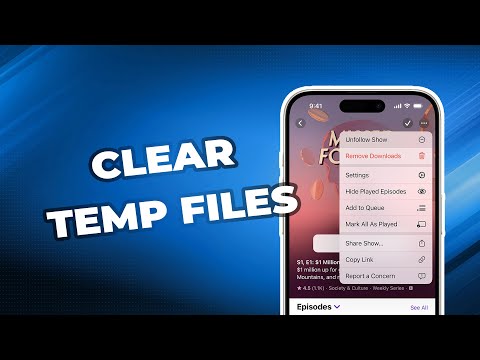
You know what’s funny? How your iPhone can feel slower over time. It’s like it gets bogged down with… well, digital clutter.
Ever notice how quickly things load when you first get your phone? And then, boom. A few months in, it’s like molasses.
Here’s a little secret: Temporary files are sneaky memory hogs.
It’s kinda like having too many tabs open on a browser—everything just slows down.
Getting rid of them is easy peasy, and it can free up space. Imagine the speed boost!
Anyway, I’ll share how to clear those pesky files and give your iPhone a bit of a breather. Ready to clean up?
iPhone Temporary Files Deletion Options
Oh boy, iPhones can sometimes feel a bit clogged up with all those temporary files hanging around. You know, those little digital crumbs left by apps and websites? They might not seem like much individually, but they sure add up over time. Let’s chat about how you can clear them out and help your iPhone breathe a little easier.
- Safari Cache: If you’re surfing the web on Safari, it stores quite a bit of information to load sites faster next time. To clean this up, go to Settings, then scroll down to find Safari, tap on it, then select Clear History and Website Data. This will wipe out the temporary files from websites you’ve visited.
- App Caches: Apps store data too! Sadly there’s no universal “clear cache” button for all apps at once. But some apps let you manage their storage in settings. Try going into your iPhone’s Settings, tap on General, then hit Storage & iCloud Usage. Under Manage Storage, you’ll see which app is hogging space with temporary files.
- Email Attachments: Those sneaky email attachments pile up without notice! In your Mail app settings (found under the main Settings menu), reduce storage use by deleting old email attachments that you don’t need anymore.
- Siri Suggestions Cache: Siri loves learning your habits – maybe a bit too much! You can reset what Siri knows in case it’s been keeping unnecessary data. Go to *Settings*, select *Siri & Search*, turn off any suggestions you don’t need.
- Your Messenger Files: Ever noticed lots of images and videos in messages? They eat space fast! Either delete old conversations or save important photos somewhere else before clearing them from the chats.
And remember this: while cleaning these things out helps maintain performance and frees up some room—it’s not endless magic for storage woes if you’re running low all together! Sometimes giving older media stuff an eviction notice (and backing important things outside) is needed too.
Pretty handy tricks right? When I first discovered these steps myself it felt like my phone had taken off weights I didn’t even realize were there… Suddenly everything seemed new again!
Every now ‘n’ then practicing such clean-ups makes sure temps don’t bog down our devices without us realizing – keeps performance zippy longer-term!
Clearing Temporary App Files Explained
Sure! Let’s have a chat about how to get rid of those pesky temporary app files on your iPhone. Have you ever noticed your phone slowing down or running out of storage space? Well, a bunch of temporary files could be the culprits. These are like little leftovers from your apps that just hang around, even after you’re done using them.
- Why do temporary files exist? Temporary files are created by apps to store short-term data while you’re using them. It’s kind of like writing notes on a sticky pad and then tossing it away when you’re done.
- Why clear them? Over time, these sticky-note-like files can pile up, taking up precious space on your device and sometimes even causing performance hiccups.
- How can you clear them?
- Open the “Settings” app on your iPhone.
- Scroll down and tap on “General.”
- Select “iPhone Storage.”
- You’ll see a list of apps. Tap an app to view its details.
- If the option is available, click “Offload App” or delete and reinstall the app to clear its temporary data.
You know, once my friend was puzzled why her phone kept nagging about low storage. Turned out she had tons of temporary data lurking around! After offloading a couple of apps she barely used but didn’t want to lose completely, things ran much smoother!
A friendly reminder: Sometimes certain apps don’t show an obvious option for clearing cache or temp data directly in settings. In such cases, deleting and reinstalling may help reset all that clutter without losing important info if it’s backed up properly!
If all else fails or feels too cumbersome don’t panic—your phone can guide you through some auto-clearing as well! Just explore those settings options; they’re there truly make life easier when tech gets untidy!
Anyway – try it out! Your iPhone will probably thank you with better performance…and maybe more room for pictures (or more apps!).
Accessing iPhone Temporary Files on Windows
Sure thing! You’re dealing with that pesky buildup of temporary files on your iPhone, right? And you’re trying to access them through a Windows computer? No worries. I’ll guide you.
Alright, here’s the scoop: iPhones store a bunch of temporary files to help apps run better. Think of them like digital sticky notes that apps use and toss as needed. Now, while those files can be useful for quick, smooth app performance, they sometimes pile up and eat into storage.
You’re looking to access these temporary files from your Windows machine? Good plan! Here’s a friendly nudge in the right direction:
- Connect Your iPhone: First things first—grab your USB cable and plug your iPhone in. You’ll probably get a pop-up on the phone asking if you trust this computer. Tap “Trust” (of course) so they play nice together.
- Use File Explorer: Open up File Explorer on your Windows PC. Here you’re trying to find the connected iPhone under “This PC.” Tapping on it should show some basic folders like Photos but hold tight—temporary files don’t just hang out here.
- Access via Third-Party Software: Here’s where it gets interesting! To peek at those elusive temp files, third-party software might be necessary because Windows doesn’t natively display them from an iPhone connection.
- A couple of handy third-party tools include tools like iMazing or PhoneView (Mac users love these too). These programs can dig into file structures for data hidden away.
- If using such software seems complicated, don’t sweat it; most come with step-by-step guides built-in.
Anecdote time! My cousin once clogged her phone’s memory with too many game caches; she had no clue until it started acting sluggishly. She used one of these handy tools I mentioned above and finally freed up tons of storage she didn’t realize was being hogged.
Remember though—tread carefully when accessing deeper parts of file systems using any tool! You wouldn’t want accidentally deleting something important.
If all else fails…, consider doing routine maintenance on your device itself by going through settings: clear Safari data or uninstall/ reinstall apps that have grown bloated with unnecessary temp data.
And there we have it—you’ve got options now connected even via our trusty ol’ friend Windows… happy decluttering!
You really don’t think much about all those little temporary files piling up on your iPhone, right? It’s something like sweeping dust under the rug. Out of sight, out of mind! But, oh boy, do they love to sneakily build up and make things sluggish.
Imagine this: I was hanging out at a cafe, trying to show my friend some cool new app, and my iPhone just decided to take a mini-nap. The spinning wheel kept twirling like it was in its own little dance-off. Frustrating doesn’t even begin to cover it.
So here’s the scoop—your iPhone stores these temporary files from apps and web browsing. They’re basically digital crumbs that apps leave behind. Clearing them out can give your phone that extra jump in speed you didn’t even realize it needed.
Now here’s what I found super fascinating: when I went through my settings and tackled these files, it was like giving my phone a mini-makeover. Everything felt snappy again! It’s kind of incredible how something so simple can impact performance.
Ever tried turning off an app completely or clearing Safari history? These are tiny actions with mighty powers! Anyway the key is not letting these files pile up too much; it’s just one more thing you can cross off the list for keeping your trusty device running smooth.
In this fast-paced digital world we live in, a little clean-up goes a long way toward making sure our tech behaves how we want. So why not take a few minutes today and clear some space? Feels good to know your phone’s as ready-to-go as you are!