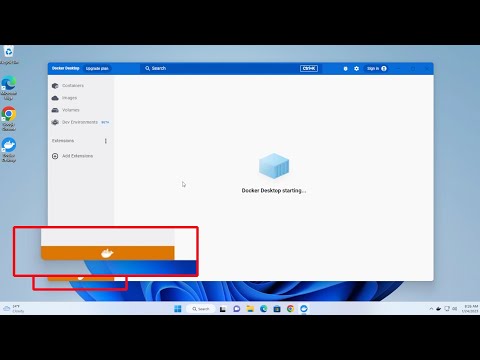
Oh, Docker! Such a nifty little thing, right? Sometimes it feels like magic when everything just works. But then there are days… those days when your Linux containers refuse to start up. Frustrating, isn’t it?
I remember the first time this happened to me. I was setting up a new environment and bam—containers just wouldn’t run. I stared at my screen like it had betrayed me personally.
But hey, don’t pull your hair out just yet! You’ve got this. We’ll get through it together and figure out what’s going on with those stubborn containers of yours.
Let’s dig in and see what’s cooking under the hood!
Forcing a Docker Container to Start
Hey there! Working with Docker containers can be a bit like trying to bake a cake without turning on the oven—you follow the steps, but sometimes things just don’t start up as they should. So, if you’re having trouble getting your Docker Linux container to start, let’s dig into that and see what might be going on. Ready?
First Things First: Check Container Logs
Logs are kinda like a diary for your software. They keep track of what’s happening under the hood. Check your container logs to see if there’s an error message or some clue about why it’s not starting. You can do this by running:
docker logs [container_name]Common Reasons Containers Won’t Start:
- Missing Dependencies: Sometimes, your application inside the container needs specific software or settings that aren’t there.
- Incorrect Configuration: It happens more often than you think—there could be typos or incorrect paths in your configuration files.
- Lack of Resources: Maybe there’s not enough memory or CPU available. It’s like trying to jumpstart a car without gas.
The Force Restart Trick
Alright, if you’ve checked all that and things still aren’t moving along, try forcing a restart:
docker restart [container_id]This actually does two things: stops and then starts the container again—like giving it a quick nap.
If All Else Fails: Rebuild Your Image
Sometimes, you need to start from scratch by rebuilding the Docker image with possible fixes:
docker build -t myapp .Then run it again with:
docker run -d myappYou’d be surprised how often rebuilding solves mysterious issues.
Don’t get discouraged! Docker can be tricky at times but that’s what makes it interesting too, right? Keep experimenting and soon you’ll have everything running smoothly—just like baking that perfect cake once you got the oven set right!
Debugging a Non-Starting Docker Container
Oh, Docker! It’s such a wonderful tool until it acts up, right? Imagine you have a container that’s not kicking off as expected. Frustrating? You bet! Here’s a bit of guidance on how to tackle this issue.
First, take a deep breath. Containers can be tricky, but with some patience, you can usually figure it out. Let me walk you through some steps that might just do the trick to get your Docker container up and running again.
- Check Your Docker Logs: This should be your first stop. You know how it’s like peeking into the black box to see what’s happening inside? Run a command like:
docker logs [your_container_name]
This will give you insights into any errors or warning messages that might hint at what went wrong.
- Inspect the Container: Sometimes containers act like moody teenagers—they won’t tell you what’s wrong unless you ask specifically. Use:
docker inspect [your_container_name]
It provides detailed information about the configuration settings.
- Resource Availability: Ensure your hardware resources aren’t stretched too thin. If your Docker doesn’t have enough memory or CPU, it can’t start properly.
- The Correct Image:If you’ve accidentally pulled an incorrect image version (we’ve all been there!), try verifying and ensuring you’re using the intended version or tag of the image.
- Error Messages:You often find scary error messages—but remember—every problem has a clue hidden within its errors!
Focus on unraveling those cryptic hints one by one. - Edit command or Entrypoint issues:You’ve got to check if there are any typos in commands given while launching containers—sometimes these slip-ups halt everything!
Check your `Dockerfile` for any inconsistencies.
Troubleshoot Environment Variables:Blinking lights and wrong buttons—it may sound funny now! But really… incorrect environmental vars impact startup processes badly!
A Practical Story:I once had this web server not firing up—and guess what was behind its tantrum? A single misplaced environment variable—found after hours of log searching!
Being patient with these steps generally yields dividends—it’s rewarding finally seeing everything come alive again… just like magic!
Linux Docker Container Startup Failures
Alright, let’s delve into those pesky Docker container startup failures on Linux. It’s a topic that’s often mystifying at first, but once you get the hang of it, things do fall into place. Imagine you’re waking up excited to dive into your workday with all your apps running smoothly in their little Docker bubbles. And then—bam!—one or more containers just refuse to start. Frustrating! But hey, let’s tackle this together.
First things first: When a Docker container decides it’s not in the mood to start, there are several usual suspects we need to consider.
- Check Container Logs: This should be your first step. Logs can spill all kinds of secrets about why a container is acting up. You can access them using:
docker logs [container_name_or_id]This might give you clues related to configuration errors or application-specific problems.
- Inspect Resource Allocation: Containers need enough resources like memory and CPU. If these resources are maxed out, it could prevent startup.
Try using:docker statsThis will show you what each container is using and if there’s a bottleneck somewhere.
- Network Configuration Issues: Sometimes network settings within Docker can mess things up too. You may want to review the network settings for potential conflicts or issues.
Use commands such as:docker network lsCheck if your container is connected to the required network properly.
- Error-prone Dockerfile Instructions: If you’ve recently modified your Dockerfile, double-check for syntax errors or incorrect instructions that might prevent successful startup and execution of processes within the container.
- Dangled Volumes & Images: These leftovers from previous operations can sometimes cause trouble when starting containers due to space constraints or version mismatches.
You can clean them up by using:docker system pruneJust make sure not everything gets deleted; double-check what you’re clearing!
- Sufficient Disk Space:: Ensure that there’s adequate disk space available because low disk space might block containers from starting altogether.
Running:
`df -h`
will let you verify this on Linux systems.
Any personal stories help? Oh yes! I remember a time when I was preparing an important demo for work (cue stress), and my database container just wouldn’t get going—that log file tipped me off about a port conflict I hadn’t seen coming—crisis averted right in time!
By addressing these common hiccups methodically one-by-one you’ll most likely find what’s bugging those stubborn containers so they behave more nicely next time around! Phew… easier said than done sometimes though isn’t it? But hang tight—you got this covered now!
Ah, Docker containers! It’s kind of like having a bunch of cute little tech babies, right? Each one does its magical thing independently. But sometimes, one of them gets all moody and refuses to start up. It’s not uncommon for people running Docker on Linux to face this hiccup.
Let me share a little story with you. A friend of mine, Mike—he loves playing around with containers—it’s like his hobby or something. One day he called me all frustrated because his Linux containers were being stubborn and wouldn’t start. He had an important project due and well, you can imagine the panic! After some time of experimenting and tinkering around with it, we got them running again.
Now, solving these issues is often about looking in the right places. First off, check if your Docker service is running smoothly—sometimes it stops without telling you. You can do that by typing `sudo systemctl status docker` in your terminal. Sort of like checking if the car engine is even on!
If that’s not the thing holding it back—and sometimes it’s not—try peeking into those error logs with `docker logs `. It’s amazing how much those logs can reveal about what’s going wrong inside.
One time with Mike’s issue—we found out that his image was corrupted during download; nothing big but caused quite a ruckus nonetheless! Simply pulling down a fresh copy fixed things up like magic.
Then there are network issues… oh boy! Containers can be picky about their networks just as much as young kids are picky eaters at times. So ensure your network settings align correctly using `docker network ls` to double-check which ones they’re connected to.
Remember: patience goes hand-in-hand while dealing here; every small step taken brings insight into understanding these unique creatures called ‘containers.’ And who knows—you might learn something new along way too…