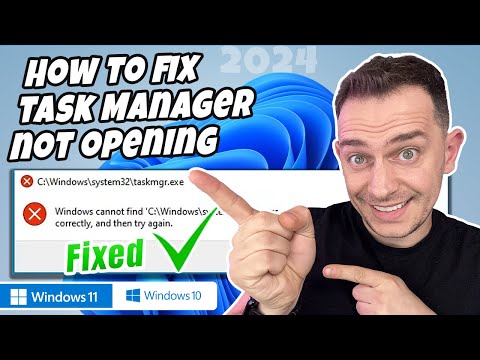
Okay, so picture this: you’re sitting there, ready to tackle some computer tasks, and bam! The Windows Task Manager just refuses to open. Annoying, right?
You might be wondering why this handy tool—that’s always there when you need to kill a pesky program—decides it’s on vacation today. Well, there’s a bunch of reasons that could be causing this little hiccup.
From software glitches to stubborn malware playing hide and seek, there’s definitely a way through it. And hey those fixes—they’re not as hard as you think!
Let’s get into the nitty-gritty of what could be going on behind the scenes and how you can nudge that task manager back into action. It’s like coaxing your cat out from under the bed—requires patience and the right moves!
Virus Impact on Task Manager Functionality
Alright, let’s chat about what happens when a virus impacts the Task Manager on your Windows computer. It’s one of those things that can really drive you up the wall. Imagine wanting to close a frozen application, but bam! The Task Manager just won’t open. Been there, right?
The Odd Behavior
When a virus messes with the Task Manager, you might notice a couple of strange things. For instance, you try pressing Ctrl + Shift + Esc, and nothing pops up. Or maybe it appears briefly and then disappears like it’s playing hide-and-seek.
Why Does This Happen?
A virus can be sneaky—like that time my friend thought her phone was haunted because it started talking to her in Italian out of nowhere! Similarly, malware wants to control or disable essential tools like the Task Manager so you can’t easily stop its mischief.
- Blocking Access: Some viruses are designed specifically to block system utilities. This stops you from ending processes that might disrupt their activity.
- Corrupting Files: They might corrupt certain files related to the functionality of your Task Manager, making it unusable.
- System Modifications: Malicious software could modify system settings or policies that prevent access to these tools.
The Solution
Once you’re convinced something’s off with your Task Manager due to malware—which is often smarter than we give it credit for—here’s what you can do:
- Run Antivirus Software: Use reliable antivirus or anti-malware programs for a thorough scan. It’s kind of like calling an exterminator when pesky ants invade during summer!
- SFC /scannow Command: Open Command Prompt as admin and type “sfc /scannow” which checks and repairs corrupted system files.
- Edit Group Policy: If you’re comfortable around techy stuff (and remember safety first!), check if there are any policies preventing access using gpedit.msc.
Anecdote
I once had this scare where my laptop wouldn’t even boot up properly because some malicious code had wormed its way in through an innocuous download link! Took me hours with tech support untangling everything… Not exactly how I wanted to spend my Saturday afternoon!
So yeah, whenever something seems fishy with tools like Task Manager not opening properly—or any unexpected behavior really—it’s always worth considering whether malware might’ve creeped in unnoticed.
Hope this little rundown sheds some light! If anything feels familiar about these symptoms affecting yours too lately? It may well call for prompt attention before escalation occurs further down lines unnecessarily getting worse over timespan inevitably speaking without checking preventative measures soonest possible moment avoiding delays later potentially worse situation developing overall unexpectedly arising scenarios heading off problems initial stages smart approach moving forward better peace mind security assured knowing steps taken proactively restoring normalcy back again smooth operation regained returning former glory nice seamless functioning state equilibrium maintained eventually consistent basis ongoing future uninterrupted course expected continued usage happy computing everyone stay safe out there friends until next adventure awaits ahead new challenges embarking upon journeys yet unfolded limitless possibilities beckoning beyond horizon who knows what lies store await discovery only time tell onward upward bound paths uncharted calling forth explorations unlimiting potentialities abound adventure calls promise excitement anticipation awaits journey begins anew renew hopes dreams venture forth bravely courageously steadfastly determinedly hearts desire fulfilled realizing aspirations dreams true thoughts feelings emotions shared cherished treasured forever grateful thankful abundance life beauty embraced wholeheartedly passionately live fullest extent imaginable enjoy each day fullest relish every moment savored joyfully celebrated truly living breathing essence vibrant alive thriving pulse world essence core being centered grounded connected universe around amongst amidst flowing energy continuum infinite source eternal timelessness everlasting presence omniscient omnipotent omnipresent divine grace sustaining nurturing supporting enveloping encompassing nourishing uplifting transcending experiential existence today tomorrow evermore amen hallelujah real word purest form expression humans perceive comprehend tangible applicable relevant meaningful contextually valid appreciate acknowledge embrace embody practice implement live learn grow evolve
Phew! So anyway… You got this?!
Causes of Windows Task Manager Not Opening
Oh, I see you’re having trouble with Windows Task Manager not opening. That can be super frustrating, right? Don’t worry—we’ll take a friendly walk through the common causes of this issue and what might be going awry.
1. System Glitches
Sometimes, Windows can just have a minor hiccup. It’s like how when you try to open a drawer and it gets stuck for no clear reason. Rebooting your computer often fixes these small annoyances, just like giving that stubborn drawer a little nudge.
2. Corrupted System Files
Imagine if you had a book with missing pages—it wouldn’t make much sense, would it? Well, corrupted system files can cause similar confusion for your computer. You might want to run the built-in tool called “System File Checker” to spot and repair any damaged files.
3. Malware Infection
Ugh, malware! Like pesky mosquitoes at a picnic, they can interfere with normal operations on your PC. Running regular malware scans using tools like Windows Defender or other trusted antivirus programs can help keep these unwanted guests away.
4. Disabled Task Manager
This one’s less common but worth mentioning: if someone else set up your computer—say in a work environment—they might have disabled Task Manager intentionally via group policies or registry settings.
- You could check by pressing Win+R, typing “gpedit.msc”, and navigating to User Configuration > Administrative Templates > System > Ctrl+Alt+Del Options.
- If that doesn’t work or seems too complex, getting help from tech support could be the way forward.
5. Hardware Issues
It’s rare but possible that failing hardware can impact software performance too—like how an old TV remote doesn’t quite work as well due to worn-out buttons.
So if after trying everything above things still aren’t working out, seeking help from somebody who knows their stuff about hardware could save you some stress!
Hopefully one of these sparks some insight into what’s happening with your Task Manager—and remember: technology loves throwing curveballs every now and then!
Causes of Windows Task Manager Not Opening
Ah, the dreaded moment when you try to open the Task Manager and nothing happens. It can feel like you’re in the middle of a mystery drama, right? You’re pressing those keys like a wizard casting a spell—Ctrl + Shift + Esc—but nothing appears on your screen. Let’s unravel this little enigma and see why it might be refusing to cooperate.
1. System Overload
Your computer might be feeling overwhelmed. If too many applications are running, your system could be overloaded. It’s kind of like being stuck in traffic with too many cars—you just can’t move!
2. Corrupted System Files
Sometimes the very files that make Windows run can get corrupted or damaged—it happens over time or after some updates fail—or they might conflict with other software.
3. Malware Infection
Yeah, those pesky viruses can mess things up pretty bad sometimes! They enjoy sneaking in through unexpected doors on your computer and disrupting everything, including blocking Task Manager access.
4. User Account Issues
Your user account might not have the necessary permissions to access Task Manager. If you’re using a standard account instead of an admin one, that could be an issue.
5. Group Policy Restrictions
In some cases, especially for folks working within organizations or schools, there may be group policies applied that prevent you from opening Task Manager.
Now you’ve got some ideas on what might be causing this hiccup! Remember back when I accidentally clicked a suspicious link and ended up with more problems than I care to remember? A little caution with downloads goes a long way!
Understanding these potential causes helps you approach solutions more effectively—and maybe save yourself from hitting those keys repeatedly without success (we’ve all been there!).
Oh boy, isn’t it a bit frustrating when you’re all set to tackle an issue on your computer and out of the blue, the Task Manager just won’t open? I’ve had a couple of those moments myself. Y’know, you’re trying to close some unresponsive program or check what’s eating up all that precious memory, and suddenly you’re staring at nothing. It’s like having a locked toolbox when you’ve got a leaky pipe!
So, what could possibly go on here? Sometimes it’s as simple as the Task Manager being disabled by system policies or quirky software glitches. Have you ever had one of those days where just about everything’s messing up? Could even be malware playing villain in this little saga.
Here’s something that might ring a bell: keys! Not your house keys—but keyboard shortcuts can sometimes do wonders. Hitting Ctrl + Shift + Esc is like knocking directly on Task Manager’s door instead of taking the scenic route through Ctrl + Alt + Del. If it’s still not working, maybe try checking if any background processes are too busy hogging resources.
And then there’s always the classic reboot—a good ol’ turn-it-off-and-on-again moment. It’s surprisingly effective! Sometimes updates can also do their thing and fix whatever buggered things up initially.
Every now and then though, it pays to peek into Safe Mode. It’s kinda like putting everything in slow motion so you can see what slips through unnoticed otherwise.
Strange how these little tech hiccups often remind us how much we rely on our gadgets everyday! Anyway, don’t lose heart; there’s nearly always some way around getting things running smoothly again. Like catching rainbows after rain!