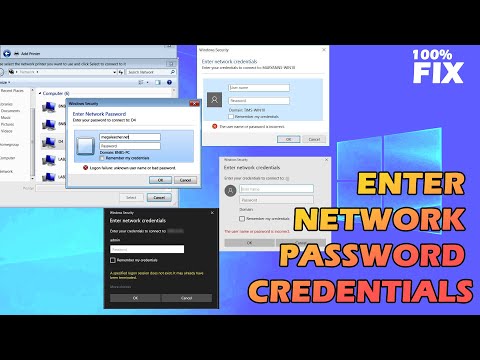
You ever been there, chillin’ in front of your computer, ready to connect to another PC, and bam! You hit a wall because it asks for network credentials. Yeah, happens to the best of us.
And let’s be honest, it’s like someone just asked you for the secret password that nobody told you about. Frustrating, right? You’re not alone.
See, network credentials are kinda like a key to a friend’s house. You gotta have ’em if you wanna get in. They’re all about security—making sure only the right folks are accessing the goods.
But don’t worry too much! Once you get the hang of it, it’s like riding a bike—not as tricky as it seems at first glance. Stick around and we’ll figure this out together!
Network Credentials for Remote Computer Access
Alright, so you’re trying to connect to another computer on your network and suddenly, bam! You’re hit with a prompt asking for “Network Credentials.” It sounds like something out of a spy movie, doesn’t it? But it’s basically just your computer’s way of ensuring that only authorized users get access.
What Are Network Credentials?
Network credentials are essentially the username and password that allow you to access another computer over a network. Think of them as the secret key required to unlock the door leading to files and resources on another machine.
Why Use Network Credentials?
Okay, imagine you have valuable stuff in your home. You wouldn’t want just anyone walking in and taking it, right? The same goes for data on computers. Network credentials prevent unauthorized access, keeping your information secure.
Common Scenarios:
- Accessing Shared Files or Folders: Trying to peek into shared documents or resources? You’ll need these credentials.
- Setting Up Remote Desktop Connections: Connecting from one PC to operate another remotely? Yup, those credentials come into play here too.
How To Find Your Network Credentials
- Your Username: This is often the name you use when logging into Windows. You can find it by pressing Ctrl + Alt + Delete, then selecting “Lock” or “Switch User.” The user accounts listed there will give you a hint.
- Your Password: This one’s trickier if you’ve forgotten it! Hopefully you remember your Windows account password. If not, resetting it might be necessary.
- Your Domain (If Applicable):If you’re part of a domain at work or school — which is basically a group of computers under one umbrella — you’ll need this info too. It’s usually provided by your IT department.
Do remember one thing though. Make sure no prying eyes catch sight of these details while you’re typing them out! Keeping these safe is as important as remembering them.
So there you go! Now with this little bit all cleared up—next time that prompt jumps at you—you’ll know exactly what needs entering!
Finding Your Network Password
Finding your network password? Oh, that’s a classic! Whether you’re setting up a new device or just forgot it, I’ve gotcha. Let me break this down for you in the simplest way possible.
First off, what are network credentials? They’re basically your key to accessing another computer or network drive. These include your username and password. Without them, your device can’t get onto the network.
Now, if you’re on Windows and need that password for connecting to another PC or network:
- Open the Control Panel. You can find it by typing “Control Panel” into the search bar.
- Select Network and Internet, followed by Network and Sharing Center.
- You’ll see a section called “Connections.” Click on your current Wi-Fi or Ethernet connection there.
- A box pops up; select the button labeled “Wireless Properties” (if you’re using Wi-Fi).
- Navigating to the “Security” tab grants you access to some nifty info. Check out “Network security key” but wait! Tick “Show characters” because that’ll finally reveal your password.
Oh boy, memories of struggling with this are coming back! I once spent half an hour hunting down my router’s password because I’d forgotten where I wrote it… typical! Always jot it somewhere safe.
If it’s not related to Wi-Fi but those shared folders between PCs:
- You might be dealing with administrative passwords here. If you’ve set one previously on both PCs involved, use that.
- If not sure about it? Head over again to Control Panel > User Accounts.
Click: Manage Another Account.
Find any user accounts set up for sharing and reset their passwords if needed.
And remember—to ease future connections—you can often save these credentials within Windows so you don’t juggle them each time!
Lastly, when all else fails—resetting/resetting/resetting (not thrice!) hardware like modems/routers could always do wonders; they’d usually revert networks back original passwords imprinted underneath stickers beneath devices themselves…sweet finders keepers moments right there!
So take heart knowing there’s almost always answer close hand given patience persists long enough… Wasn’t hard at all did ya think huh?!
Connecting via Network to Another PC
Connecting to another PC within a network can be a bit of a puzzle at first, but once you get the hang of it, it’s actually quite straightforward. Let’s walk through how you can do this in a friendly and simple manner.
First things first, when you’re on the same network as another computer and want to access it, you’ll need what’s called network credentials. It’s like having the right key to open the door. This usually includes a username and password from the other computer you’re connecting to.
Now, imagine this scenario: You’re on your home Wi-Fi, sitting with your laptop in one room, and want to access files on your desktop PC which is in another room. Here’s how you can make that connection happen:
- Ensure both devices are on the same network: Check if both your laptop and desktop are connected to the same Wi-Fi or Ethernet network. It’s like ensuring you’re all in the same party before talking.
- Know the target PC’s name or IP address: You might need this information when prompted. To find this on a Windows machine, go to Settings > Network & Internet > Status and look for “View your network properties”.
- Share resources: On your target PC (the one you’re connecting to), you’ll need to share files or folders. Right-click any folder you’d like accessible, select ‘Give Access To’, then ‘Specific People’, and add ‘Everyone’ if it’s within a safe private home setting.
- Map Network Drive: From your laptop file explorer, select ‘This PC’ from the left pane. Click on ‘Computer’ tab above then ‘Map Network Drive’. Here you’d enter something like DesktopPCNameSharedFolderName.
When attempting access for shared resources after mapping drives or direct access attempts by typing paths manually (like PCNameFilePath), Windows will usually prompt for those credentials we chatted about earlier.
Troubleshooting connectivity issues?
Sometimes connection hiccups happen! Here are some quick checks:
- Password mismatch: Double-check passwords used; case sensitivity matters here just as much as usual spelling errors do!
- Navigating firewalls: Ensure firewalls aren’t blocking connections — consider temporarily disabling firewall software entirely if unfamiliar settings cause roadblocks initially whilst testing setup success back-n-forth repeatedly till gains finally made system-wise full all-round eventual joyment really felt immensely truly cherished…
In summary: Configuring proper sharing settings alongside remembering crucial details re accessing machines themselves securely remains key priority overall inherently always finally becoming second nature eventually overcoming hurdles faced repeatedly assures satisfaction achieved consequently reunited happily optimally afterward inevitably indeed leading aptly memorable digital socially interactive familial experiences further fostering abundant fruitful even lasting bonds lifelong apparently indefinitely!
Oh, the feeling of trying to connect to another PC and being met with that pesky network credentials prompt! It reminds me of a time when I was at my friend’s house. We were all set for a movie night and decided to stream from one person’s laptop. But there we were, everyone ready with their snacks, when we hit that roadblock: “Enter network credentials.” You could hear the collective sigh!
Now this happens when you’re attempting to connect over a network, be it for file sharing or accessing resources on another computer. It’s like needing an invitation before you can enter someone’s digital living room. This is generally because computers in networks want to make sure only authorized users can access them — kind of like how you wouldn’t want just anyone walking into your locked house.
So what do you need? Usually a username and a password. Makes sense, right? These should be from the account on the PC you’re trying to access — basically it’s like using someone else’s key if you want in.
But oh boy, remembering these credentials can sometimes feel like searching for misplaced keys! I remember once getting stuck because I’d forgotten I’d changed my password ages ago… whoops!
Thankfully these prompts keep our data safe from unwanted visitors. Next time you’re prompted for network credentials, just remember it’s not just an obstacle; it’s also what’s keeping your information safe!