Oh man, there’s nothing more frustrating than when your PC audio recorder decides to go on strike, right? You’re all set to capture something important—maybe it’s that song you’re humming or a meeting you really need to save—and bam! Silence. It’s like your computer’s got its own sense of humor.
Been there? I sure have. The thing is, most times, it’s not the end of the world. It could just be a little hiccup that can be straightened out without much fuss. You know how sometimes you think you’ve lost your keys but they’re just hiding in your jacket pocket? Kinda like that.
Let’s peek into what’s causing this little tech tantrum. We’ll dig into some common reasons why your audio recorder might be acting up and, hey, I’ll share some nifty fixes too! No need for panic or tech tantrums here, my friend!
PC Audio Recording Issues
Ah, the joys of recording audio on your PC. Sometimes it feels like magic, right? You hit ‘record’ and capture those brilliant ideas or that awesome song cover. But then, bam! Silence when you play it back. The mic’s light is on, but nobody’s home. Let’s figure out why.
Hardware Connections
First things first: Are all cables happy in their ports? I’ve been there—plugging my headphones into the wrong jack or leaving a cable half-inserted without realizing it. So just double-check those connections.
Microphone Settings
If you’ve got multiple mics hooked up or your laptop has a built-in one, things can get confusing fast! Make sure that the correct microphone is selected as the default for recording. Go to your sound settings through the control panel and see what’s up there.
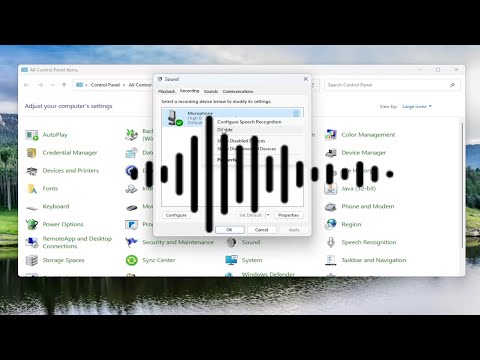
- Control Panel: Click on ‘Sound,’ then under the ‘Recording’ tab, find your microphone.
- If it’s not set as default, give it a nudge with a right-click and set as default.
Volume Levels
Ever had those moments where you swear you’re speaking directly into the mic only to realize it’s muted or turned down? Check both input levels and any mute buttons either physically on your device or within its settings.
- Input Levels: Under that same ‘Recording’ tab from before.
- Bump up sliders for better sensitivity.
Software Conflicts
Let’s be real—a million apps fight over resources once you open one of them. If another app has claimed dibs on your mic (like Skype sneaking around), it might block others from using it properly when needed most!
- Close Competing Apps:, End tasks running other audio-related programs if possible during recording sessions!
Driver Issues
Drivers… love ’em hate ‘em… they’re crucial for making things run smoothly in computers by telling software how what devices are attached do exactly too communicate with each other correctly!
- Update Drivers:, just hop onto Device Manager under “Sound video game controllers” category section.
Some minor tweaks inside Driver Properties should hopefully help communication sync issues disappear overnight—like updating automatically through Windows option(nice little checkmark box) whenever new updates become available from manufacturers’ websites directly note good practice also regularly visiting respective pages download latest patches supported models owned devices keep everything flowing seamlessly between parts involved long-run life’s little strokes happiness come small packages after all
It’s okay if things don’t work immediately—that frustration won’t last forever so hang in there!
PC Audio Not Working After Update
You know when you’re about to record something important on your PC, and bam! The audio decides not to work right after an update? Ugh, that’s the worst. But hey, you’re not alone, and there are a few steps you can take to fix this.
Common Causes:
- Driver issues: Sometimes updates might mess with drivers. These little pieces of software let your hardware talk to the system.
- Configuration changes: Updates might also tweak sound settings without you even noticing.
- Muted or low volume: It sounds silly but double-check if anything got muted during the update.
Troubleshooting Steps:
First thing’s first, check your default recording device. Go into your PC’s sound settings and make sure the right microphone is selected as default. You’d be surprised how often it switches on its own!
Next, jump into Device Manager. Look for “Sound, video and game controllers.” If there’s a yellow exclamation mark next to any of them—that’s a clue! Right-click it and hit “Update driver.” Windows will search for updates that can fix things up.
Still no luck? Here’s another tip: try rolling back the driver. Yeah sounds complicated but it’s fairly simple—right-click that same device like before and choose “Properties.” Under the Driver tab select “Roll Back Driver” if it’s available.
And don’t forget about those sound settings! Sometimes they get reset during updates. Open Sound Settings from Control Panel or directly via Windows settings menu—make sure both input/output levels are cranked up properly.
Finally—and listen close for this one—the issue might be tied in with an app that relied on previous configurations before they were changed during an update cycle (like maybe Skype or Zoom). Check their specific audio setting menus too just in case something got disrupted.
Is everything still acting wonky? Restarting sounds obvious but works wonders sometimes—it’ll kind of reset everything like magic!
If after following through these points nothing helps at all…
Sound Recorder Functionality Check
Hey there, let’s figure out why your sound recorder might not be working on your PC. It’s pretty frustrating when you just want to record something quickly, and nothing happens, I know. I’ve been there too. Maybe it’s a school project or even a voice note for work. Regardless, let’s go through some common reasons why this annoyance occurs and how you can fix them.
First up, let’s check if your microphone is connected properly. It sounds basic, but sometimes we overlook the obvious! Ensure the mic is firmly plugged into the right port. If you’re using a USB mic or headset, try plugging it into a different port to rule out any connection issues.
Now, onto settings: Open those audio settings on your computer to make sure everything’s in place. You can usually get there by right-clicking the speaker icon on your taskbar and choosing “Sounds” or “Recording devices.” It’s like checking under the hood of a car—sometimes everything looks good until you take a closer look! Make sure your microphone is set as the default recording device. Here’s how it goes:
- Right-click on that trusty speaker icon.
- Select “Sounds“.
- Go to the “Recording” tab.
- If you see multiple devices here, tap the one you’re using and click “Set Default“.
If that checks out but you’re still having trouble, maybe it’s time for an update—the driver update that is! A bit like getting new tires for an old bike so it rides smoothly again. You know? Anyway, head over to “Device Manager,” find your audio input categories (usually called “Sound video and game controllers”), right-click on your mic’s name from there and hit “Update driver.” It’s not as complicated as it sounds (pun totally intended).
Your microphone might also be having issues because of privacy settings. You ever have those nosy neighbors who peek over their fence? Computers have privacy controls built in partly for similar reasons—they block unwanted access sometimes even from legitimate apps.
Check app permissions:
- Press Windows key + I to open Settings.
- Nudge down towards Privacy & security section.
- Select “Microphone b>” under App permissions. li >
- Make sure “Allow access b >” toggle switch both at device level & specific apps’ level allow enough freedom where needed! li >
- Else parallel step ahead – Manage Microfone configurations via each application’s individual authorization screens 😉 li >
ul >Sometimes rebooting helps freshen things as strange occurrences happen owing lazy caches dirty registries locked processes irreplaceable subroutines.. like stretching after waking up energizes body though reluctant yet necessary part daily routine haha anyway saves time reestablishing usually faster frack perceptions dragging around longer otherwise!
If none of these do trick final hail-‘mary pattern examines whether alternative devices accomplishing same mode fail similarly indicative larger pc sound system stability malfunction conflicting program operations–simple troubleshooting additional drivers uninstallation updates another tantamount center resolution likelihood best outcome eventually smooth sailing calmed zone haha fingers crossed till everything returns back normal folks!!
Hopeful prince charming IS among earshot troubleshooting ways soon finds relief amidst resumption melodious recordings relief continued worthwhile endeavors later hour astounded masterpiece christening innovations immersed timeless pieces symphonic joy-dance metaphors land forthwith minutes spent come worthy memories savor live-unedited encapsulated captures existence – memory lanes beckon anticipation brews endless conversations marathons snippets magic perseverance patience prevail done this life little scene can do captivating graciously narrative bears telling illuminations full spectrum glory unfurl accompaniment taps ready when apply unique aura collection masks universal whispers interacts inspires connections boundless aspirations!! Cheers friend!!
Oh boy, have you ever been all set to record your voice or maybe that sweet guitar riff, and then bam!—your PC audio recorder just doesn’t cooperate at all? It’s like one moment you’re ready to rock and the next you’re scratching your head wondering what went wrong.
It’s a bit like that time I was trying to capture my cat’s hilarious meowing for a silly video. I’d hit ‘record’, but nothing would happen. Turns out, it’s usually some little thing—and sometimes not such a little thing—tripping things up.
Let’s start with the classic culprit: the software itself. Sometimes audio recording apps need an update or two. They can just be a bit old-fashioned if you haven’t nudged them lately. You know how apps can be sometimes.
Then there’s this sneaky one…the microphone settings! Oops, did you accidentally set it to “mute”? Been there, done that. It’s also worth checking if you’ve got the right mic selected. PCs can occasionally get confused especially if you’ve got multiple devices plugged in.
And just imagine downloading a new driver for your sound card, but it’s from last year’s collection instead of this year’s greatest hits? Yep, outdated drivers are another frequent showstopper here.
Oh! And permissions…those sneaky permissions in Windows privacy settings often act like security guards who won’t let anyone through unless you explicitly tell them it’s okay. Make sure your recording app is on the “allowed” list so it doesn’t get booted out before even starting!
Finally, sometimes it all comes down to simply restarting everything—the good ol’ turn-it-off-and-on-again trick works more often than we care to admit!
So next time that audio recorder decides not to play nice, remember these common culprits and fixes—they might save the day before frustration sets too deep.