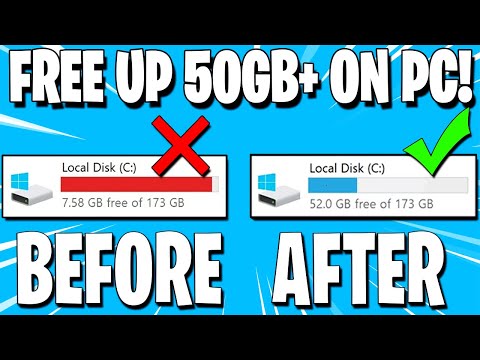
Hey, so you’ve noticed your computer’s running low on space again, huh? We’ve all been there. You start with this shiny new device, and before you know it, it’s cluttered with files you don’t even remember downloading.
Remember that time you saved every single picture from that epic vacation? Yeah, me too. And now you’re like, “Where did all my space go?” It’s like magic—poof! Gone. But don’t worry; it’s totally fixable.
Think of it as cleaning out a closet. A little organizing here and there can make a world of difference. And trust me, your computer will thank you for it by running way smoother.
So grab a cup of coffee or tea if you’re feeling fancy and let’s chat about making some room on your trusty machine. Your digital life can breathe again!
Freeing 20 GB of Storage Space
Hey there! You know that moment when your computer nags you about low storage? And you’re thinking, “How do I magically find 20 GB of space?” Well, let’s chat about making some room on your device without any technical mumbo jumbo.
Delete Unnecessary Files:
Start by taking a good look through your downloads and documents. Anything you’ve downloaded and forgotten about? Like those multiple versions of the same file? Time for a clean-up.
Uninstall Unused Programs:
Sometimes we have software lurking around unused. Head to your control panel or settings and uninstall the ones you haven’t opened in ages. They’re just sitting there, eating space.
Clear Cache and Temporary Files:
Your system houses files temporarily to make things quicker for you, but they tend to pile up. Look for tools like Disk Cleanup on Windows—it’s like clearing out cobwebs.
Use Cloud Storage Options:
Why keep all those photos locally? Services like Google Drive or Dropbox give you freedom with space. Plus, they come with the added bonus of being accessible anywhere!
- Photos: Upload them to Google Photos.
- Documents: Use Dropbox or OneDrive.
- Larger files: Consider moving videos or large PDFs here too.
Delete Old Backups:
Backups are crucial, yes—but not endless old ones! Have a look at previous backups saved locally and remove anything that’s no longer needed.
Check Disk Space Usage:
Tools like WinDirStat give you a visual representation of where all that space went. It’s like peering into your storage’s hidden nooks and crannies.
Quick Anecdote: I once found a hidden folder on my laptop hogging over 50 GB because it had backups from two years ago! After removing those unnecessary files, it was smooth sailing again.
Avoid Storing Files Locally If Not Needed:
For example, if you work with audio/video editing software, storing raw files locally can quickly eat up space—store them externally instead.
Remember: organizing is key here; little changes add up big-time! You’ll be surprised how much lighter it feels when things get organized—I promise it’ll breathe new life into more than just your computer!
Freeing Up Space on Windows 11
Imagine this: You’re working on your computer, and suddenly Windows 11 hits you with a “low disk space” warning. Oh no, not again! It’s like your computer decided to throw a surprise party, but instead of balloons and confetti, it’s got clutter and sluggishness. Let’s chat about how you can free up some space.
First things first, check the size of your files and folders. Storage Sense is a nifty Windows feature that helps manage space automatically—it removes unnecessary temporary files. Here’s how to turn it on:
- Click on Start, then go to Settings.
- Select System, then click on Storage.
- You’ll see the option for Storage Sense—just switch it on.
I remember when my laptop was full of old photos and random downloads I didn’t need anymore. It’s easy to forget about these digital dust bunnies hiding in corners.
Next up, let’s clean out those temporary files manually:
- Open the Start menu, then type “Disk Cleanup” in the search bar.
- Select the drive you want to clean (usually C:) and press OK.
- You’ll be given options for several file types—tick those you don’t mind deleting, like temporary internet files.
And hey! Don’t forget program leftovers from apps you’ve uninstalled ages ago. Those sneaky little bits can hang around forever if you’re not careful.
Now let’s deal with apps you rarely use or forgot about entirely:
- Navigate to the Start menu again, select Settings.
- Select Apps & Features—you’ll get a list of all installed applications.
- If there are any app names you can’t even remember installing… well maybe they deserve an uninstall click next to them!
An external storage device could be helpful too if there’s stuff oh such as big library collections of music or movies—that just wouldn’t fit anywhere else without breaking into song (pun intended).
Finally—ah yes—that OneDrive! Cloud storage makes things lighter physically while giving weight relief mentally knowing everything important stays accessible anywhere online once uploaded there.
Remembering my own struggle trying shove essential papers out cramped desk drawers someday convinced investing nice external hard drive much worthwhile investment over time ultimately proving indispensable lifesaver whenever needing primary backup tools etcetera should worst-case scenario ever arise!
That’s where those good strategies come play keep working seamlessly together toward achieving clear clutter-free future shared sanely all involved living space especially most intimate devices personal computing realm afterthought anymore once adept successfully implementing helpful tips regularly practiced routinely contributes overall wellbeing peace mind laptops alike enjoy sharing company alongside fellow digital citizens worldwide today tomorrow alike thanks simple conscious proactive lifestyle adjustments made today!
Freeing Up Disk Space Strategies
Hey, running out of disk space can be a bit frustrating, right? You’re here because your computer might be sending you those pesky “low disk space” alerts. Don’t worry—you’re not alone. Let’s have a casual chat about how to free up some of that valuable digital real estate.
Start with the obvious stuff: Jump into your Downloads folder and trash anything you don’t need. Like, do you really need that PDF from three years ago?
- Uninstall Unused Programs: Those games or apps you downloaded six months ago but never opened? Yeah, they’re just taking up space.
- Clean Temporary Files: These are like those random papers piling up on your desk – unnecessary clutter! Use tools like Disk Cleanup on Windows or Storage Management on macOS to tidy things up.
- Migrate Files to the Cloud: Services like Google Drive, OneDrive, or Dropbox are perfect for this. They let you store pictures and documents without feeling tied down by limited storage.
Picture this: I once found videos I had forgotten about clogging my hard drive. Deleting them was like discovering hidden treasure—tons more space!
Tackling Larger Files:
- Identify Space Hogs: Use software like WinDirStat for Windows or GrandPerspective for macOS to see what’s gobbling up your storage.
- Move Media to External Drives: If you’re still attached to some hefty files (like home movies), consider relocating them offline onto an external drive.
Now, while we’re at it, let’s not forget system updates. Keeping your operating system updated can also prevent file bloat and improve efficiency.
Oh—and defragmentation! For older drives (not SSDs), this can bring order back into the chaos by rearranging fragmented data.
And there you go—a few strategies to create more breathing room on disk! Go ahead and give them a try next time that ominous alert pops up again… if it ever does now you’ve taken action!
Oh, we all know that feeling when your computer warns you it’s running out of space. It’s like when your closet is so full that clothes fall out every time you open it. We’ve all been there! You might wonder where on earth all that space went. Those gigabytes sure disappear quickly, don’t they?
Here’s the thing: computers accumulate a lot of digital clutter over time, just like we collect random things at home that we never use or forgot about. Photos from last year’s vacation, music albums no one listens to anymore, and those files from your last job—surely they add up faster than you’d think!
You can begin by sifting through files and programs you hardly use anymore. It’s a bit like decluttering at home; sometimes it’s hard to let go but once it’s done—wow—you feel lighter! Check for duplicates; you’d be surprised how many times we save the same photo or document over and over again in different folders.
And then there’s the option of using cloud storage. Imagine putting some items into storage boxes off-site to free up space at home—and hey presto—the room looks bigger! The cloud works in much the same way for computers.
Remember those big updates your operating system asks to install? They need space too! So keeping some wiggle room on your hard drive means things run smoother without hiccups or frustrating delays.
In short, creating more space might feel daunting initially but trust me, once you’ve cleared out even just a little bit of room—it’s like a fresh breeze blowing away stuffiness from an overloaded room! Who doesn’t love that sense of refreshment when everything’s tidy? Keep it organized and enjoy watching how much quicker everything runs afterward—your computer will thank you for it!