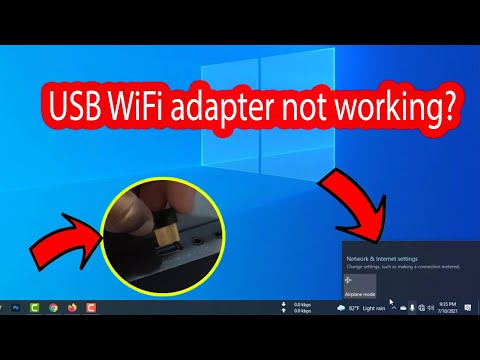
Hey, you ever try to get something done on your computer and things just don’t work out? Like, you plug in a new gadget, thinking it’ll be smooth sailing, and bam! Nothing happens. I totally get it—especially with those wireless USB adapters.
You got yourself one of those nifty little things to boost your Wi-Fi or connect better? Sweet idea! Except now it’s playing hard to get with Windows 10, isn’t it?
Trust me, you’re not alone in this. Honestly, there’s a kind of cruel sense that technology sometimes decides its own rules.
But hey! Before diving into the deep end of frustration (and maybe some keyboard-smacking), let’s chat about what might be going on. It might not be as complicated as it seems.
Windows 10 Compatibility with Wireless USB-C Adapters
Alright, let’s chat about Windows 10 compatibility with those nifty Wireless USB-C Adapters. Sometimes, they can be a bit finicky when you’re trying to get them to work smoothly. You know how tech can be—when it works, it’s great; when it doesn’t, you might feel like pulling your hair out! But hang in there, I’ve got some insights for you.
Understanding Compatibility Issues
- Driver Support: One of the first things to check is whether your adapter needs special drivers. Many times, these adapters require specific drivers that aren’t always included by default in Windows 10. Make sure you’ve got the right ones installed from the manufacturer’s website.
- Windows Updates: It’s crucial to keep your system updated. There are times when a simple update fixes compatibility issues because sometimes Windows adds support for newer hardware through updates.
- USB-C Port Problems: Not every USB-C port is created equal! Some ports might not fully support all types of devices due to power limitations or other reasons. If possible, try different ports on your device.
Troubleshooting Steps That Might Help
- Unplug and Replug: Sounds basic, but sometimes all it takes is disconnecting the adapter and plugging it back in.
- Check Device Manager: Open up Device Manager (you’ll find it under Control Panel) and see if your adapter shows up under Network Adapters or as an unknown device. If it’s there with a yellow exclamation mark, that points to driver problems.
- No Network Detected?: Try adjusting adapter settings. Right-click on the network icon in your taskbar > Open Network & Internet settings > Change Adapter Options > Right-click on your wireless connection > Properties > Configure and then look around Advanced settings for power management options or any preference tweaks needed.
An Emotional Tale!
I’ll never forget when I first tried setting up one of these adapters for my aunt who thought Wi-Fi was “magic air.” After wrestling with drivers and updates—and nearly reaching for a sledgehammer—it turned out her laptop wasn’t recognizing anything plugged into that particular USB-C port due simply needing an overlooked BIOS update!
So go ahead: take deep breathes while diving into those settings menus—because once you nail down whatever small gremlin haunts yours today—you probably won’t have trouble again tomorrow! Famous last words maybe…
Windows 10 Dell Wireless USB Adapter Compatibility Issues
Oh, the frustration when your Wireless USB adapter just refuses to cooperate, especially with Windows 10 on a Dell! Sounds familiar? Let’s explore what’s going on.
First of all, when your Wireless USB Adapter isn’t recognized by Windows 10, it’s like trying to use a key that doesn’t fit the lock. Compatibility issues can often be the culprit here. So imagine you’re all set to dive into some online game or stream your favorite series, and boom – no internet due to this little hiccup.
Alright. Here’s where it gets interesting:
- Driver Check: Think of drivers as translators between your hardware and operating system. Sometimes Windows might not have updated them correctly after an update. Check if there are any driver updates available for your adapter by visiting the manufacturer’s website.
- Device Manager Inspection: Press that Start button and type “Device Manager”. Once you’re in there, look under “Network adapters.” If you see a yellow exclamation mark next to your device, it’s waving a flag that something isn’t quite right.
- Power Settings Tweaks: Occasionally, power management settings stop devices from working efficiently (a bit of over-saving on energy). Dive into device properties in Device Manager—uncheck anything saying “Allow the computer to turn off this device…” It’s kind of like giving it permission to always stay awake!
- Troubleshooting Steps: Use Windows’ built-in troubleshooter for network issues. It’s not perfect but sometimes it’s what saves you from unnecessary headaches.
- Dell Support Resources: If all seems lost yet you suspect there’s something very specific with how Dell’s systems handle this – don’t hesitate to visit their customer support site for guidance tailored just for their machines.
Anecdote Time!: You know there was once I had this exact issue while setting up my friend’s new gaming setup? We were scratching our heads until we realized his USB ports themselves were acting up; tried another port and bam! Problem solved.
Remember each step is like being a detective – you piece clues together till the whole picture makes sense again… or at least till that wireless connection decides its time work again without any fuss!
USB WiFi Adapter Compatibility with Windows 11
Imagine you’re all set to enjoy seamless internet browsing, but your USB WiFi adapter just won’t cooperate with Windows 11. Annoying, right? Let’s dive into this common issue of compatibility between USB WiFi adapters and Windows 11, especially if you’ve had the same trouble with Windows 10.
Understanding Compatibility:
Compatibility is key when connecting a USB WiFi adapter to your computer. These handy little devices let you access wireless networks without needing an internal network card. Some older models might not play nice with the brand-new Windows 11.
Check for Updated Drivers:
The very first thing? Check if there’s a driver update available for your adapter. Driver updates are like little bridges that help hardware communicate with your computer’s operating system (OS). With new OS versions, like Windows 11, these updates can be crucial.
- Visit the Manufacturer’s Website: Head over to the company’s support section. Often, they release specific updates for newer OS versions.
- Windows Update: Sometimes, plugging in your device and running “Windows Update” can magically find drivers you didn’t even know existed!
Troubleshooting Steps:
If checking drivers doesn’t solve it, you might need a few simple fixes.
- Try Different Ports: It may sound simple (maybe too simple), but switching USB ports sometimes works wonders.
- Compatibility Mode: For older adapters, using compatibility mode can help. Right-click on the installer file and select “Properties.” Choose the “Compatibility” tab and select an older OS version under “Run this program in compatibility mode for.”
The Device Manager Pathway:
Use “Device Manager” to see what’s going on behind-the-scenes.
- Error Codes or Warnings: Look out for any error messages or yellow exclamation marks next to the device name—this usually means something’s fishy.
-
You know how when you’re all set to binge-watch your favorite series or dive into some online gaming, and then bam! Your wireless connection decides to take a vacation? Super annoying, right? I’ve been there. My friend Sarah once called me in a panic because her Wi-Fi just went poof. Turns out her wireless USB adapter wasn’t being recognized by her Windows 10 laptop. Oh, the frustration!
Imagine this: you’ve got everything ready for a video call, maybe an important one with your boss or that big family reunion online. And there you are stuck because the little gadget that powers your internet is being downright stubborn.
Now, let’s think through how we can handle it when Windows 10 plays hard-to-get with your trusty USB adapter. First things first, check if it’s plugged in properly—sounds basic like reminding someone to breathe but you’d be surprised! If it’s snug and still ignored, then it might need a nudge (or driver update). These tiny drivers are like translators between your device and computer; without them, everything’s lost in translation.
Also—isn’t technology such a drama queen sometimes?—it could be just needing a restart; both Windows and the adapter itself. It’s like giving them both some deep breaths before trying again. Patience is key here!
And watch out for any system updates Windows might have sneaked under your radar overnight. Sometimes new updates can make older gadgets feel out of place until they adjust with new drivers or settings.
There’s this weirdly satisfying moment when after trying all these fixes—maybe mixing in some mild muttering—and suddenly it works! And oh my gosh is it worth the hassle just seeing those little bars light up again saying you’ve got network access once more.
So next time—and hopefully not anytime too soon—you find yourself wrestling with this issue remember: You’ve got this; it’s just a matter of patience, strategy, and maybe an extra cup of coffee while things sort themselves out!