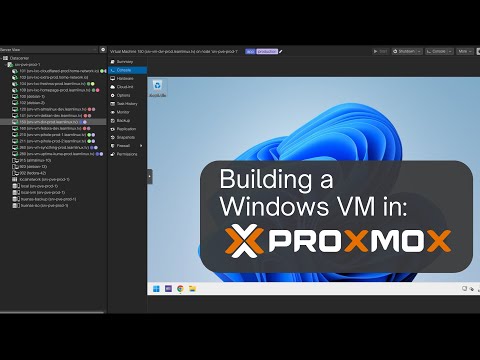
Alright, buddy, let me tell you something. Have you ever tried setting up Windows 10 on Proxmox? It’s a bit like trying to fit a square peg in a round hole sometimes. But hey, don’t worry, we’ve all been there. I remember when I first attempted it—I felt like I was navigating through an endless labyrinth of settings and configurations.
You know that feeling when you’ve finally downloaded your favorite tune after hours of struggling with internet issues? That’s the kind of relief you’ll feel when everything just falls into place with this setup.
But before we get to that point, there are some hiccups along the way that can make you want to pull your hair out! Drivers not cooperating, weird error messages popping up—it’s like the universe is against you getting this machine going smoothly.
But hang in there! We’re gonna tackle those speed bumps together and make sure you’ve got Windows 10 running slick as ever on your Proxmox setup.
Windows 10 on Proxmox Setup Compatibility Issues
Hey there! Setting up Windows 10 on Proxmox can be a bit of an adventure. You might run into some hiccups, but don’t worry, it’s all part of the process. Let’s tackle some common compatibility issues you might face.
Proxmox and Windows 10 Compatibility
Getting these two to play nice together can feel tricky. They are both great in their own right, but sometimes they need a little nudge to cooperate.
- Hardware Compatibility: One major concern is that your physical hardware needs to fully support virtualization. Make sure your processor supports VT-x or AMD-V.
- Proxmox Version: Always check if you’re running the latest version of Proxmox because older versions might have bugs that cause problems with newer Windows updates.
Configuring VM Settings
Setting up a VM for Windows 10 isn’t just about clicking “next.” A bit of attention here can save headaches later.
- UEFI vs BIOS: Ensure you select the correct boot method for your system; UEFI is usually the way to go with modern operating systems like Windows 10.
- KVM Virtualization: In the VM settings, enable KVM hardware virtualization otherwise performance could really lag.
Smooth Network Experience
Nobody likes a sluggish network connection, right?
- Network Bridging: Double-check that you’re using virtual network bridges properly configured within Proxmox to allow seamless connectivity for your VM.
- E1000 or VirtIO: If you face network adapter issues, try switching between E1000 and VirtIO drivers as they handle communication differently.
Troubleshooting Display Issues
Staring at error messages instead of a working desktop can be pretty frustrating!
- NoVNC Console Problems: Sometimes display issues arise from NoVNC console not loading properly due to graphical driver mismatches on Proxmox. Updating those drivers often solves this.
- PVE Qemu/KVM Display:: Set this correctly; “Qxl” works well for graphical uses since it allows dynamic switch between resolutions and better graphical rendering.
These are some head-scratchers people often bump into while setting up Windows 10 on Proxmox. But hey!, every problem has its solution! Figuring out these quirks means enjoying smoother virtual experiences later—trust me it’s worth it!.
Windows 10 on Proxmox: Setup Challenges in 2022
Setting up Windows 10 on Proxmox can feel like a tricky puzzle sometimes. You know, it’s like when you’re putting together a piece of furniture from an instruction manual that’s just not quite clear enough. Anyway, let’s get into some common challenges you might run into in 2022.
Challenge 1: Compatibility and Drivers
The first thing you might notice is that Windows 10 and Proxmox don’t always see eye-to-eye right out of the box. You need special drivers for things to run smoothly. Without them, it’s like trying to play a video game with no controller—frustrating!- VirtIO Drivers: To get Windows running properly, you’ll probably have to install VirtIO drivers for your disk and network adapters. They’re crucial for performance and compatibility.
- Finding Drivers: The drivers are often found on the Proxmox installation media or by downloading them directly from the Red Hat website.
Challenge 2: Disk Configuration
Oh man, disk configuration can be a real head-scratcher! When setting up your VM (virtual machine), you’ll need to choose between IDE, SCSI, or VirtIO for the hard disk interface.- VirtIO Disks: These are preferred because they offer better speed and performance compared to IDE or SCSI.
- Driver Injection: For those disks to work with Windows during installation, remember to load the VirtIO storage drivers manually. It’s like adding batteries to make something run!
Challenge 3: Network Setup
Networking is another hurdle you might encounter during setup. It’s easy for things to go sideways if you’re not using the right network model.- E1000 Model: Initially setting your network adapter model to E1000 can simplify things since it’s natively supported by most operating systems without additional driver installations.
- Losing Connection: Even after setup, losing network connection can occur if configurations aren’t saved correctly—double-check settings before moving on!
Sidenote: BIOS vs UEFI Boot Mode
Now here’s an interesting tidbit; choosing between BIOS and UEFI boot modes is more than just a technical decision—it affects compatibility!If you’re loaded with modern hardware or larger storage options (over two terabytes sometimes), UEFI mode might be necessary.
Setting up Windows on Proxmox isn’t exactly rocket science but there are quirks that make it somewhat like piecing together a complex puzzle! Once past these hurdles though—and believe me—your system will hum along beautifully!
Hope this helps break down those barriers when getting started! Good luck out there setting everything up; you’ll nail it soon enough!
Installing Windows 10 on Proxmox
can be a little bit of a puzzle, but hey, once you get the hang of it, it’s not too bad. Before you dive in, make sure you’ve got everything ready. That means having your Proxmox environment set up and the Windows 10 ISO file ready to go.
- Preparing the Proxmox Environment: First off, you want to access your Proxmox web interface. You need to create a new virtual machine (VM). This is where your Windows will live!
- Creating the VM: Click on ‘Create VM’ in your Proxmox dashboard. A wizard pops up—just give your VM a name you’ll remember! Choose ‘Microsoft Windows’ under operating system options.
Selecting Storage and ISO: You’ll need somewhere to store your VM’s data. Make sure you’ve selected appropriate storage that has enough space for everything. Next up is choosing an ISO image for installation—sometimes this trips people up! For example, if you’d named it “Windows10.ISO,” pick that one.
Now comes CPU and Memory settings. Often people wonder how much they should allocate. Rule of thumb: start with about 2 cores and at least 4GB memory; upgrade later if needed, yeah?
- Disk Configuration: Here’s where folks sometimes hit snags – go with at least 64GB disk space for starters.
- Add Network Device: Well this part’s crucial! Use VirtIO networking for better performance—it makes a difference.
Navigating Boot Options:. When setting boot order in ‘Options,’ choose CD-ROM (your ISO) first—you want it looking there for installation files right away.
Funny story: my friend Ann once spent hours wondering why her installation wasn’t starting… turns out she forgot to change boot order!
Now let’s run through installing:
1) Start-up your shiny new virtual machine by clicking ‘Start.’
2) The console window opens showing familiar Windows setup screens—we’re almost home!
3) Follow steps like choosing language/timezone till prompted for disk selection during install process.For most smooth installations possible:
- Select “Load Driver” option when asked; insert those VirtIO drivers from earlier setup onto another virtual CD-ROM device inside hardware tab—the files ensure optimal disk I/O operation.
- If things stall around hardware detection phase—double-check guest agent settings (yours should have Qemu solution enabled).
Finally—as installations finish successfully—it boots into regular old comfy windows desktop format… mission accomplished!
And really—that’s essentially it! You got yourself good-to-go instructions right there without needing a road map beyond following those outlines we laid out above—you did great job smashing through potential hurdles though didn’t ya?!
Remember these tips next time somebody mentions setting foot onto seemingly treacherous grounds resembling “Proxmox territory.” Feel confident spearheading future tech tasks or projects knowing now how easily conquer something tricky seeming initially turns quick lunchtime fun project worthy sharing round-office coffee chat tomorrow morning too maybe who knows right!?
Oh, Windows 10 and Proxmox—two sides of the tech coin that can give even the calmest person a few gray hairs. I remember one weekend I spent trying to get Windows 10 running smoothly on Proxmox. It was a real test of patience, full of quirky surprises that made me feel like I was on a roller coaster.
So, let’s consider the first challenge: drivers. You’ve set up your virtual machine thinking everything’s peachy, but then you hit a wall—Windows doesn’t play nice with hardware it doesn’t recognize. It’s like trying to fit a square peg in a round hole! You know those moments when you’re all excited, ready to see something work, only to be greeted by an error message? That can be pretty deflating.
Then there’s resource allocation. Balancing CPU and memory sounds straightforward until you dive into it. You might give too much power to Windows 10; suddenly, other VMs start acting up or vice versa if you’re too stingy with resources. It’s like being at a dinner table where everyone competes for the last slice of pie.
Networking is another story altogether. Bridging networks seems simple enough in concept—until packets start disappearing into the void like socks in a dryer! Oh boy, this can make any sensible person scratch their head and mumble “where did they go?”
If there’s anything positive about these challenges (and bear with me here), it’s how they push us toward learning new tricks and gaining insights we maybe didn’t know we had in us all along. There were moments when I’d be elbows deep in forums late at night searching for answers; sometimes finding solutions nobody else seemed aware existed!
It’s not always smooth sailing—and honestly? That’s okay! Making mistakes is part of figuring things out—you learn from them more often than not—as long as we hold onto humor while facing each technical glitch life throws our way.
Even though setup frustrations persist sometimes (and surely will pop back again someday soon), remember there’s value hidden within those pesky hurdles—they keep us humble yet ever-curious explorers within ever-changing digital landscapes where knowledge reigns supreme over petty inconveniences encountered en route toward mastery! Go figure right?!