Oh man, have you ever accidentally deleted something important off your phone? It’s like this mini heart attack, right? But don’t panic just yet. I’ve been there too. You know, that moment when a precious photo or an essential document goes poof! and vanishes into digital oblivion.
Guess what? There’s still hope! You can actually recover those files using your PC. Yeah, it sounds a bit techy, but stick with me here. You’ll see it’s not as complicated as it seems.
You’re probably thinking, “Okay, how’s this going to work?” Just grab a comfy seat and let’s go through this together step by step. There’s something oddly satisfying about watching those lost files make a comeback!
Wondering if it’s even possible? Trust me— I’ve done it myself more times than I’d like to admit!
Limitations of Recovering Permanently Deleted Files
Recovering permanently deleted files can be a real pickle sometimes, especially if you’re relying on your PC to do the job for phone files. It’s kind of like trying to fish out your favorite toy from a well. You might get it back, but there’s no guarantee it’ll be in tip-top shape—if at all!
- File Overwriting: Once a file is deleted, the space it occupied becomes available for new data. Think of it like erasing pencil marks on paper; you can still see traces unless you write over them again and again. If new data happens to overwrite this space, recovery becomes way trickier.
- Initial Recovery Attempts: Your first go at recovery is usually your best shot. Tools that specialize in file recovery may scramble some bits back together, but nothing’s set in stone. Success usually varies depending on how much time has passed since deletion.
- Device Storage Type: Different storage types have different quirks. HDDs (those old-school spinning drives) often leave behind fragments longer than those fancy SSDs. SSDs use something called wear leveling—which is like smoothing out imprints on clay—and trim commands that may clear traces really fast.
- Lack of Backups: Oh boy! Never underestimate backups! If you’re hoping data will leap right back onto your phone through sheer determination alone… well… It pays off being cautious from day one by keeping regular backups—cloud-based or local ones—as additional insurance.
Imagine facing memory loss without warning; frustrating doesn’t quite cover it—but having backup measures offers peace amid chaos.
Another thing: That so-called “permanent” delete button doesn’t necessarily mean gone forever! Data’s often just tucked deeper under layers waiting detection—but accessibility depends not only upon luck or lack thereof but also adequate tools and timing aligned perfectly along pathways toward retrieval success stories.
Recuva Compatibility Requirements
Alright, let’s figure out if Recuva fits the bill for getting back those precious files from your phone using your PC. You know, it’s like when you accidentally delete something important and then have a mini panic moment? Happened to me last week with some vacation photos. Yikes!
First off, Recuva is a nifty tool many folks use to recover deleted files. It’s pretty straightforward and can be a lifesaver. But here’s the thing: it has some specific compatibility requirements you gotta watch out for.
- Operating System: Make sure you’re running Windows on your PC. Recuva plays nicely with versions like Windows 10, 8, 7, Vista and even XP if you’re still rocking that old school vibe.
- File System: Your storage device (be it an SD card or USB drive) should use NTFS, FAT32 or exFAT file systems since Recuva handles these well.
- Connection Type: When connecting your phone to the PC, make certain your phone appears as an external drive. You might need to dig into the settings or use a third-party app if it’s not showing up right away.
- Admin Rights: You’ll need admin permissions on your computer. Kind of like having the keys to unlock all doors! Without it? Recovery could be tricky.
Alright! You’re ready to roll—almost! Here’s another quick tip: ensure any other security software isn’t blocking Recuva from doing its magic.
If you meet all these specs, then you can cross your fingers and hope those files are ready for recovery straight from phone’s memory via PC interface using Recuva.
Using tech isn’t always smooth sailing—but hey—that’s why guides like this one exist! Anything else bugging ya about tech stuff lately?
DiskDigger Basic Features
So, you’re sitting there with your phone and realize those precious photos from last weekend have vanished. It feels like losing a piece of cherished memories, doesn’t it? Thankfully, there’s this nifty tool called DiskDigger that can lend a hand when these little digital disasters strike.
What is DiskDigger?
DiskDigger’s a software that digs through your storage to find those files you thought were gone forever. Think of it like a metal detector for lost files. Its main job is to recover deleted items from various types of storage devices—like your phone being one of them.
To use DiskDigger’s basic features, you often need to connect your phone to a PC. This requires an understanding of what the tool can do:
- File Recovery: The core function here is recovering deleted files. It scans your device’s storage and lists all the files that are possible to recover.
- Supported File Types: Works with images, videos, documents, and even some app files! So there’s a decent chance it’ll find what you’re missing.
- User-Friendly Interface: With its simple design, even if you’re not tech-savvy, navigating through the options isn’t too much hassle.
Using DiskDigger: The Basic Steps
Connecting your phone with a USB cable to the computer would be step number one. That connection typically lets the PC “see” inside your phone’s storage.
Once connected and recognized by the computer, you’d start up DiskDigger on your PC.
Here’s how you’d generally go about using it:
- Select Drive: Choose which drive or partition you expect had those lost files—usually where photos or music are stored.
- Scan Options: Run either Basic or Full scan depending on how deep you’d like to look into file recovery—the Full option does take longer though!
- Select Files: Check out the list post-scan and see if anything looks familiar—it’ll show previews if available so no worries about guessing!
Now everything isn’t always perfect; sometimes recoverable file quality might be poor or incomplete due primarily because they’ve been overwritten by new data—a bit like trying fixing something smashed into bits after being run over many times! But trust me when I say having some part back beats nothing at all!
In short terms–as long as data hasn’t been overwritten–whether from accidental deletion awkward moments could turn delightful again thanks largely due proper implementation using tools such **Diskdigger** right there alongside faithful trusty old PC friend helping support process needn’t become cause worry suffering among us anymore oh lovely fond memories returned!
Oh boy, losing important files on your phone is like a small panic attack, isn’t it? I remember once I accidentally deleted some photos on my phone. They were from this amazing family gathering and meant the world to me. My heart just sank. But don’t worry, there’s hope and catching those lost files is easier than you think!
Think of your PC as a trusty sidekick for these situations. With the right software tools, many of which are user-friendly, you can connect your phone to your computer and start the recovery process. It’s kinda like going fishing—throwing out a line with fingers crossed you’ll reel something in.
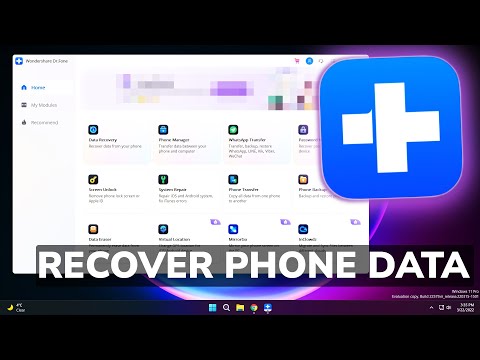
First things first though: stop using that phone immediately for anything else! Each action risks overwriting the data you’re trying to recover. Now, with your computer connected, software like Recuva or Dr.Fone can scan your device for those misplaced bytes. These programs sort through the nooks and crannies of your storage where deleted items hide out.
It might sound techy but it’s really not so scary when you get into it—and the relief when you see those dear files back is something else! Seriously though: next time ensure regular backups are scheduled too—prevention’s always better than cure, right?