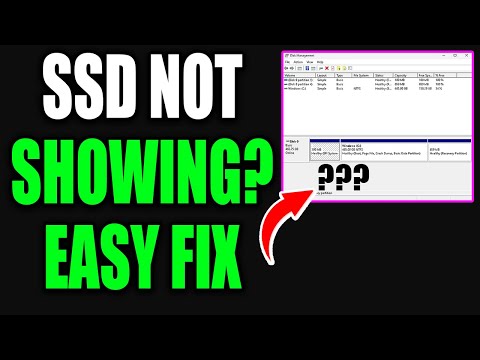
Oh man, ain’t it just the biggest bummer when your computer decides it’s not gonna play nice with your shiny new SSD? You finally decide to replace that old clunky hard drive, dreaming of those lightning-fast speeds. But then—bam! Your PC just sits there acting like it doesn’t even know what an SSD is.
I totally feel your pain. I remember this one time I was super excited about upgrading my rig. I got this sweet deal on an SSD and couldn’t wait to try it out. Popped open my computer… connected everything… and nothing! It was like the drive was invisible or something.
It’s kinda like ordering that once-in-a-lifetime gadget from the internet and then finding out it’s backordered for a year. Frustrating, right? But hey, don’t worry too much; there’s often a pretty simple reason—and fix—for why your PC’s playing hard to get with your SSD.
Let’s talk through some stuff together, see if we can figure this mess out!
Ensuring PC Compatibility with External SSD
Sure thing! Let’s chat a bit about making sure your PC and that shiny new external SSD get along like best buds. You know, connecting new gadgets can sometimes be a bit tricky, but with some simple steps, you can get things running smoothly.
Check the Connections
First things first: connections. Take a look at your cables and ports. If something isn’t plugged in all the way, it’s like trying to talk to someone without saying anything—no communication happens! Make sure everything is snug. And hey, try another port if one seems stubborn.
Update Drivers
Think of drivers as translators between your computer and hardware. Sometimes an outdated driver acts up—and that’s annoying! You can head over to the device manager on your PC and update them there.
- Open Device Manager (just type it in the search bar).
- Find Disk Drives, then look for anything that resembles your SSD.
- Right-click, then select ‘Update driver’. This should help if out-of-date drivers are causing trouble.
Troubleshoot in Disk Management
If all else failed so far, have peek inside Disk Management—it’s sort of a map of all drives connected to your computer. Your SSD might be hiding there!
- Search for: type ‘disk management’ into the search box and select ‘Create and format hard disk partitions’.
- If found as ‘Unallocated’, right-click it.
- Select ‘New Simple Volume’ to access its space!
Sneaky USB Power Settings
Here’s a sneaky one: sometimes power settings mess with USB devices staying connected properly. Go hunting within power settings for options relating USB selective suspend and disable those features—it saves you headaches!
And hey—every now again tech has quirks even when every step’s been done right; maybe take unplug rebooting dance turn off lines up stars sorts miracles itself meanwhile enjoy life cookie maybe? You’ll totally figure this out eventually!
PC Not Recognizing SSD in Windows 11
Oh no, your PC isn’t recognizing your SSD in Windows 11? That can be a real head-scratcher! Let’s see if we can sort this out together.
First things first, you want to make sure the SSD is properly connected. I know it’s basic, but you’d be surprised how often it’s something simple like a loose cable causing all the fuss. Let’s take a look at some key steps to help identify what’s going on.
- Check Physical Connections: Before diving into settings and configurations, ensure all cables are snug and secure. Sometimes twisting or moving the case slightly helps to ensure everything’s in place.
- Update BIOS/UEFI Settings: Boot up your computer and enter BIOS/UEFI by pressing a key like F2 or Delete during startup (it’s usually displayed on the screen). Look for options related to storage devices under settings like “Boot” or “Advanced.” Make sure it’s detecting your SSD.
- Update Drivers: Drivers are pieces of software that allow your hardware to communicate with Windows. To update them, open Device Manager, find the ‘Disks’ section, right-click on your SSD (if it shows!), and select “Update driver.” Follow through with any prompts.
- Initialize Disk in Windows: If it’s a new SSD, you may need to initialize it before use. Right-click on The Start Menu, select “Disk Management”. A prompt might appear asking you to initialize the disk; if not already selected, choose GPT if prompted as that’s typical for modern systems.
- Create or Assign a Drive Letter: If everything seems okay but still unseen in File Explorer, check Disk Management again. There might not be an assigned drive letter. Simply right-click on the partition, follow through assigning/resizing until visible.
And here’s something personal: I once spent an entire day tinkering because my own PC wouldn’t see my shiny new SSD only ’cause I forgot one tiny power connector inside! It really brought home how even tiny stuff makes such big impacts.
If All Else Fails…: Well then buddy-up with tech support – there could be hardware faults that need their expert eyes—or fingers—as frustrating as that is!
Windows 10 SSD Detection Issues
Hey there! So, you’re dealing with a Windows 10 machine that’s not recognizing your SSD, huh? That’s such a bummer. But let’s figure this out together! Sometimes it feels like the more tech advances, the trickier things get. But look, I’ve got some ideas that might just help you solve this.
Check Physical Connections:
First thing’s first: make sure your SSD is properly connected to your computer. This sounds basic, I know, but you’d be surprised how often a loose cable can cause headaches. Open up that PC and ensure everything’s snug and secure.
- Power Cable: Double-check to see if the power cable is firmly attached to both the SSD and the motherboard.
- SATA Cable: Ensure it’s securely connected at both ends too.
Dive into BIOS Settings:
Your computer’s BIOS can sometimes be tricky when recognizing new hardware. Restart your PC, hit that Delete or F2 key repeatedly during boot-up (depends on your system), and get into those settings!
- SATA Mode: Make sure it’s set to AHCI mode. IDE can mess things up.
- Drive Detection: Look for an option that enables automatic detection of drives.
Windows Disk Management Check:
Once we’re certain those connections are solid and the BIOS is playing nice:
1. Go to Disk Management: Right-click on Start button > Select “Disk Management”.
2. If you see your SSD listed as unallocated space or need initialization, you’ve found the culprit!
3. Right-click on that unallocated space or unseen drive and initialize/allocate it.
And hey, quick story from my own experience: I’ve had times where my own PC didn’t show my newly installed hardware until I double-checked every single connection (twice!). Don’t underestimate re-checking even what seems so simple.
Tinker With Drivers:
Outdated drivers are notorious for causing recognition issues:
- Device Manager Update: Open Device Manager by right-clicking Start Button > Select “Device Manager”. Find ‘Disk drives’, right-click on your SSD if it’s listed there > “Update driver”.
It’s always something small that makes you want to pull out your hair in frustration! Technology promises ease but occasionally delivers quirky hiccups instead.
If All Else Fails:
When nothing works:
– Consider booting using another OS USB tool like Linux Live CD/USB; sometimes they detect disks better.
– Seek help from local tech support if you’re still stumped after trying everything above—especially before getting too sweaty about broken hardware.
I hope these steps put an end—finally—to those annoying detection woes you’re facing!
You know, it’s kind of like when you’re rummaging through your backpack for your wallet and it’s not where you thought you left it – super frustrating! Same goes for when your PC doesn’t recognize your solid state drive (SSD). It should just be there, right? But sometimes things don’t go as planned.
I remember once I was setting up a new computer for a friend. They were so excited, practically bouncing. We installed everything and fired it up, only to find that the computer just couldn’t see the SSD. It was like a ghost lurking in the machine!
There could be a bunch of reasons behind this tech hiccup. Maybe it’s something as simple as checking if all the cables are plugged in properly – they can get sneaky loose every now and then. Or maybe it’s in need of an updated driver or some BIOS tweaking.
Oh, BIOS sounds scary but imagine it as the little manager inside your computer making sure everything talks to each other nicely. Sometimes new hardware doesn’t play well together without mom—I mean, BIOS—stepping in to mediate.
Once we got into troubleshooting mode though, we realized the SSD cables had somehow slipped out just enough to not work anymore… classic! A quick push back into place and voilà – problem solved. So don’t lose heart if this ever happens to you; often it’s something small hiding somewhere under our noses!
And hey, even if tech has its moody moments, there’s always a solution waiting out there too… sometimes it just takes a bit of patience (and maybe an extra pair of eyes) to find what’s going on behind those mysterious circuits!